Compartir en Instagram: Difunde contenidos atractivos entre tus amigos

Cuando piensas en fomentar la interacción de tus seguidores en Instagram, lo primero que te viene a la mente puede ser conseguir «me gusta» y comentarios. Pero hay otra forma en la que la gente puede interactuar con tu contenido para impulsar no solo la interacción, sino también el alcance. Sí, nos referimos a compartir en Instagram.
Pero, ¿qué significa compartir algo en Instagram y cómo se hace? Eso es precisamente lo que vamos a explicar hoy en esta guía. Ya se trate de una publicación chula en el feed o de unas Stories en las que te hayan etiquetado, estamos aquí para enseñarte cómo compartir contenido. Sigue bajando para aprender cómo hacerlo (¡y para ver las respuestas a las preguntas más frecuentes sobre cómo compartir Instagram !).

¿Qué es el botón Compartir en Instagram?
Lo primero es lo primero: ¿qué es el botón de compartir en Instagram? Se explica por sí mismo: este botón en forma de flecha con forma de avión de papel es lo que pulsas si quieres compartir una publicación de Instagram . Es tu puerta de entrada para conectar con otros usuarios de la plataforma y compartir con ellos contenidos increíbles.
Cada red social tiene su propia forma de «compartir» la publicación de otra persona. En Twitter, esto se conoce más comúnmente como «citar» o «retuitear» el tuit de alguien. En Facebook, está el ya tan familiar botón de compartir, que literalmente dice «Compartir». Sin embargo, en Instagram, puedes pulsar el emblemático botón del avión de papel para compartir contenido interesante con tus amigos y seguidores.
Al pulsar ese botón con forma de flecha, podrás compartir Instagram con otras personas de diversas formas. Puedes compartir la publicación de alguien en tu «Story» o enviársela a un amigo mediante un mensaje directo. También hay opciones para enviarla directamente a otras redes sociales, como WhatsApp, Messenger, Twitter y otras. Además, puedes simplemente copiar el enlace de esa publicación y pegarlo en cualquier aplicación de mensajería que estés utilizando.
¿Por qué a la gente le gusta compartir en Instagram?
Según la Harvard Business Review, compartir contenido en las redes sociales se basa en las mismas motivaciones que el «boca a boca». A la gente le gusta compartir sus experiencias porque son agradables, divertidas e informativas. Esto les permite sentirse partícipes y les hace sentir que tienen autoridad sobre lo que sea que estén compartiendo.
Y precisamente por eso la gente también comparte contenido en Instagram . La mayoría de los usuarios comparten contenido que les parece interesante y valioso, por lo que lo comparten con quienes también podrían encontrarlo de su agrado. Las marcas y los influencers, por su parte, a veces pueden compartir contenido para reafirmar su experiencia en sus respectivos nichos.
He aquí otras razones comunes por las que a los usuarios les gusta compartir contenidos en las redes sociales:
- La gente puede ver contenidos que le resulten cercanos y compartirlos con sus amigos para reírse un rato.
- Las marcas comparten contenidos generados por los usuarios para mostrar publicaciones en las que los clientes destacan sus productos. Esto sirve como prueba social de que son un negocio legítimo con productos de alta calidad.
- Los fans más fieles pueden compartir contenidos de personas influyentes y famosos que les gustan. Es una forma estupenda de apoyar sus proyectos y darlos a conocer.
- Los creadores de contenido pueden compartir publicaciones de marcas con las que hayan colaborado anteriormente. Esta es otra muestra de apoyo, en este caso entre socios y colaboradores.

Cómo compartir una publicación en Instagram: Un sencillo tutorial
Compartir publicaciones con tus seguidores te permite difundir información y contenidos valiosos sin tener que crearlos tú mismo. Los usuarios suelen compartir estas publicaciones interesantes con sus seguidores a través de Instagram . A continuación te explicamos, paso a paso, cómo compartir una publicación en Instagram:
1. Busca la entrada de Instagram que quieras compartir.
2. Haga clic en el botón con forma de flecha de papel debajo del poste.

3. En el menú emergente, puedes elegir entre enviar esta publicación a alguien por mensaje directo o a través de otras aplicaciones. Pero si quieres añadirla a tus Instagram para que la vea todo el mundo, haz clic en «Añadir a la historia».
4. Se abrirá la pantalla del editor de historias. Puede cambiar la posición y el tamaño de la publicación compartida pellizcándola y arrastrándola a cualquier lugar de la pantalla.
5. Personaliza tu «Story» como quieras. Añade texto, música, pegatinas y mucho más.
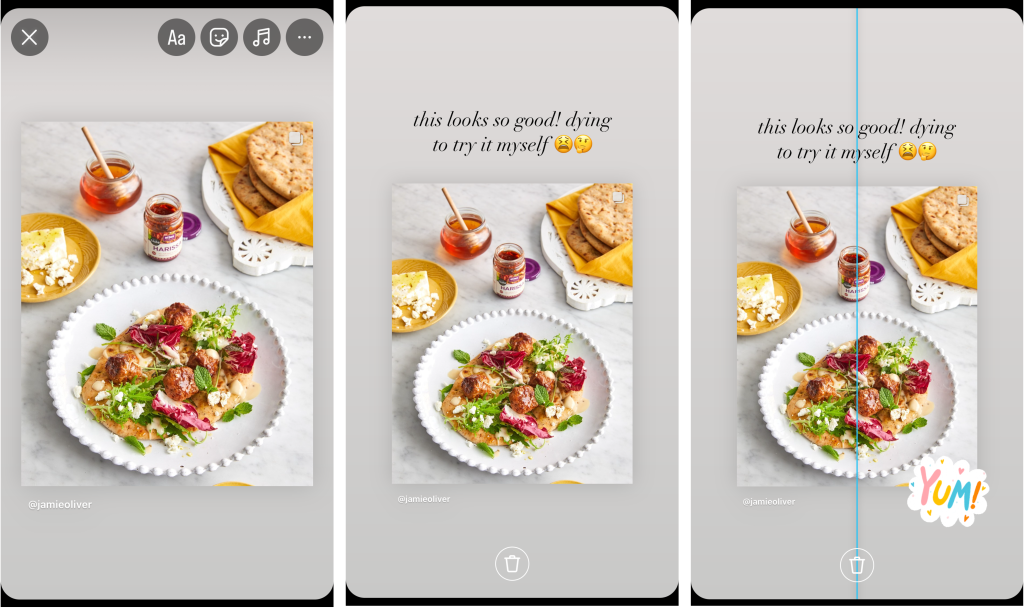
6. Cuando estés satisfecho con el aspecto de tu publicación en «Stories», haz clic en el botón de flecha situado en la esquina inferior derecha.
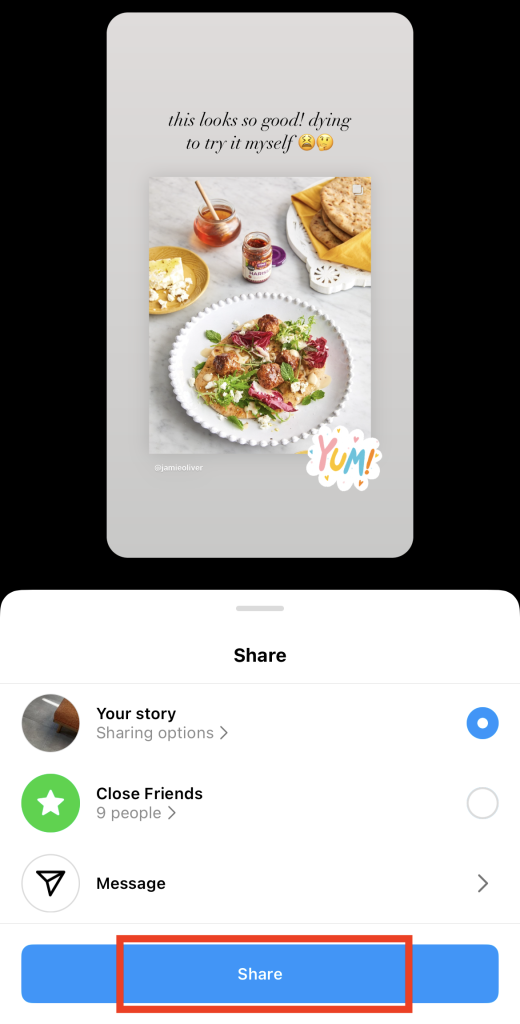
7. Elige la audiencia para tu publicación. Puedes elegir entre todos los seguidores o solo tus Amigos íntimos.
8. Por último, pulsa «Compartir».
Cómo compartir un post en Instagram a mi feed: ¿Es posible?
Si te ha parecido interesante la publicación de alguien, quizá te preguntes: «¿Cómo puedo compartir una publicación de Instagram mi feed?». Bueno, siento desilusionarte, pero por ahora no es posible hacerlo en Instagram. Si quieres compartir la publicación de alguien para que la vean tus seguidores, solo puedes hacerlo en tu Story.
Instagram permite a los usuarios compartir publicaciones en su feed para proteger los derechos de propiedad intelectual del autor original. Si compartieras la publicación de otra persona en tu feed, la gente podría interpretarla erróneamente como si fuera obra tuya. El autor original siempre se atribuye la autoría del contenido que se comparte únicamente en las Stories.
¿Cómo se puede reenviar una publicación de Instagram fuera de la aplicación?
Una vez más, Instagram no tiene una función dentro de la aplicación que permita a la gente volver a publicar el contenido de alguien en sus propios feeds. Pero es un secreto a voces que puedes volver a publicar el contenido de otra persona utilizando aplicaciones de terceros.
Estas aplicaciones de terceros pueden descargar por ti las publicaciones del feed de otra persona. A continuación, suelen añadir un símbolo o una marca de agua en algún lugar para indicar que estás compartiendo el contenido de otra persona.
Entonces, ¿cómo puedes volver a publicar una entrada de Instagram en tu feed sin pasar por la aplicación? El proceso suele ser el siguiente:
1. Elige una aplicación o sitio web para compartir en el que confíes. Busca las que tengan muchas opiniones fiables.
2. Busca el post de Instagram que quieras reenviar a tu feed.
3. Pulsa el botón del avión de papel.
4. Pulse el enlace Copiar para copiar la URL de la entrada.
5. Vuelve a la aplicación para compartir y pega allí la URL. La aplicación mostrará la publicación original y generará una versión reposicionable de la misma con un símbolo de reenvío.
6. Descarga la nueva foto para guardarla en tu dispositivo.
7. Abre Instagram crea una nueva publicación. A continuación, sube la foto que has descargado de la aplicación para compartir publicaciones.
8. Personaliza la publicación para darle tu toque personal. Añade un pie de foto que cuente cómo descubriste la publicación. A continuación, da el crédito correspondiente al autor original etiquetándolo en la publicación.
9. Por último, haz clic en «Compartir» para publicar la entrada en tu muro.
Este método es una excelente solución alternativa si de verdad quieres compartir la publicación de alguien en tu muro. Sin embargo, una buena norma general es pedir permiso al autor original antes de volver a publicar su contenido. A continuación, mencionalo debidamente en el pie de foto de tu publicación.
Cómo compartir un vídeo en Instagram
En Instagram hay muchos formatos de publicación de vídeos interesantes que puedes compartir en tu cuenta. Por ejemplo, en Instagram Reels puedes compartir vídeos divertidos o relacionados, así como vídeos en las Stories de tus amigos en los que te mencionen.
A continuación te explicamos cómo compartir un vídeo en Instagram, ya sea un Reel o una historia.
Cómo compartir un carrete en Instagram Stories
No es raro encontrar un Reel que quieras compartir con tus seguidores. Puede ser un Reel de tu cantante favorito o un sketch divertido con el que tú y tus amigos os sintáis identificados. Compartir estos pequeños vídeos es una forma estupenda de involucrar a los demás y apoyar a otros creadores difundiendo sus contenidos.
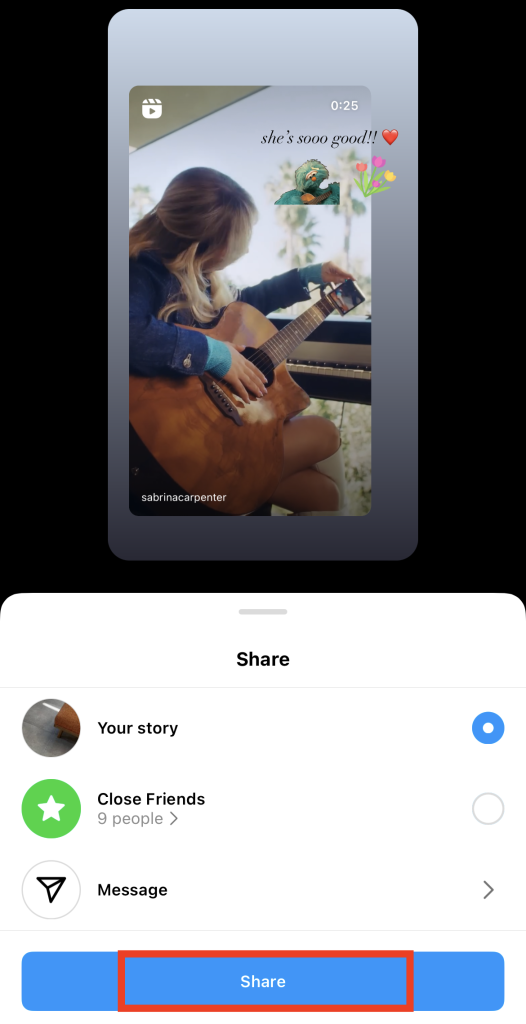
¿Estás preparado para compartir vídeos divertidos con tus seguidores? Aquí te explicamos cómo compartir un Reel en Instagram Stories:
1. Busca el Carrete Instagram que quieras compartir en tu Historia.
2. Haga clic en el botón de compartir con forma de plano de papel situado a la derecha de la pantalla. Debe estar justo debajo del icono de comentario.
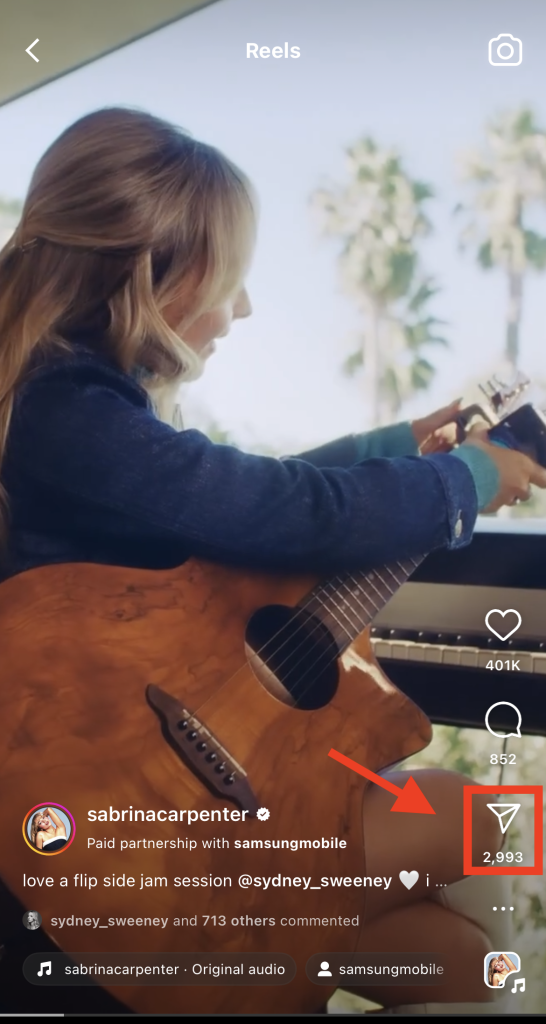
3. Pulse Añadir a la historia.
4. Reposiciona el Carrete como quieras en tu Historia.
5. Añade otros elementos para personalizar tu publicación compartida. Puedes incluir texto y pegatinas o incluso cambiar el color de fondo de tu Historia.
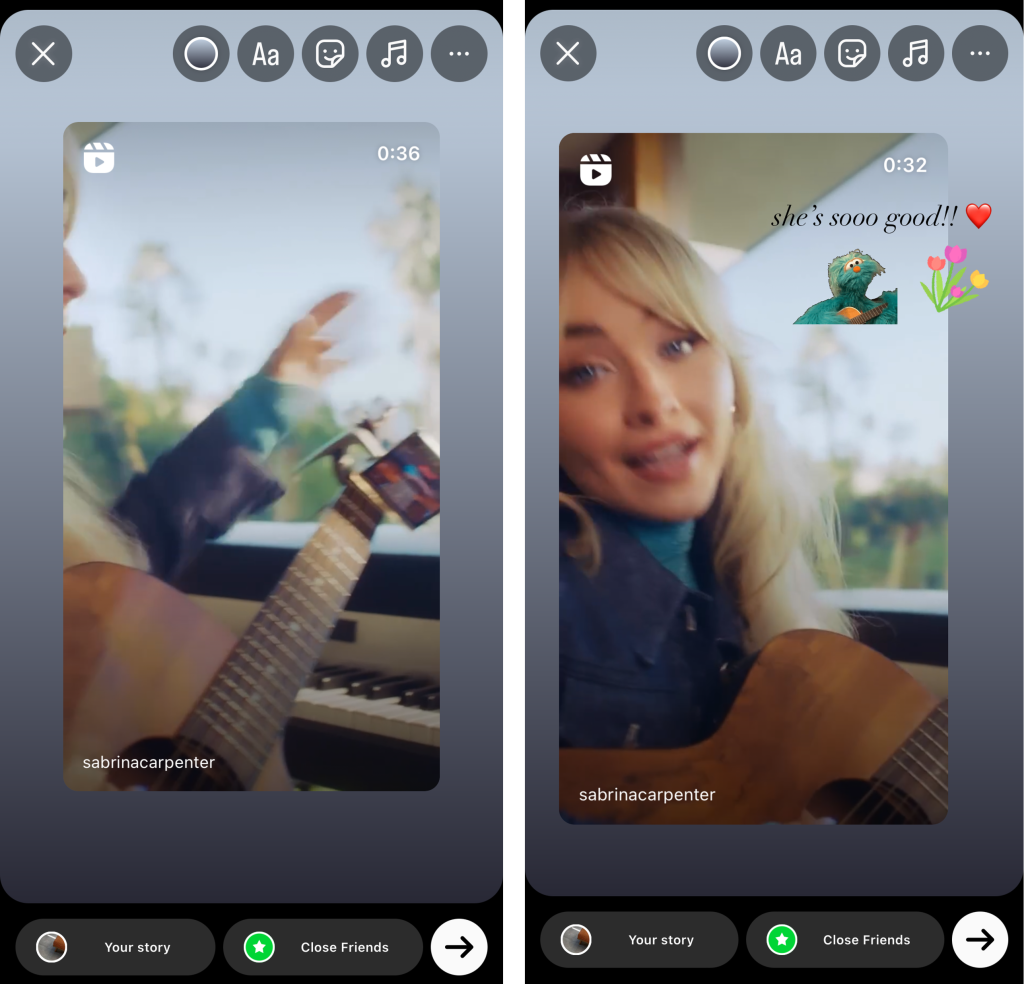
6. A continuación, haz clic en la flecha situada en la parte inferior derecha de la pantalla.
7. Elige a los destinatarios a los que quieres mostrar tu «Story». A continuación, haz clic en «Compartir».
Cómo compartir la historia de alguien Instagram Video on Your Own
¿Te preguntas cómo compartir los vídeos Instagram de otra persona en tus propias historias? Por desgracia, no puedes hacerlo con cualquier publicación de una historia. Solo puedes compartir el vídeo de la historia de otra persona en la tuya si quien lo ha publicado te etiqueta. A continuación te explicamos cómo hacerlo, paso a paso:
1. Cuando alguien te mencione en su vídeo de «Stories», Instagram una notificación. Haz clic en esa notificación o simplemente abre el mensaje directo con la persona que ha publicado el contenido.
2. En el chat, deberías ver las historias en las que esa persona te ha etiquetado. Haz clic en «Añadir esto a tu historia» debajo del vídeo que quieras compartir en tu historia.
3. Se abrirá la pantalla del editor de Historias. Personaliza tu Historia compartida como quieras.
4. Haz clic en Compartir cuando estés listo para publicar la mención de la Historia.
Impulse sus propias acciones en Instagram : Cómo hacer que la gente comparta su contenido
Las veces que se comparte un contenido son mucho más difíciles de conseguir que los «me gusta» y los comentarios, que Instagram reparten como si fueran caramelos. Compartir una publicación implica que la gente guarde ese contenido en sus perfiles, normalmente en sus «Stories». Además, hay que dar un paso más: personalizar las publicaciones compartidas en el editor de «Stories». Por eso, cuando alguien comparte tu contenido en su perfil, sabes que significa que realmente le ha gustado.
Pero, ¿cómo puede atraer exactamente a su público objetivo para que quiera difundir sus publicaciones a otras personas? Aquí tienes algunos consejos rápidos para conseguir que la gente comparta tus contenidos en sus propias páginas de Instagram :
- Crea contenido fresco, valioso y original. Cuanto más único e intrigante sea tu contenido, más probable será que la gente lo comparta con otras personas. Utiliza imágenes llamativas con una estética divertida e interesante. También puedes optar por una vía más práctica y crear contenido fácil de compartir, como tutoriales, demostraciones de productos, infografías y mucho más.
- Crea Reels con los que el público se sienta identificado y que despierten emociones. Si publicas vídeos, plantéate crear contenido que sea divertido, entretenido, conmovedor y con el que el público se sienta identificado. Aprovecha tu talento para contar historias y haz que la gente se ría o llore. Despiertar emociones intensas en los espectadores hace que una publicación sea mucho más fácil de compartir.
- Colabora con otras marcas e influencers. Al publicar contenido en el que aparezcan otras Instagram populares Instagram , podrás acceder a su base de seguidores. Es posible que sus seguidores vean tu contenido y lo compartan en su feed para apoyar a las marcas que les gustan.
- Ofrece un premio a quienes compartan tus contenidos. Una buena forma de llevar a cabo esta idea es organizar un sorteo con un premio interesante. Pide a los participantes que compartan la publicación del sorteo en sus Stories para correr la voz.

Cómo hacer que las publicaciones se puedan compartir en Instagram
Aunque tengas un Instagram público Instagram , tú decides si los usuarios pueden compartir tus publicaciones. A continuación te explicamos cómo hacer que tus publicaciones se puedan compartir en Instagram:
1. Vaya a su perfil Instagram .
2. Haga clic en las tres líneas horizontales de la esquina superior derecha de la página.
3. Seleccione Compartir y remezclar.
4. Activa el interruptor correspondiente a las publicaciones que quieras que se puedan compartir. Puedes hacerlo con las publicaciones del feed, los Reels compartidos en las Stories de otros usuarios y las Stories compartidas a través de mensajes.
Ten en cuenta que, si tienes una Instagram privada Instagram , nadie puede compartir tus publicaciones en sus historias. Sin embargo, puedes decidir si los usuarios pueden compartir tus historias cuando los hayas etiquetado en ellas.
Comparte publicaciones que crees que gustarán a tus seguidores para aumentar la participación en IG
Ahora que ya sabes cómo compartir publicaciones en tu Instagram , busca las más chulas y relevantes para publicarlas. Asegúrate de elegir fotos y vídeos chulos que resulten interesantes para tus seguidores. De esta forma, podrás aprovechar las ventajas de una alta interacción sin tener que publicar nada nuevo.
¿Quieres que más gente vea lo que compartes en Instagram? Haz crecer tu base de seguidores para compartir contenidos interesantes con más usuarios. El equipo de Path Social puede ayudarte a conseguirlo.
Utilizamos algoritmos basados en inteligencia artificial para identificar a tu público objetivo y mostrarle tu contenido. Descubrirán tu página y, con suerte, te seguirán. A partir de ahí, verán todo tu contenido en sus feeds, ya sean publicaciones originales o compartidas. Quién sabe, quizá incluso consigas que tus publicaciones se compartan más tras ganar más seguidores. ¡Así que haz crecer tu Instagram hoy mismo con Path Social!





¿Buscas el mejor servicio de promoción de Instagram ?
¡Consigue una interacción auténtica, un alcance específico y un crecimiento duradero con nuestra estrategia diseñada por expertos!
Pruebe nuestro servicio de promoción de Instagram