Instagram Tutoriel pour le poste de texte : Engagez les autres avec vos mots

Instagram | 29 mai 2024
Instagram une plateforme de réseaux sociaux avant tout visuelle, mais les mots ont aussi leur importance dans les publications. C’est pourquoi de nombreux créateurs de contenu prennent le temps de rédiger des légendes qui invitent à la réflexion et d’ajouter des incrustations de texte à leurs vidéos. Mais il existe une autre façon d’utiliser les mots pour s’exprimer sur cette plateforme : les publications Instagram .
Les publications sous forme de texte sont idéales si vous souhaitez exprimer votre opinion en ligne sans pour autant publier de photos ou de vidéos. C'est possible grâce à l'option « Texte » Instagram . Il vous suffit d'écrire ce que vous avez à dire, de personnaliser votre publication dans votre Story, puis de la partager avec vos abonnés.
Mais comment créer exactement une publication sous forme de texte, et comment exploiter cette fonctionnalité de manière créative ? Poursuivez votre lecture pour découvrir tout le plaisir que vous pouvez tirer de cette fonctionnalité géniale.

Comment publier un texte sur Instagram Stories
Les publications textuelles sont géniales, car elles vous permettent de partager vos pensées en ligne sans avoir besoin de supports visuels. Vous n’avez pas la pression de devoir trouver des photos et des vidéos soignées et trop retouchées. Il suffit d’écrire ce que vous ressentez et de publier d’un simple clic. Cela en fait un format créatif incroyablement simple à gérer et ne demandant que peu d’efforts, tout en permettant de créer du contenu captivant.
Vous souhaitez publier votre premier message texte simple pour le partager avec vos abonnés ? Voici comment publier du texte sur Instagram , étape par étape :
1. Ouvrez l'application Instagram sur votre appareil.
2. Cliquez sur le signe plus en bas de la page d'accueil. Cela vous permet de créer un nouveau message.
3. Choisissez Histoire en bas de la page.
4. Cliquez sur le bouton de texte dans le panneau situé à gauche de l'écran de l'histoire. Son icône doit ressembler à "Aa". Vous accédez ainsi au créateur de messages textuels.

5. Touchez l'espace coloré au centre de l'écran.
6. Commencez à taper ce que vous voulez dire dans votre message. N'hésitez pas à ajouter de jolis émojis pour égayer votre message.
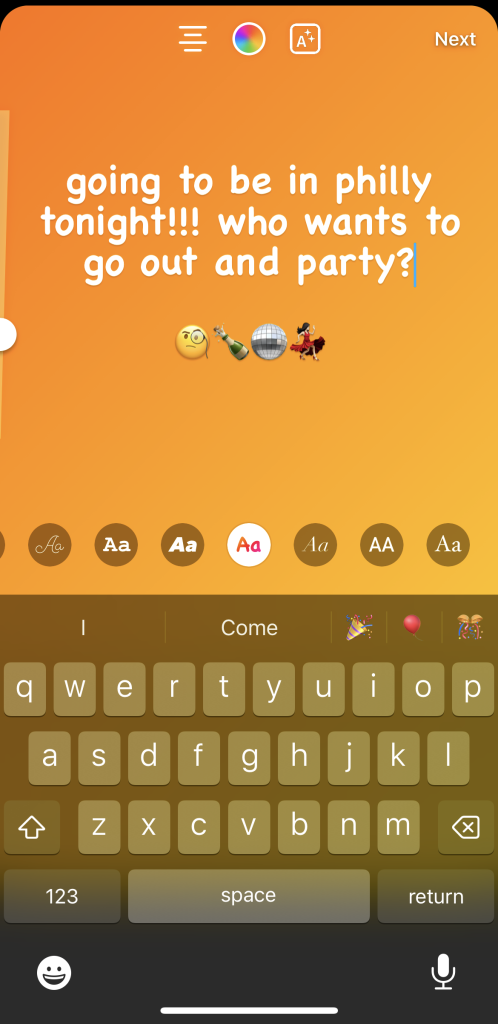
7. Personnalisez votre texte en testant différentes polices, couleurs et animations. Lorsque vous êtes satisfait du rendu de votre texte, cliquez sur « Suivant » dans le coin supérieur droit de l'écran.
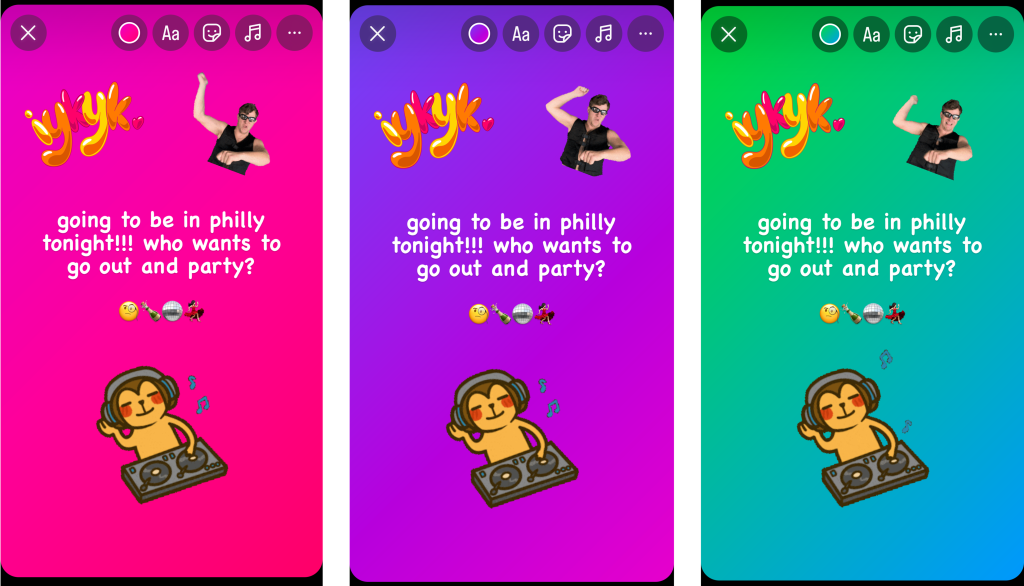
8. Ajoutez des autocollants, de la musique et d'autres éléments sympas à votre publication dans les Stories. Glissez-déposez vos autocollants comme bon vous semble.

9. Appuyez sur le bouton de couleur situé en haut de l'écran pour modifier la couleur d'arrière-plan. Vous avez le choix entre plusieurs palettes de couleurs : orange, rose, violet, vert, et même un effet arc-en-ciel original.
10. Cliquez sur la flèche en bas à droite de l'écran.
11. Choisissez le public avec lequel vous souhaitez partager votre message (public ou amis proches uniquement).

12. Pour finir, cliquez sur « Partager » pour publier votre message texte.
Idées de contenu pour des articles de texte à publier sur Stories
Vous voulez vous amuser avec des messages textuels, mais vous ne savez pas trop quoi en dire ? Voici quelques idées amusantes de Instagram Story pour les messages textuels, dont vous pourrez vous inspirer :
- Citations motivantes: Partager des citations inspirantes sur Instagram est un excellent moyen de remonter le moral et d'encourager vos abonnés. Publiez dans votre Story une citation touchante et pleine de sens qui motivera les autres. On ne sait jamais : cela pourrait bien illuminer la journée de quelqu'un qui tomberait dessus.
- Astuces et conseils pour vos abonnés: partagez avec vos abonnés des petites astuces pratiques et des conseils qui peuvent les aider à améliorer leur quotidien. Il peut s'agir d'une astuce de ménage toute simple que vous avez récemment découverte ou de conseils professionnels que vous souhaitez transmettre à de jeunes professionnels. Dans la mesure du possible, veillez à ce que les conseils que vous partagez s'inscrivent dans votre domaine de spécialité. Cela vous permettra de renforcer votre crédibilité et votre expertise sur vos thèmes et sujets clés.
- Actualités: partagez avec vos amis des nouvelles sur l'endroit où vous vous trouvez, les projets sur lesquels vous travaillez et ce que vous avez fait ces derniers temps. Il n'est pas toujours nécessaire d'accompagner ces brèves mises à jour d'une photo ou d'une vidéo. Parfois, un simple message écrit suffit.
- Poser des questions: cherchez-vous à recueillir des informations auprès de votre communauté ou à mieux cerner votre public cible ? Posez-leur une question via une simple publication textuelle. Certes, il serait sans doute préférable d’utiliser un sticker « Questions-réponses » ou « Sondage ». Mais une publication textuelle peut suffire si vous n’avez pas le temps de choisir une photo ou de créer une Story sous forme de sondage. Il vous suffit de la publier et d’attendre que les réponses s’affichent dans les commentaires de votre Story.
- Une recommandation de film, de livre ou de chanson: vantez vos coups de cœur du moment dans des publications courtes et percutantes. Expliquez pourquoi vous adorez ces œuvres, ou partagez une scène ou un passage qui vous a marqué. Ensuite, incitez vos abonnés à découvrir vos recommandations avec une critique en une phrase qui fait mouche !

Instagram Le texte de l'article disparaît après avoir été posté : Résolution d'un problème technique courant
Certaines personnes peuvent être confrontées au problème de la disparition du texte Instagram après la publication d'un contenu. Si cela vous arrive, pas de panique. Il existe de nombreuses raisons pouvant expliquer ce phénomène. Mais il y a toujours une solution pour y remédier.
Cela peut notamment s'expliquer par le fait que votre connexion Wi-Fi n'est pas assez puissante au moment où vous publiez votre publication textuelle. Une connexion Internet lente peut perturber le processus d'édition et de publication sur Instagram. Parfois, cela peut nuire à l'esthétique de votre publication textuelle.
Si cela vous arrive, vérifiez bien votre débit Internet. Lorsque votre connexion Internet sera plus stable, pensez à supprimer votre publication textuelle et à la republier. Avec un peu de chance, une meilleure connexion vous permettra de publier votre Story sans que le texte ne disparaisse.
Des problèmes mineurs de ce type peuvent également survenir si vous utilisez une version obsolète de l'application Instagram . Téléchargez la dernière version de l'application pour éviter tout problème avec vos messages textuels.
Comment modifier le texte d'une histoire sur Instagram après sa publication : Est-ce possible ?
Vous vous demandez comment modifier un texte dans Instagram après l'avoir publiée ? Malheureusement, il n'existe actuellement aucun moyen de modifier le contenu d'une Story une fois qu'elle a été publiée.
Ainsi, si vous publiez une publication sous forme de texte, vous ne pouvez pas en modifier le contenu. La seule façon de « modifier » votre publication consiste à supprimer la publication originale et à republier la Story avec le texte correct. C'est certes fastidieux de suivre toute cette procédure, mais c'est bien mieux que de laisser une Story en ligne alors qu'elle contient de nombreuses erreurs.
Pouvez-vous également créer des messages textuels sur Instagram Feed ?
Oui, il est tout à fait possible de publier des images contenant uniquement du texte sur le Instagram . Cependant, l'application ne dispose actuellement d'aucune fonctionnalité intégrée permettant de le faire, comme c'est le cas automatiquement dans les Stories. Ainsi, pour publier une image contenant uniquement du texte sur votre profil, vous devez la créer manuellement.
Cela peut sembler intimidant, mais c'est en fait assez simple. Il suffit de choisir quelques outils de création avec lesquels vous vous sentez à l'aise, comme Photoshop ou Snapseed. Créez ensuite une image comportant du texte. Enregistrez la photo sur votre téléphone et publiez-la sur votre fil d'actualité. Et voilà ! Vous disposez désormais d'une image captivante, composée uniquement de texte, sur votre Instagram .
Mais attention : les publications contenant du texte ne suscitent pas autant d’engagement que les photos sans texte. Selon une étude réalisée par Agorapulse, les images sans texte génèrent davantage d’engagement et bénéficient d’une plus grande portée sur Instagram. Il faut donc toujours garder les pieds sur terre lorsque vous publiez des photos avec du texte sur votre fil d’actualité. Si votre objectif principal est de stimuler l’engagement, ce type de contenu n’est peut-être pas le plus adapté à vos besoins.
Conseil de pro : Utilisez un modèle de message texte Instagram pour le fil d'information
Si vous souhaitez vraiment publier un post texte sur votre fil d'actualité, nous vous recommandons d'utiliser un modèle de post Instagram . Vous trouverez ce genre de modèles partout sur Internet. L'agence de design Canva, notamment, propose une multitude de modèles dynamiques et attrayants pour les posts texte.
Canva vous permet de choisir parmi des centaines de modèles et de personnaliser le texte, les couleurs, les éléments graphiques et bien plus encore. Vous y trouverez des modèles adaptés à toutes les occasions, toutes les saisons et tous les styles esthétiques. Il vous suffit de choisir votre modèle dans leur vaste bibliothèque. Ensuite, personnalisez votre publication comme vous le souhaitez à l'aide du modèle. Enfin, enregistrez votre travail et publiez-le sur votre Instagram .
Comment copier le texte d'un message sur Instagram
Il arrive que vous voyiez sur Instagram un texte que vous souhaitez copier et enregistrer sur votre téléphone. Il peut s'agir d'un message d'inspiration dans la légende d'un billet ou d'une recette que vous voulez essayer pour le dîner.
Vous vous demandez comment copier du texte à partir des légendes Instagram ? Malheureusement, la plateforme ne permet pas aux utilisateurs de copier-coller du texte depuis l'application. Nous avons toutefois une astuce rapide pour contourner cette limitation.
Commencez par faire une capture d'écran du texte que vous souhaitez copier et coller ailleurs. Fermez ensuite Instagram et rendez-vous dans votre pellicule. Ouvrez la capture d'écran contenant le texte et sélectionnez-le. Cliquez sur « Copier », puis collez le texte là où vous le souhaitez. C'est facile, n'est-ce pas ?
Vous pouvez également copier-coller du texte provenant d’une Instagram à l’aide d’outils tiers disponibles sur Internet. Mais n’y recourez qu’en dernier recours. Le fait de lier vos identifiants de connexion à des applications tierces douteuses peut amener Instagram à considérer que votre compte se livre à des activités non authentiques. Cela peut entraîner de très graves conséquences sur Instagram, comme le redoutable « shadowban ». Privilégiez donc autant que possible la méthode consistant à faire une capture d’écran puis à copier le texte.
Augmentez la traction de vos messages textuels en développant votre base de fans
N'oubliez pas :Instagram une plateforme très visuelle. Il est donc possible que vos publications composées uniquement de texte ne suscitent pas autant d'intérêt que celles contenant des photos ou des vidéos. Pour vous assurer que vos publications textuelles bénéficient de la visibilité qu'elles méritent, diffusez-les auprès d'un public plus large. Vous donnerez ainsi à votre contenu textuel davantage de chances de générer un engagement significatif.
L'un des moyens d'élargir la portée de votre texte Instagram (et de tout autre contenu) est de gagner plus d'adeptes. Path Social peut vous aider dans cette tâche.
Nous utilisons l'intelligence artificielle pour identifier votre public cible sur Instagram lui faire découvrir votre page. Cela garantit que votre contenu touche les personnes auxquelles il s'adresse le plus efficacement. Lorsque ces utilisateurs découvriront votre page, ils seront plus enclins à la suivre, ce qui augmentera ainsi votre nombre d'abonnés. Très rapidement, vous constaterez une augmentation significative de votre nombre d'abonnés et de vos taux d'engagement. Gagnez plus d'abonnés dès aujourd'hui grâce à Path Social!





Vous voulez suivre la croissance de votre compte Instagram ?
Analysez vos progrès et obtenez des informations précieuses grâce à notre outil de suivi gratuit !
Vérifiez la croissance de votre compte Instagram dès maintenant