Cómo volver a publicar en Instagram para aumentar la visibilidad y la participación

Crear contenido original para tu marca en Instagram siempre Instagram ser una prioridad absoluta. Pero saber qué contenido volver a publicar en Instagram igual de eficaz que publicar contenido propio. Volver a publicar contenido ayuda a que tu cuenta y tu contenido sigan siendo relevantes y competitivos. Además, ampliarás tu alcance, ganarás nuevos seguidores y conseguirás más «me gusta». Compartir contenido que complemente el mensaje de tu marca y conecte con tu público puede traducirse en una mayor visibilidad y participación. El hecho de que sea muy fácil es, sin duda, una ventaja añadida. A continuación te explicamos cómo compartir contenido en Instagram mayor visibilidad y participación.

Por qué debe volver a publicar Instagram
Cuando sabes cómo volver a publicar en Instagram, dispones de una opción de reserva. Volver a publicar resulta muy útil para esos momentos en los que no tienes tiempo o te falta inspiración para crear contenido original. Compartir publicaciones aporta una variedad estupenda al feed de tu perfil y funciona, en la práctica, como una pseudocolaboración con los creadores del contenido original. Además, hay varias formas de volver a publicar. Ya sea en tu feed o en tus Instagram , seguro que consigues que Instagram te vean. Intenta volver a publicar en Instagram si te estás preguntando cómo actualizar Instagram contenido de tu cuenta. Solo asegúrate de que tus publicaciones estén en consonancia con tu marca o con Instagram . No solo fomenta la interacción en tu feed, sino también en el del autor original. Además, es una forma estupenda de conseguir que la gente comparta tu contenido en Instagram.
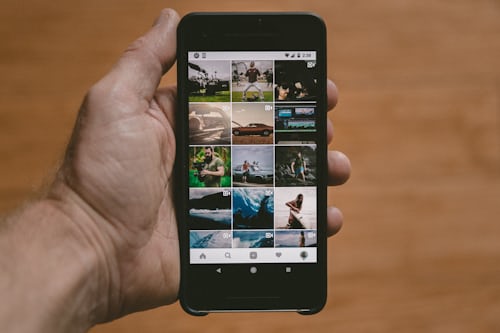
Cómo volver a publicar en Instagram: Lo básico
Ahora que ya sabes por qué deberías volver a publicar, veamos cómo hacerlo en Instagram. Hay varias formas de volver a publicar. Publicar en tu feed o compartir en tu Instagram son las formas más eficaces de añadir contenido nuevo. Hay dos cosas que debes tener en cuenta al compartir la publicación de otra persona. Puedes compartirla si el autor original tiene una cuenta pública. Y, además, si te sigue y su configuración de privacidad lo permite. ¿Estás listo para empezar a compartir publicaciones? A continuación te mostramos las distintas formas de compartir publicaciones en Instagram.
Cómo volver a publicar en Instagram utilizando la opción "Compartir en
Así que has encontrado contenido genial creado por los usuarios dentro del nicho de tu marca, pero no estás seguro de cómo utilizarlo. En primer lugar, decide si quieres compartirlo en tu feed o en tus Instagram . ¿Quieres compartirlo a través de la función Instagram historias Instagram ? A continuación te explicamos cómo volver a publicar en Instagram la opción «Compartir en».
- En la Instagram o en la página web para ordenador, ve a la publicación original que quieras compartir.
- Pulse sobre el icono del avión de papel situado justo debajo del vídeo o la foto que desea compartir.
- Pulsa sobre la opción "Añadir publicación a tu historia".
- Tienes la posibilidad de añadir texto, pegatinas, música y otras funciones antes de publicar la historia en tus Instagram .
- Una vez que hayas editado el contenido que quieres compartir, haz clic en la opción «Tu historia» o «Amigos cercanos». La pestaña «Tu historia» compartirá el contenido con todos tus seguidores. La opción «Amigos cercanos» te permite seleccionar Instagram específicas Instagram con las que compartir el contenido.
- Pulse el botón de la flecha blanca para volver a publicar en Instagram.
Recuerda que puedes compartir la publicación original mediante un mensaje directo. También es posible que tengas la opción de compartirla en Facebook, Messenger o Twitter. Además, puedes compartirla por correo electrónico o copiando el enlace de la publicación.
Cómo volver a publicar una historia en Instagram
La única forma de volver a publicar una historia en Instagram es si estás etiquetado en ella. A continuación se explica cómo volver a publicar una historia en Instagram.
- Recibirás una notificación en tu buzón de mensajes del autor original cuando te hayan etiquetado en una historia de Instagram .
- Toca "Añadir a tu historia".
- Edita la historia a tu gusto.
- Pulsa "Tu historia" o "Amigos cercanos" para decidir con quién quieres compartir tu historia de Instagram .
- Pulsa el botón de la flecha blanca para publicar.
Ten en cuenta que Instagram un límite de 24 horas para las historias. Si te mencionan o te etiquetan, no podrás volver a publicar la historia en Instagram haya expirado ese plazo. Actualmente, la única forma de volver a publicar una historia es que la persona que la ha publicado originalmente te etiquete en ella. Si tu dispositivo te lo permite, puedes grabar la pantalla y luego compartir la historia sin que te hayan etiquetado. O bien, puedes utilizar una aplicación de terceros. No obstante, siempre debes pedir permiso primero al propietario del contenido original.
Cómo volver a publicar un post en Instagram
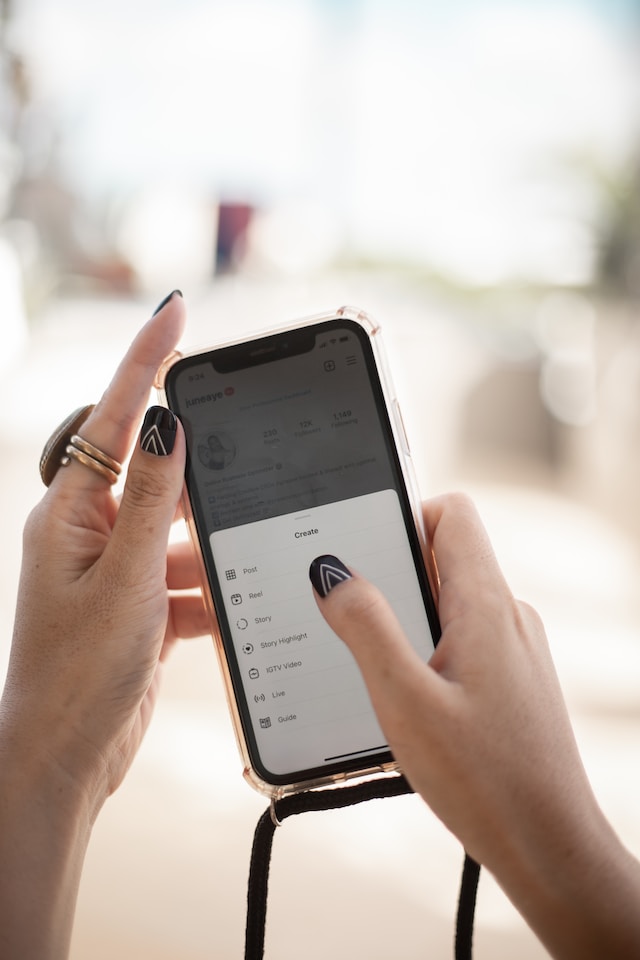
¿Te preguntas cómo volver a publicar Instagram o entradas Instagram que han aparecido en tu feed? Por desgracia, no puedes volver a publicarlas en la página de inicio de tu cuenta, sino solo en tus historias. La buena noticia es que, si te preguntas cómo volver a publicar una Instagram en tus historias, te lo explicamos aquí.
- En la Instagram o en la página web para ordenador, ve a la publicación que quieras compartir.
- Pulse sobre el icono del avión de papel.
- Pulse sobre la opción "Añadir carrete a su historia".
- Realice las modificaciones oportunas.
- Toca la opción de compartir "Tu historia" o "Amigos cercanos".
- Pulse sobre la flecha blanca para volver a publicar en Instagram.
También puedes volver a publicar una Instagram a través de la función de compartir. Desde el icono del avión de papel, elige en qué red social quieres volver a publicarla. Otra opción es copiar el enlace y pegarlo en tus mensajes. No te sorprendas si intentas compartir una entrada y no puedes. No todas las entradas de contenido generado por los usuarios en Instagram esta función de compartir. Además, no se puede compartir desde una cuenta privada.
Cómo volver a publicar capturas de pantalla de Instagram
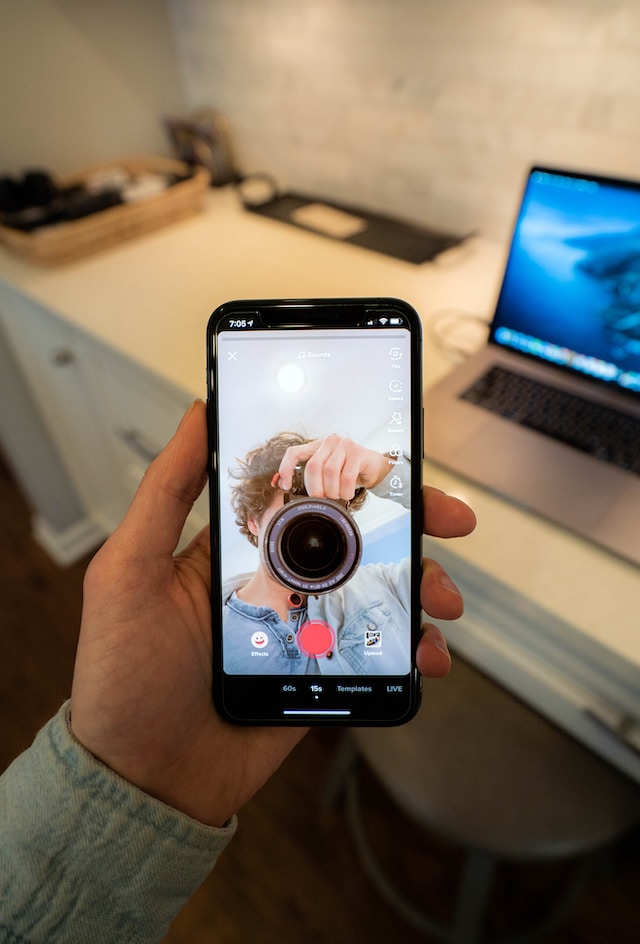
Al vivir en un mundo digital, puedes encontrar las imágenes perfectas para tu marca en cualquier sitio. Si has encontrado una imagen fuera de Instagram quizá una Instagram que no se puede compartir, haz una captura de pantalla. A continuación te explicamos cómo volver a publicar Instagram y otras capturas de pantalla en tu Instagram desde el carrete.
Cómo reenviar capturas de pantalla a Instagram Stories
Tendrás que decidir si quieres volver a publicar Instagram en tus historias o en tu propio Instagram . Para conseguir más visibilidad, asegúrate de usar hashtags y así conseguir más «me gusta» y seguidores. Si te has decidido por las historias, volver a publicar en Instagram muy sencillo.
- Desde la página de inicio de tu feed o desde la página de inicio Instagram tu Instagram , pulsa sobre tu foto de perfil. Debería aparecer un icono con el signo más en la esquina de tu foto de perfil.
- Aparecerán las fotos y capturas de pantalla del rollo de la cámara de tu teléfono o de tu ordenador de sobremesa.
- Pulse sobre la captura de pantalla que desea volver a publicar en Instagram.
- Realice las modificaciones oportunas, como cambiar el color de fondo de su historia en Instagram .
- Toca la opción de compartir "Tu historia" o "Amigos cercanos".
- Pulsa en la flecha blanca para compartir en tus historias.
¿Te preguntas cómo añadir varias fotos a Instagram ? Tendrás que volver a publicar las fotos manualmente, repitiendo el proceso con cada una de ellas. Para asegurarte de que has vuelto a publicar tu captura de pantalla (o cualquier otro contenido) en tus historias, echa un vistazo a tu foto de perfil. ¿Tiene un anillo multicolor a su alrededor? El anillo indica que tienes contenido en tus Instagram que es visible para tus seguidores y otros Instagram . Es recomendable revisar tus historias para asegurarte de que estás publicando el contenido correcto.
Cómo reenviar capturas de pantalla a tu feed Instagram
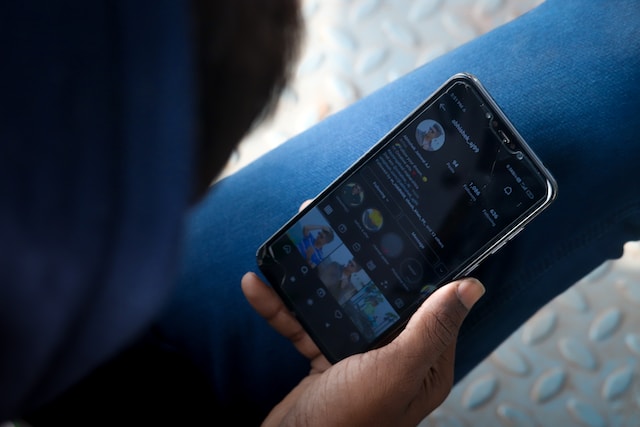
Todo lo que vuelvas a publicar en Instagram el feed de tu cuenta tiene una gran permanencia. ¿Por qué? Porque, a diferencia de Instagram , permanece en tu perfil hasta que decidas borrarlo. En solo unos pasos, puedes volver a publicar capturas de pantalla u otro contenido en Instagram tu Instagram .
- Desde la página de inicio Instagram tu Instagram o desde tu página de perfil, busca el recuadro con el icono del signo más. En la página de inicio del feed, el icono se encuentra en la parte inferior y en el centro de la pantalla. En tu página de perfil, se encuentra tanto en la parte inferior central como en la esquina superior izquierda de la pantalla.
- Si utilizas el icono «más» situado en la parte inferior central, se añadirán automáticamente capturas de pantalla y fotos para publicar. Si pulsas sobre el icono que aparece junto a tu foto de perfil, aparecerán las opciones de publicación. Deberás seleccionar la opción «Publicar».
- Una vez que hayas seleccionado la captura de pantalla de tu ordenador de sobremesa o del carrete de tu móvil, pulsa «Siguiente».
- Realiza los cambios que desees. Elige entre la captura de pantalla completa o solo la imagen y, a continuación, pulsa «Siguiente».
- Escribe cualquier pie de foto que sea pertinente, etiqueta a personas y añade detalles de la ubicación o música, si lo prefieres. No te olvides de tus hashtags de marca. Para conseguir un mayor alcance, también tienes la opción de compartirlo en tu cuenta de Facebook.
- Pulse "Compartir".
Una vez que hayas compartido tu captura de pantalla, pulsa el icono de tu perfil en la esquina inferior derecha. Asegúrate de que has vuelto a publicar tu contenido buscándolo en tu perfil. Ahora, otros Instagram pueden ver tu contenido.

Repost en Instagram: Mejore su estrategia de contenidos reenviando contenidos
Sin duda, tu estrategia de marketing de contenidos puede beneficiarse de los contenidos republicados. Pero saber cómo volver a publicar en Instagram también implica cómo seleccionar adecuadamente el contenido que se va a volver a publicar. Asegúrate de que compartes contenido relacionado con tu marca y que tu público objetivo encontrará interesante y valioso. No te limites a republicar contenidos que no tienen nada que ver con tu marca porque son tendencia.
¿Quieres llegar a más personas adecuadas con tu contenido para conseguir más seguidores relevantes? Si es así, también te beneficiarás de la segmentación mediante IA. Puedes conseguir esta ventaja si colaboras con un experto en estrategias Instagram . Path Social una avanzada capacidad de segmentación mediante IA y te proporciona seguidores auténticos: seguidores que están realmente interesados en lo que ofreces. Puedes estar seguro de que también obtendrás una interacción de calidad y un crecimiento duradero y gratificante. Empieza hoy mismo a crecer y a ganar Instagram .





¿Quieres seguir el crecimiento de tu cuenta de Instagram ?
Analice su progreso y obtenga información valiosa con nuestra herramienta de seguimiento gratuita.
Comprueba ahora el crecimiento de tu cuenta de Instagram