IG Story Posts 101: La guía definitiva de Instagram Stories

Las marcas y los creadores compiten a muerte por crear Instagram más bonitos y estéticamente atractivos. Crean publicaciones que van desde galerías de fotos bonitas hasta vídeos cinematográficos para construir la página perfecta. Sin embargo, en los últimos años, el contenido rápido, conciso y desenfadado ha ganado popularidad, de ahí el auge de las Stories. En esta guía Instagram , te explicaremos todos los entresijos para dominar el arte de este tipo de contenido.
Las historias de Instagram son publicaciones temporales que permiten a los usuarios compartir contenido espontáneo y natural para mostrar su lado más auténtico. Además, gracias a las numerosas herramientas creativas Instagram, puedes dar rienda suelta a tu imaginación a la hora de crear y editar tus historias. ¿Estás listo para aprender todo lo que necesitas saber sobre las historias? Vamos a profundizar en esta Instagram tan popular Instagram .

¿Qué es Instagram Stories?
Las «Stories» son un formato Instagram que permite a los usuarios publicar fotos y vídeos verticales que desaparecen al cabo de 24 horas. Esto alivia la presión de tener que crear contenido muy cuidado y estéticamente perfecto que permanezca en tu feed de forma permanente. Dado que solo están visibles en tu página durante un tiempo tan breve, las «Stories» pueden ser más espontáneas y auténticas, sin parecer nunca artificiales.
Las historias son ideales para compartir novedades sobre tu vida en tu cuenta personal o para publicar contenido promocional de tu negocio. Si gestionas una marca en Instagram, incluso puedes publicar anuncios en las historias para llegar a tu público objetivo.
También puedes utilizar tus «Stories» para dar mayor visibilidad al contenido ya publicado en la plataforma. Comparte una publicación en tu «Story» y consigue que más gente la vea. Puedes hacerlo con tus propias publicaciones del feed o con las de otras personas que te parezcan interesantes y atractivas.
Una de las cosas más geniales de la función «Stories» es que fomenta mucho la interacción con los espectadores. Las personas que ven tu «Story» pueden reaccionar con emojis e incluso responderte mediante un mensaje directo. Con la ayuda de pegatinas específicas, tus seguidores también pueden interactuar con tus publicaciones (¡pero ya hablaremos de eso más adelante!). Además, Instagram te Instagram exactamente quién ve tus «Stories».
Huelga decir que las «Stories» han alcanzado un éxito increíble con el paso del tiempo. Hace unos años, Meta (entonces Facebook) informó de que 500 millones de usuarios utilizaban las «Stories» cada día, según SocialMediaToday. ¡Quién sabe cuánta gente comparte y ve contenido de las «Stories» a diario hoy en día!

Instagram Carretes vs Historias: ¿Cuál es la diferencia?
Instagram frente a Stories: ¿en qué se diferencian? Pues bien, aunque se trata de los dos formatos verticales de la plataforma, no podrían ser más diferentes.
Los Reels de Instagram son vídeos cortos de hasta 90 segundos de duración, a diferencia de las Stories, que pueden ser fotos estáticas. La principal diferencia es que los Reels permanecen en el feed de forma permanente. No caducan al cabo de 24 horas, como ocurre con las Stories. Por lo tanto, si lo que buscas es durabilidad y permanencia, opta por los Reels en lugar de las Stories.
Otra diferencia notable entre ambas funciones es que puedes ver quién ve tus «Stories», pero no tus «Reels». En el caso de estos últimos, solo puedes ver el número de visualizaciones que has obtenido, pero no quién ha visto tu vídeo.
Cómo comprobar Instagram Story Views
Una de las mejores cosas de Stories es que puedes ver quién ve tu contenido antes de que caduque. Verás si estás llegando a una buena cantidad de gente y si tu público objetivo está viendo tus Stories.
Comprobar las visualizaciones de tus Instagram para ver quién se ha estado devorando tu contenido es muy fácil. Solo tienes que abrir tus historias activas en la Instagram . A continuación, desliza el dedo hacia arriba sobre una historia para ver la lista de personas que la han visto. Este proceso te permite ver quién ha visto tu historia en cualquier momento.
¡Lo mejor es que la lista de personas que han visto tu historia se actualiza en tiempo real, por lo que puedes ver al instante quiénes son los nuevos espectadores! Sin embargo, ten en cuenta que la lista completa de espectadores desaparece cuando tus historias caducan. Al acceder a historias antiguas en el archivo, solo verás a los espectadores que reaccionaron a tu contenido.
Instagram Ideas para tu marca personal o tu empresa
¿No está seguro de cómo utilizar Stories en su plataforma Instagram ? No te preocupes, tenemos algunas ideas para compartir contigo en Instagram . A continuación, te explicamos cómo puedes utilizar este formato creativo para promocionar tu marca personal o tu empresa e impulsar su participación.
Para marcas personales y personas influyentes:
- Fragmentos de tu día a día que muestran a tus seguidores lo que haces en un día normal
- Historias y actualizaciones de la vida: básicamente, cualquier cosa que te haga hablar delante de la cámara.
- Sesiones de preguntas y respuestas con el uso de pegatinas interactivas de Instagram
Para empresas que venden productos y servicios:
- Contenidos entre bastidores que muestren a sus clientes potenciales cómo gestiona su empresa.
- Tutoriales sobre cómo utilizar correctamente sus productos
- Preguntas más frecuentes (consejo: ¡haz un Story Highlight para esto!)
- Anuncios del lanzamiento de su último producto con una cuenta atrás en Stories
- Mensajes sobre rebajas y descuentos por tiempo limitado en sus productos o servicios
Cómo guardar Instagram Stories antes de que caduquen
Como se ha mencionado anteriormente, las historias solo permanecen visibles en tu perfil durante 24 horas, tras las cuales caducan. Este «plazo de validez» de 24 horas fomenta la publicación de contenido más espontáneo sin que los usuarios se sientan cohibidos a la hora de publicar en la aplicación. De este modo, puedes publicar lo que quieras y divertirte con ello. No tendrás que preocuparte por que cada historia tenga que estar perfectamente pulida.
Lamentablemente, una vez que una «Story» caduca, solo permanecerá en tus archivos, a los que nadie más que tú puede acceder. Pero eso no significa que no puedas volver a acceder al contenido de tus «Stories» nunca más. De hecho, hay varias formas de guardar Instagram para que puedas verlas y volver a verlas cuando quieras. Veamos tres de ellas.
1. Guarda la foto o el vídeo directamente en tu dispositivo
La forma más fácil de guardar tus «Stories» es descargándolas directamente en tu dispositivo desde la aplicación. De esta manera, podrás conservar una copia de tus «Stories» favoritas en el carrete. Así podrás volver a ver estas publicaciones espontáneas cuando quieras, incluso mucho después de que hayan caducado. A continuación te explicamos cómo hacerlo, paso a paso:
1. Abre tu aplicación Instagram .
2. Haz clic en tu foto de perfil en la sección Instagram Stories de la página de inicio. Se abrirán las Historias que tengas activas.
3. Busca la historia que quieras guardar en tu dispositivo.
4. Pulse el botón Más (con tres puntos horizontales) en la esquina inferior derecha de la pantalla.
5. Pulsa Guardar.
6. Elige guardar la foto o el vídeo individualmente o tu Historia completa.
¡Y ya está! Ahora, esa «Story» se guarda en tu galería para que puedas acceder a ella incluso sin conexión.
2. Crea historias destacadas para mantener tu contenido en tu perfil
A veces, Instagramestipula que las Historias caducan a las 24 horas. Trabajas muy duro en el contenido de las Historias de tu marca solo para que la gente no vuelva a verlas al cabo de un día.
Pero hay una forma de conservar tus historias antiguas en tu perfil. ¿Cómo? ¡Con las historias destacadas, claro!
Cuando creas un «Destacado» en tu página, puedes guardar de forma permanente las historias antiguas en tu perfil. Agrupas las publicaciones antiguas de las historias en una colección y creas un «Destacado» para ellas, lo que te permite tenerlas muy bien organizadas. De esta forma, las personas que visiten tu página podrán volver a verlas en cualquier momento.
A continuación te explicamos, paso a paso, cómo crear «Destacados» en las historias:
1. Abre la aplicación Instagram y ve a tu perfil.
2. En la sección «Destacados», situada debajo de tu foto de perfil y tu biografía, haz clic en el icono con el signo más. Así podrás añadir un nuevo «Destacado».
3. Selecciona historias de tu archivo para añadirlas a tu nueva selección destacada. A continuación, haz clic en «Siguiente».
4. Pulse Editar portada y elija la foto que desea mostrar como portada de Highlight.
5. Nombra tu Destacado.
6. Por último, haz clic en «Añadir» para publicar el contenido destacado en tu página.
3. Descargar Instagram Historias publicadas por otros usuarios con una herramienta de terceros
Las cosas se complican un poco cuando quieres guardar las Historias de otros. Instagram no tiene una función dentro de la aplicación que te permita descargar directamente las Historias de otros de Instagram . La única forma de hacerlo es utilizando un sitio de descargas de terceros.
Todas estas páginas suelen funcionar de la misma manera. Introduces el nombre de usuario de la persona cuyas «Stories» quieres descargar. A continuación, la página web recupera su «Story» actual. Desde ahí, puedes descargar el contenido directamente a tu dispositivo. ¡Y ya está! Ahora tienes una copia de sus «Stories» a la que puedes volver y volver a verlas cuando quieras.
Cómo mejorar el contenido de las historias
Instagram crear «Stories» Instagram increíblemente divertido para cualquier usuario, gracias a la gran cantidad de herramientas creativas exclusivas para este tipo de contenido. Puedes añadir prácticamente cualquier cosa a tus «Stories» para que destaquen, desde texto hasta emojis o pegatinas divertidas. De esta forma, puedes hacer que tu contenido resulte lo más atractivo posible, aunque solo esté disponible durante 24 horas.
¿Quieres conocer algunas de nuestras formas favoritas de embellecer Stories? Aquí tienes algunas guías paso a paso sobre cómo elevar tu contenido antes de pulsar "publicar".
Cómo añadir enlaces a un artículo de Instagram
Antes, añadir un enlace al contenido de tus Stories solo era posible para los influencers con un gran número de seguidores. Sin embargo, en las últimas actualizaciones de la aplicación, Instagram empezado a permitir que los usuarios con cuentas personales publiquen enlaces en las Stories.
Hay muchas razones por las que a alguien le puede resultar útil compartir un enlace en Instagram. Ayuda a dirigir tráfico hacia cualquier sitio web externo a la aplicación, ya sea la página de comercio electrónico de tu tienda o un blog personal. Además, te permite compartir otros contenidos de Internet que te gustaría que viera la gente.
A continuación te explicamos cómo añadir enlaces a Instagram Stories en unos sencillos pasos:
1. Abre la aplicación Instagram y crea una nueva Historia.
2. Importa una foto o un vídeo del carrete de tu cámara (¡o haz una nueva con tu cámara!).
3. Haz clic en el icono de la pegatina en la parte superior de la pantalla del editor.
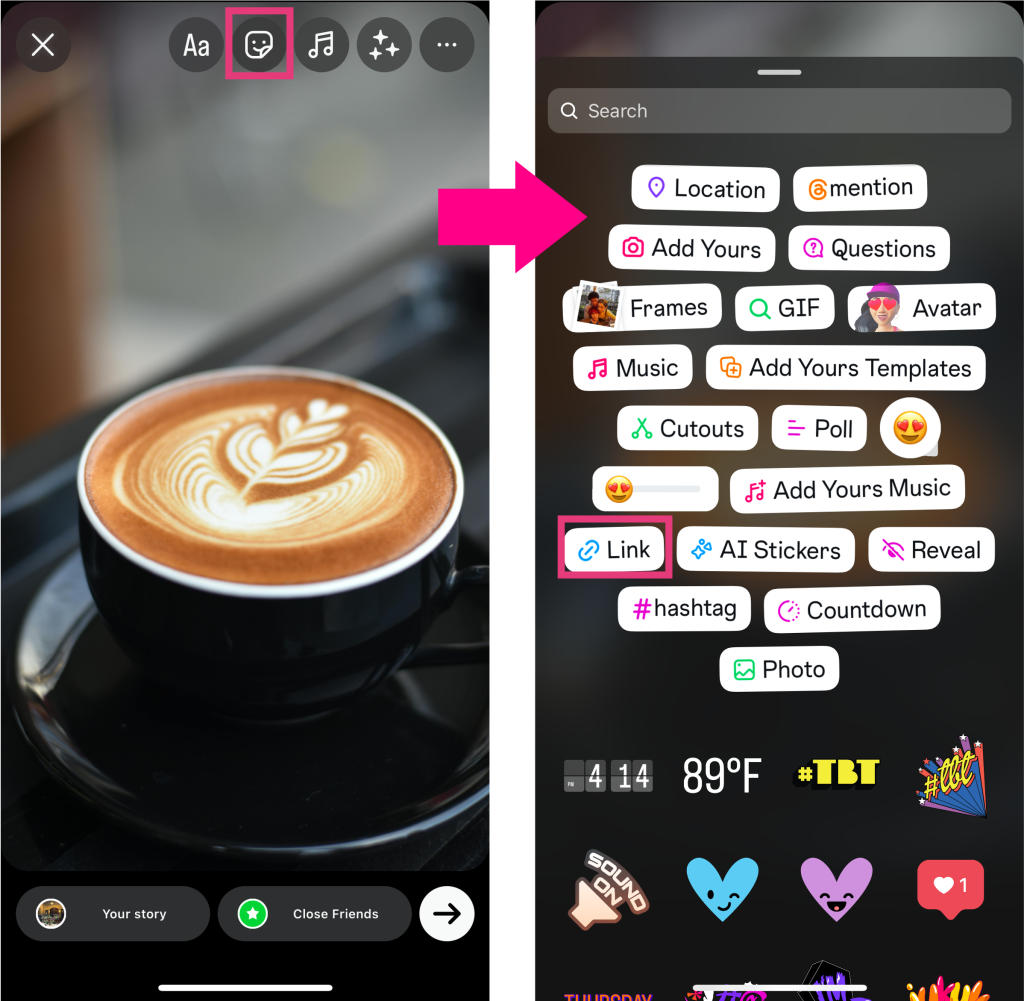
4. Pulse la opción Vincular pegatina de las opciones que aparecen.
5. 5. Introduce la URL a la que quieres enlazar tu pegatina.
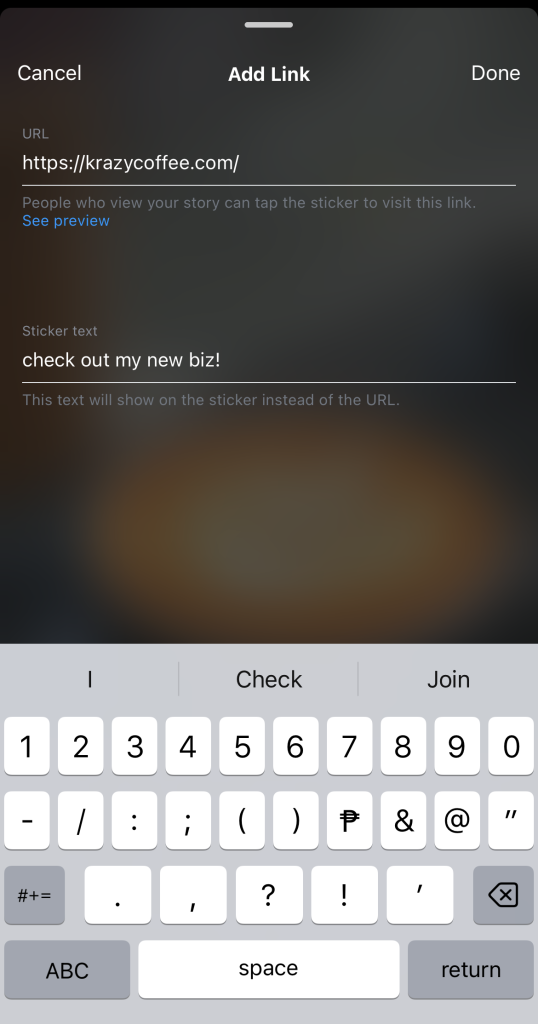
6. Escribe el texto de la pegatina personalizada que quieres que aparezca en tu Historia.
7. Haga clic en Listo.
8. 9. Mueve y cambia el tamaño de tu pegatina de enlace como quieras que aparezca en tu Historia. 9. Personaliza tu Historia añadiendo aún más stickers y texto si quieres.

9. Haga clic en Su historia en la parte inferior de la pantalla del editor para publicar su Historia.
Cómo añadir música a una historia Instagram
Añadir música a tus historias de Instagram es una forma fabulosa de darle vida a tu contenido. No solo puedes compartir tus canciones favoritas con los demás, sino que también refuerzas la narrativa de tu publicación.
La música ayuda a crear el ambiente y la atmósfera adecuados para tus «Stories», haciéndolos más atractivos e intrigantes. Incluso podría aumentar la retención de la audiencia, ya que anima a la gente a ver tu «Story» durante más tiempo.
¿Quieres marcar el tono (literalmente) del contenido de tu Historia? A continuación te explicamos cómo añadir música a una Historia de Instagram :
1. En la Instagram , crea una nueva «Story» y sube o captura tu contenido visual.
2. Haga clic en el icono de música situado en la parte superior de la pantalla del Editor de historias. Se abrirá la biblioteca de música de Instagram.
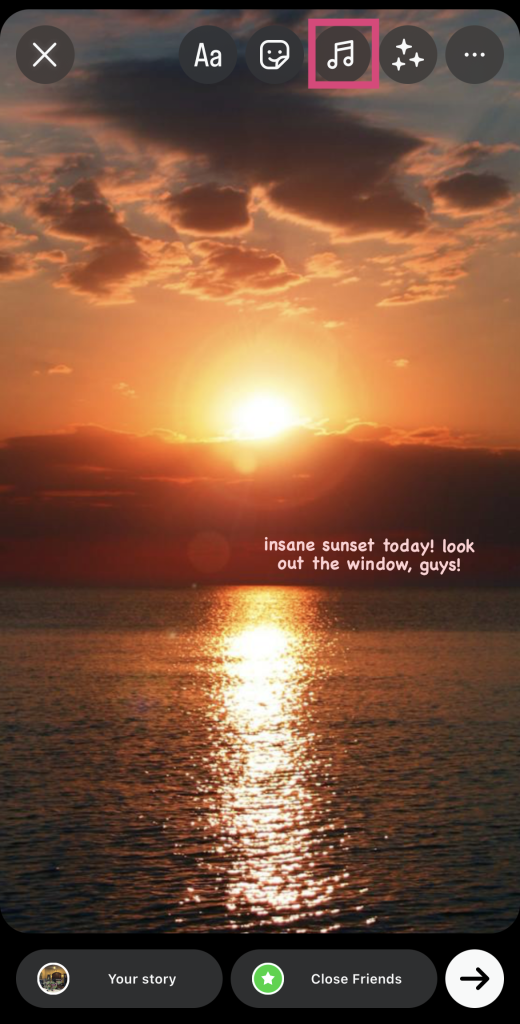
3. Toca la barra de búsqueda y escribe el nombre de la canción que quieras. También puedes elegir entre las canciones recomendadas Instagram.
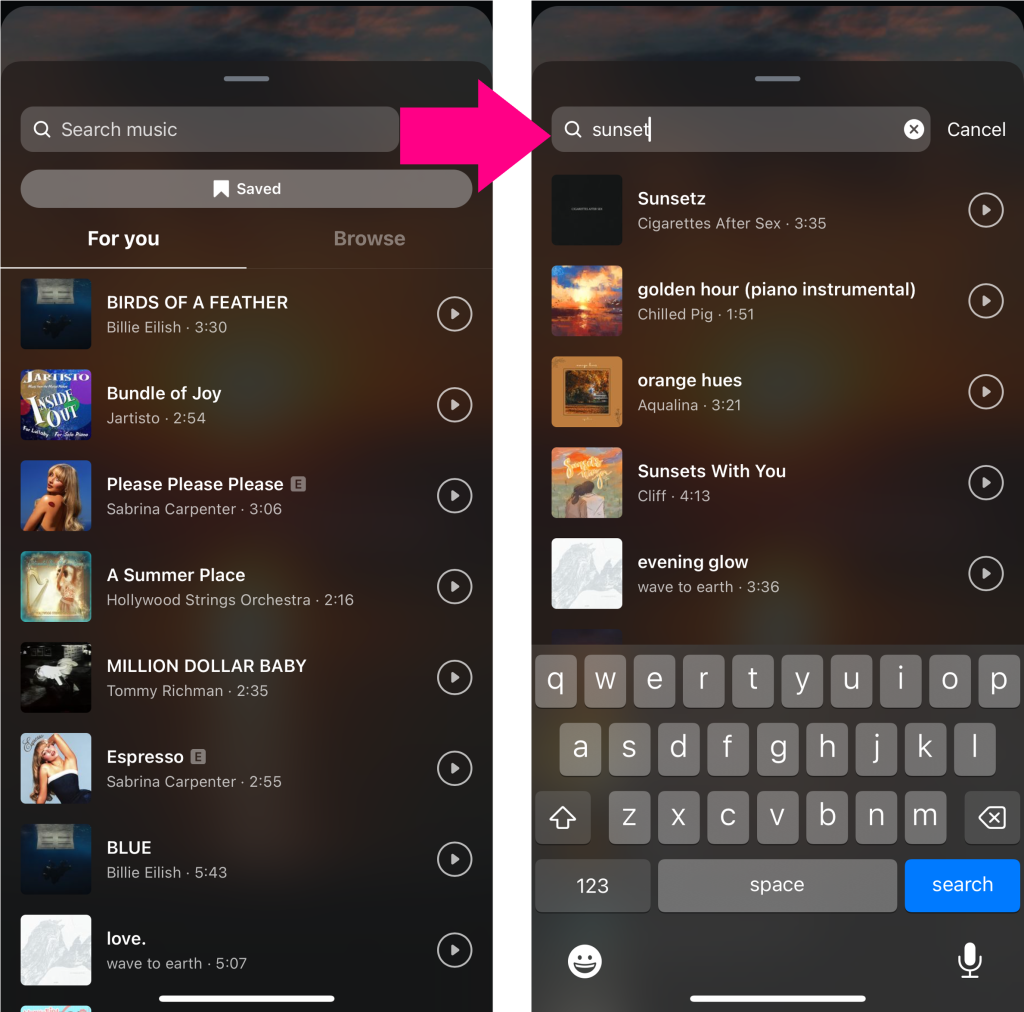
4. Haz clic en la canción que quieras añadir a tu Historia.
5. Arrastre el control deslizante para elegir el fragmento de la canción que desea incorporar a su entrada.
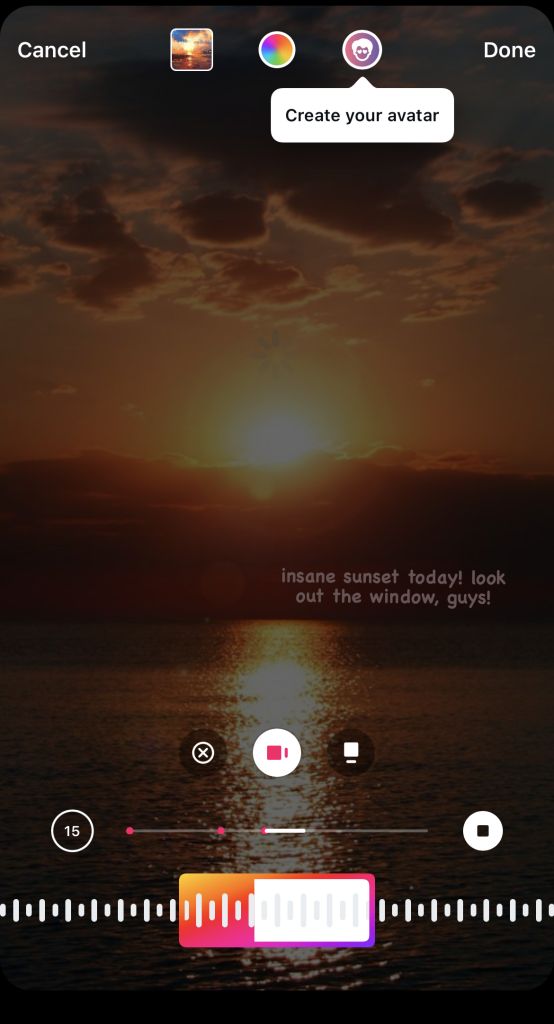
6. Elige qué tipo de sticker musical quieres que vean los usuarios en tu «Story». Puedes elegir entre letras animadas, la portada del álbum de la canción y muchas otras opciones.
7. Cuando estés satisfecho con el fragmento de música y la selección de pegatinas, haz clic en «Hecho».
8. Mueve y cambia el tamaño de tu pegatina musical como quieras en tu Historia.
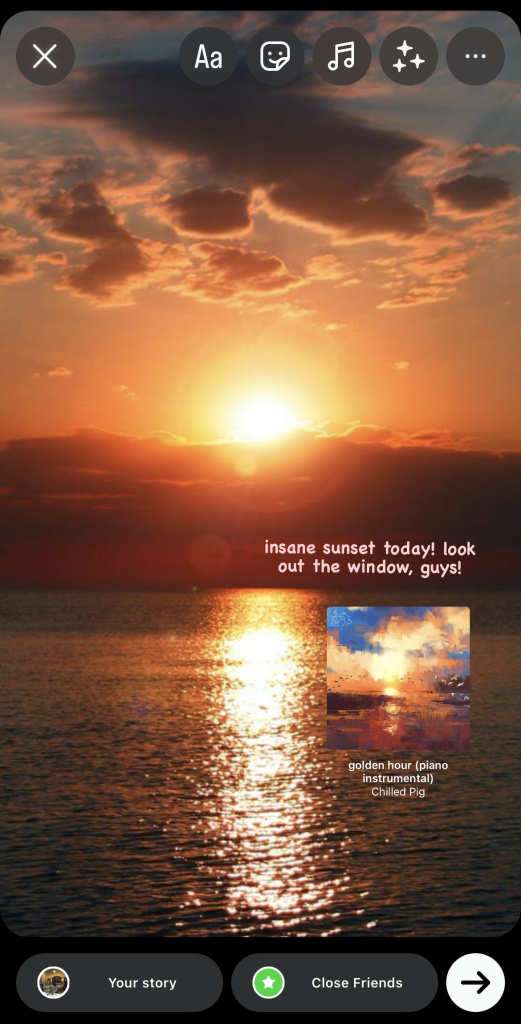
9. Pulsa Tu historia para publicar el post.
Cómo añadir varias fotos a una historia de Instagram
A veces, añadir una foto a tu Historia no es suficiente. Maximiza el espacio de tu historia publicando más de una imagen a la vez. A continuación te explicamos cómo añadir varias fotos a una Historia de Instagram para mostrar numerosas imágenes bonitas a la vez:
1. Abre la aplicación Instagram y crea una nueva Historia.
2. En lugar de subir o capturar nuevo contenido visual, haz clic en el icono de diseño situado en la esquina izquierda de la pantalla. Debería tener el aspecto de una cuadrícula.
3. Haz clic en Cambiar cuadrícula y elige la plantilla de varias fotos que quieras utilizar. Hay seis opciones para elegir que te permiten publicar de 2 a 6 fotos de una sola vez.
4. Una vez elegida la plantilla de diseño, desliza el dedo hacia arriba en la pantalla del editor de historias.
5. Elige de tu carrete una foto que quieras incluir en tu Historia.
6. Repite el proceso de deslizar el dedo hacia arriba y elegir una foto hasta completar el diseño.
7. A continuación, haz clic en la marca de verificación situada en la parte inferior de la pantalla para finalizar tu «Story» con varias fotos.
8. Personaliza tu publicación de «Stories» como más te apetezca con pegatinas, texto y mucho más.
9. Pulsa Tu historia para publicar tu producto final.
¡Y ya está! Ahora, la gente podrá ver varias fotos en una misma «Story».
Cómo insertar divertidas pegatinas en tus Stories
Las pegatinas de IG son fantásticas para que tus «Stories» resulten aún más llamativas y entretenidas. Los GIF y las pegatinas de emojis les dan un toque más emocionante. Por otro lado, las pegatinas interactivas, como las encuestas y las preguntas de trivial, pueden ayudarte a aumentar la interacción con tu contenido. ¡Incluso puedes añadir pegatinas de productos para promocionar artículos concretos que aparezcan en tu «Story»!
¿Quieres insertar divertidos stickers en tus Stories para mejorar su atractivo visual y su naturaleza interactiva? Aquí te explicamos cómo hacerlo:
1. Crea una nueva Historia y sube una foto o un vídeo.
2. Haz clic en el icono de la pegatina en la parte superior de la pantalla.
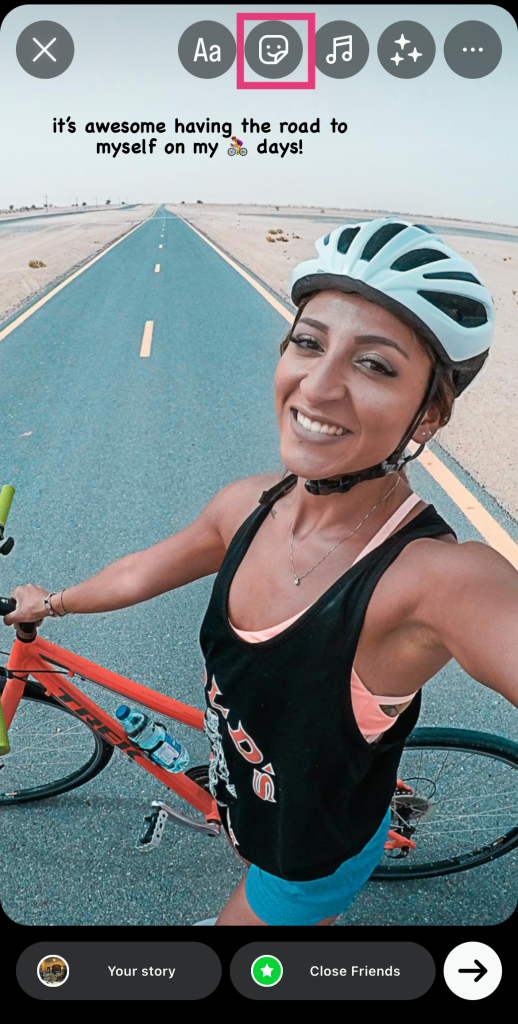
3. Elige entre las numerosas opciones de pegatinas. Para este ejemplo, hagamos clic en «GIF».
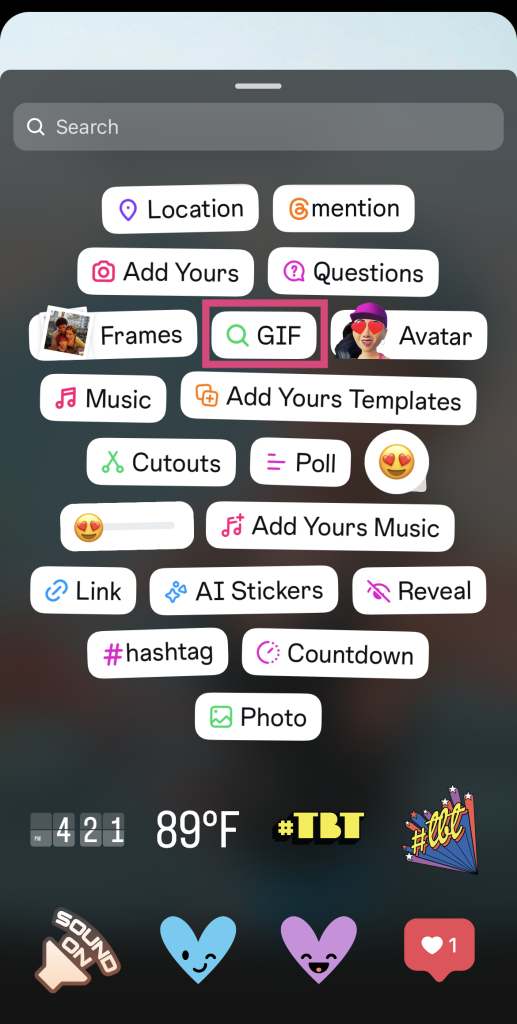
4. Selecciona un adhesivo de los resultados sugeridos o utiliza la barra de búsqueda para encontrar adhesivos relacionados con un tema.
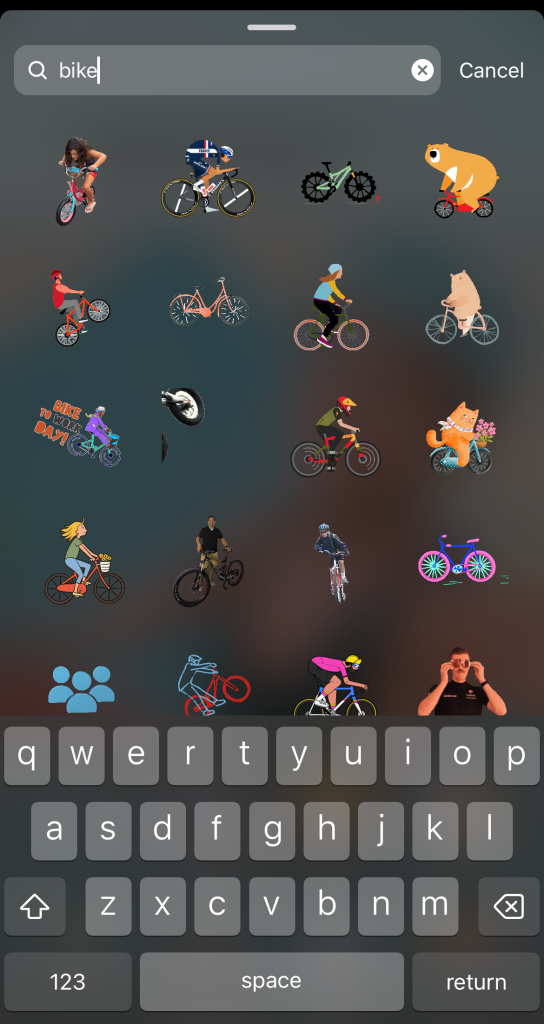
5. Si ves una pegatina que quieras añadir a tu publicación, pulsa sobre ella.
6. Cambia el tamaño de la pegatina y colócala donde quieras en tu Historia.
7. Añade más pegatinas hasta que estés satisfecho con el aspecto de tu entrada.
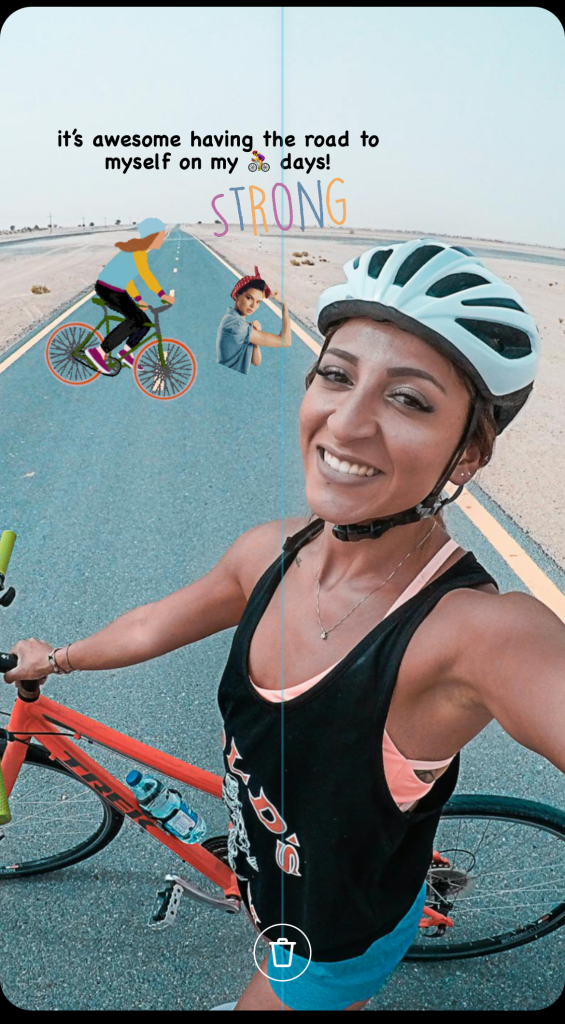
8. Pulsa Tu historia para publicar la entrada terminada para que la vean tus seguidores.
El proceso es prácticamente el mismo para el resto de pegatinas, desde las decorativas hasta las interactivas.
Juega con las plantillas de Instagram Story: Cómo hacer un collage en una historia de Instagram
¿Quieres ser más creativo y original con tus artículos? Considera la posibilidad de utilizar plantillas de Historias listas para usar en Instagram de herramientas de terceros. Son perfectas para los usuarios que quieren Historias impactantes pero no tienen el don de crear collages y diseños geniales.
Herramientas de probada eficacia, como Canva y la aplicación SCRL, son muy populares por sus plantillas para Stories, de gran belleza estética. Tanto si te interesan las plantillas con temática Polaroid como los collages con fotos superpuestas, estas herramientas te lo ofrecen todo. Es difícil aprender a crear un collage en Instagram por tu cuenta. Pero con estas herramientas, crear collages, montajes y publicaciones creativas y fluidas en las historias es pan comido.
El proceso es muy sencillo:
1. Elija una plantilla de una herramienta de plantillas de terceros de confianza.
2. Crea tu Historia rellenando la plantilla con tus fotos o vídeos.
3. Guarda la Historia que has creado en tu dispositivo.
4. Abre la aplicación Instagram y sube la Historia que has creado para que la vean tus seguidores.
Pan comido, ¿verdad? ¡Ahora ya tienes unos collages y diseños preciosos para tu «Story» sin tener que hacer el trabajo pesado!
Instagram Guía de Historias: ¡Muestra tu personalidad para cautivar a tu audiencia!
Piensa en el editor Instagram como un lienzo en blanco en el que puedes expresarte en línea sin límites. Publicar historias te permite mostrar tu personalidad sin la presión de tener que crear un feed perfecto. Y, aunque caducan en 24 horas, siempre puedes guardar tu contenido en tu dispositivo o a través de las «Historias destacadas».
Ahora que ya sabes cómo crear Stories geniales con pegatinas, música, enlaces y mucho más, es hora de ponerse manos a la obra. Aprovecha todo lo que has aprendido en esta guía Instagram para crear los mejores Stories para tu marca. ¡Haz que sean atractivos, emocionantes y tentadores para tu público objetivo y consigue la mayor repercusión posible!
¿Quieres que más gente vea tus Stories? Aumenta tu número de seguidores para ampliar tu alcance con Path Social. Utilizamos estrategias promocionales de probada eficacia para dar a conocer tu página al público adecuado, de modo que puedas conseguir que más personas de tu público objetivo descubran tu perfil. Esto se traduce en más seguidores y una mayor interacción, lo que llevará a tu marca a nuevas cotas. ¡Haz crecer tu Instagram con Path Social !





¿Quieres una potente promoción Instagram ?
Amplíe su alcance con estrategias específicas que atraigan la participación y seguidores reales.
Comienza ya tu promoción Instagram