Al igual que cualquier otra función de Instagram, las notificaciones son importantes. Estas notificaciones desempeñan un papel fundamental a la hora de mantenerte conectado con tu público, tus amigos y las celebridades a las que sigues. Estás en primera fila para conocer todas las novedades que se producen cada minuto.
En este mundo tan acelerado, las notificaciones te ayudan a mantenerte al día y a evitar el FOMO (miedo a perderte algo). Por eso, las notificaciones de Instagram son una herramienta importante para mantener el interés de tus seguidores, hacer un seguimiento de las interacciones y conservar tu ventaja competitiva. ¿Aún no tienes claro cómo utilizar las notificaciones para conseguir todo eso y mucho más? Estaremos encantados de ayudarte.
En este blog, compartiremos toda la información que necesitas para sacar el máximo partido a las notificaciones de IG. Vamos allá.
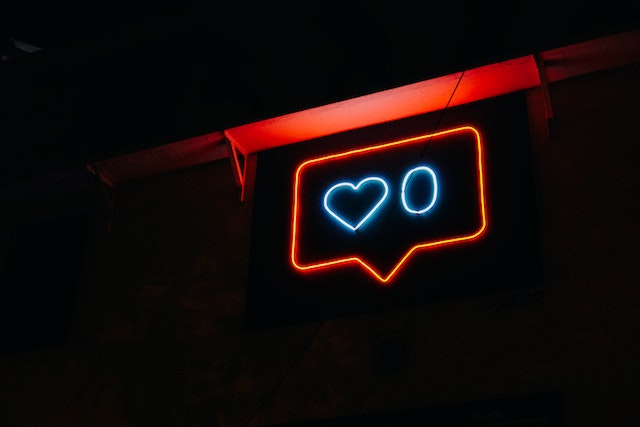
¿Qué son las notificaciones de Instagram y sus tipos?
Instagram Las notificaciones sirven como conexión en tiempo real con la participación de tu audiencia y las interacciones con tu contenido. Proporcionan actualizaciones instantáneas sobre diversas actividades relacionadas con tu cuenta y las personas a las que sigues. Esta herramienta también ofrece información sobre contenidos cruciales en Instagram que puede que te estés perdiendo.
El objetivo de las notificaciones en Instagram es mejorar la experiencia de los usuarios en la plataforma social. También tienes la posibilidad de personalizar tus notificaciones estableciendo tus propias opciones en la plataforma. Así te aseguras de que solo recibes actualizaciones sobre lo que realmente te interesa.
Hay varios tipos de notificaciones que te ayudan a estar al tanto de todo. Entender estos diferentes tipos de notificaciones de Instagram te da el poder de gestionar e interactuar con tu audiencia de manera efectiva.
- Mensaje directo
- Historia
- Solicitud de seguimiento
- Me gusta o comentarios
- Menciones
- Etiquetarte en una foto
- En directo
- En Instagram
Puede clasificar estas notificaciones en dos tipos principales:
1. Notificaciones push: Las notificaciones push aparecen directamente en la pantalla principal de tu dispositivo, incluso si no estás conectado a Instagram. Estas alertas te proporcionan información en tiempo real sobre «Me gusta», comentarios, menciones y nuevos seguidores.
2. Notificaciones dentro de la aplicación: Las notificaciones dentro de la aplicación solo aparecen mientras estás conectado a Instagram. Estas ventanas emergentes se muestran dentro de la aplicación y ofrecen información sobre interacciones como «Me gusta», comentarios y mensajes directos. Para verlas, solo tienes que pulsar el icono con forma de corazón de la barra de navegación.
Hay muchas más cosas interesantes que no sabías sobre las notificaciones de Instagram . Acompáñanos.
¿Cómo consultar las notificaciones en Instagram?
¿No has estado recibiendo notificaciones de Instagram en tu móvil? Vaya, qué pena. Pero no te preocupes. Todavía hay una forma de consultar las notificaciones en Instagram. Y créenos, el proceso es bastante sencillo. Vamos a verlo.
- Accede a Instagram: Abre la aplicación Instagram en tu dispositivo.
- Compruebe las notificaciones: Busca el icono en forma de corazón en la parte inferior de tu pantalla. Aquí encontrarás todas las notificaciones de Instagram .
- Explora las notificaciones: te aparecerá una lista con tus últimas notificaciones, como «Me gusta», comentarios y solicitudes de seguimiento. Toca cada notificación para ver los detalles y responder si es necesario.
La mejor forma de asegurarte de que siempre recibes las actualizaciones de Instagram en tiempo real es activar las notificaciones push.
Cómo activar las notificaciones push en Instagram
Para activar o desactivar las notificaciones push en Instagram , sigue estos pasos:
Cómo activar las notificaciones de Instagram en iOS
- Abra Instagram pulsando en la aplicación Instagram de su dispositivo.
- Vaya a su perfil Instagram
- Toca las tres líneas de la parte superior y selecciona la rueda dentada de Configuración para acceder a los ajustes.
- Busque el ajuste de notificaciones y pulse.
- Utiliza el conmutador para decidir si quieres dejar pasar las notificaciones push o ponerlas en espera.
- También puedes controlar las notificaciones a través de los Ajustes de tu iPhone. Abre "Ajustes" y localiza "Notificaciones". Pulsa en Instagram. Junto a "Permitir notificaciones", verás un control deslizante.
- Deslice el interruptor a verde si desea recibir notificaciones.
- A continuación, vuelve a los Ajustes de tu aplicación Instagram para asegurarte de que las notificaciones correctas están listas.
Cómo activar las notificaciones de Instagram en Android
El proceso es diferente para los usuarios de Android. A continuación te explicamos cómo activar las notificaciones de Instagram en tu teléfono Android:
- En primer lugar, abre los Ajustes de tu Android y pulsa en Aplicaciones.
- Desplázate por las aplicaciones hasta que encuentres « Instagram » y, a continuación, pulsa sobre ella.
- Opte por las notificaciones.
- Aquí, puedes verificar si tus Notificaciones están en modo encendido o apagado. También puedes elegir qué notificaciones recibes en tu configuración de Android.
- Una vez que hayas activado las notificaciones, abre la aplicación « Instagram » para guardar la configuración. Al igual que en los iPhone, tendrás que acceder a los ajustes de « Instagram». Pulsa en tu página de perfil y, a continuación, selecciona las tres líneas situadas en la parte superior derecha de la pantalla.
- Accede a «Notificaciones», donde podrás personalizar tus notificaciones para diversas opciones de Instagram . Toca cualquier categoría en los ajustes para configurar tus preferencias.
Cómo personalizar la configuración de notificaciones de Instagram
La personalización de la configuración de las notificaciones garantiza que recibas alertas que se ajusten a tus preferencias. A continuación te explicamos cómo personalizar la configuración de las notificaciones de Instagram .
Empieza abriendo tu aplicación de « Instagram ». A continuación, pulsa sobre las tres líneas situadas en la esquina derecha de la pantalla. Selecciona «Ajustes y privacidad» y, después, «Notificaciones». En la sección «Cómo utilizas Instagram », encontrarás el acceso a la configuración de las notificaciones.
Entre estas paredes virtuales, te esperan numerosas opciones que podrás adaptar a tu gusto. A continuación, te presentamos algunas configuraciones que te permitirán controlar todas tus notificaciones de Instagram . Así que vamos a explicártelas una por una y a empezar a personalizarlas.
- Publicaciones, historias y comentarios: controla qué notificaciones de comentarios, menciones, respuestas o etiquetas quieres recibir
- Personas a las que sigues y seguidores: Realiza los ajustes necesarios para realizar un seguimiento de tus seguidores y aceptar solicitudes. Además, activa o desactiva las notificaciones sobre sugerencias de cuentas y menciones en la biografía.
- Mensajes: Personaliza cómo recibes las notificaciones sobre los mensajes entrantes. Recibe notificaciones de nuevos mensajes directos o alertas de solicitudes de mensajes de usuarios a los que no sigues.
- Llamadas: Decide de quién quieres recibir notificaciones de llamadas en Instagram .
- Chats en directo y Reels: Recibe notificaciones sobre audios originales, vídeos en directo, Reels subidos recientemente, remixes y los Reels más vistos, y añade los tuyos.
- Campañas de recaudación de fondos: Recibe notificaciones sobre iniciativas sociales, campañas de recaudación de fondos y otras actividades relacionadas.
- De Instagram: Recibe notificaciones directamente de Instagram , incluyendo actualizaciones importantes, nuevas funciones y anuncios.
- Cumpleaños: Recibe notificaciones de las personas que han compartido sus cumpleaños.
- Notificaciones por correo electrónico: Activa o desactiva las notificaciones de los correos electrónicos que recibas, incluidos los comentarios, los recordatorios, los mensajes sobre productos, las noticias o los correos de asistencia técnica.
- Notificaciones de compras: Si has interactuado con alguna tienda de Instagram , Instagram te enviará alertas al respecto. Activa o desactiva estas notificaciones.
- Horas de silencio: Configura restricciones horarias para recibir notificaciones sólo durante ciertas horas.
¿Por qué no funcionan las notificaciones de Instagram ?
Aunque las notificaciones son esenciales, puede haber ocasiones en las que no funcionen como se espera. Cuando las notificaciones de Instagram dejan de funcionar, es posible que empieces a sentirte perdido.
Prueba algunas de las soluciones que te ofrecemos a continuación para rectificar la situación cuando tus notificaciones de Instagram no funcionen.
- Comprueba los ajustes de la aplicación: Asegúrate de que no has desactivado accidentalmente las notificaciones en los ajustes de la aplicación. Ve a los ajustes de la aplicación y comprueba tus preferencias de notificación.
- Desactiva "No molestar": Vaya al centro de notificaciones y desactive el botón No molestar para recibir notificaciones de Instagram .
- Activar la actualización de aplicaciones en segundo plano: si has desactivado la opción de actualización de aplicaciones en segundo plano en tu iPhone, Instagram no te enviará ninguna notificación nueva.
- Actualiza la aplicación: Una aplicación obsoleta puede provocar problemas con las notificaciones. Actualiza la aplicación Instagram a la última versión en línea desde la tienda de aplicaciones de tu dispositivo. Puedes aprender a actualizar Instagram muy fácilmente.
- Comprueba los ajustes del dispositivo: Asegúrate de que has activado las notificaciones para la aplicación Instagram en los ajustes de tu dispositivo.
- Borra la caché de Instagram : Los datos de la caché de una aplicación pueden provocar problemas de notificaciones en tu teléfono. Tienes que borrar la caché de Instagram para eliminar los archivos corruptos y empezar a recibir notificaciones de nuevo.
- Desactivar el modo de bajo consumo: En el iPhone, el modo de bajo consumo limita la actividad en segundo plano, como las descargas, los nuevos correos electrónicos y la recepción de mensajes. Desactiva el modo de bajo consumo para recibir notificaciones de Instagram .
- Actualizar el móvil: De vez en cuando, un sistema operativo obsoleto puede provocar problemas en el rendimiento de tu móvil. Esto puede llegar incluso a bloquear la recepción de notificaciones. Las actualizaciones del sistema pueden ayudar a mantener el funcionamiento óptimo de tu dispositivo y a eliminar los errores.
Cómo desactivar las notificaciones de Instagram
Si te abruman tantas notificaciones, puedes desactivarlas por completo. A continuación te explicamos cómo desactivar las notificaciones de « Instagram »:
En iOS:
- Abrir ajustes.
- Desplácese hacia abajo hasta aplicaciones y localice Instagram. Púlsalo.
- Allí encontrará y seleccionará la opción de notificación.
- A continuación, puede desactivar el interruptor de la opción que dice "Permitir notificaciones".
En Android:
- Ve a la configuración de tu dispositivo.
- Desplázate hacia abajo y selecciona "Apps" o "Aplicaciones".
- Busque Instagram en la lista de aplicaciones y pulse sobre ella.
- Busca la opción "Notificaciones" y selecciona "Bloquear todo" para desactivar todas las notificaciones de Instagram .
Cómo comprobar el historial de notificaciones e interacciones de Instagram
Aunque Instagram no ofrece una función integrada de historial de notificaciones, es fundamental responder a las notificaciones con rapidez para estar al día de las interacciones. A continuación te explicamos cómo puedes gestionar de forma eficaz tus interacciones con las notificaciones:
1. Historial de notificaciones de Android
Si tienes Android 11 o una versión más reciente, puedes encontrar tu historial de notificaciones en el menú de ajustes. A continuación te explicamos qué tienes que hacer para activar el historial de notificaciones de « Instagram» a través del historial de notificaciones de Android.
- Paso 1: Abre Ajustes en tu dispositivo Android y pulsa en Notificaciones.
- Paso 2: Desplázate hacia abajo, pulsa en «Configuración avanzada» y, a continuación, abre «Historial de notificaciones».
- Paso 3: Aquí verás el historial de notificaciones de « Instagram ». Sin embargo, si no encuentras estas notificaciones, es el momento de activar el interruptor del historial de notificaciones. De este modo, te asegurarás de que tu dispositivo Android registre todas las notificaciones que recibas a partir de ahora.
2. Centro de notificaciones del iPhone
Para echar un vistazo a tus notificaciones anteriores de Instagram en tu iPhone, ve al centro de notificaciones del iPhone.
- Paso 1: Utiliza Face ID o la contraseña para desbloquear el teléfono.
- Paso 2: Desliza el dedo hacia abajo desde la parte superior central de la pantalla para ver el centro de notificaciones. Desplázate hacia arriba para encontrar las notificaciones antiguas de Instagram que estabas buscando.
¿Cómo recibir notificaciones de capturas de pantalla de historias en Instagram ?
Instagram no avisa a los usuarios cuando alguien hace una captura de pantalla de su historia de Instagram . En su momento, la plataforma probó esta función para enviar notificaciones de capturas de pantalla de las historias de Instagram . Las notificaciones de capturas de pantalla de las historias se introdujeron en febrero de 2018.
Durante esta fase de prueba, Instagram enviaba notificaciones Instagram a los usuarios si alguien hacía una captura de pantalla de su historia. Además, mostraba un icono de obturador de cámara junto al nombre de usuario de la persona que había hecho la captura. Sin embargo, Instagram abandonó pronto el experimento debido a las reacciones negativas de los usuarios.
Tome el control de su experiencia social con Path Social
Instagram Las notificaciones son herramientas indispensables para los usuarios. Ayudan a centrarse en fomentar la interacción, fortalecer los vínculos y aumentar el número de seguidores. Actúan como ventanas en tiempo real a las interacciones de la audiencia, proporcionando a los usuarios información para perfeccionar su estrategia de contenido y sus tácticas de interacción.
Con las notificaciones de Instagram a tu lado, tu experiencia en la aplicación mejorará 100 veces. Así que, no lo dudes: crea conexiones auténticas y atractivas, y descubre la verdadera esencia de cómo fomentar una comunidad. En Path Social, estamos aquí para ofrecerte nuestra amplia experiencia, un algoritmo exclusivo de segmentación basado en IA y una red de influencers. Estas características destacadas de nuestro servicio garantizan un crecimiento auténtico y duradero en Instagram.
Construya una comunidad Instagram que resista las pruebas del tiempo. Emprende tu viaje y experimenta el poder del crecimiento orgánico con Path Social. ¿Estás preparado? ¡Empieza a ampliar tu comunidad Instagram hoy mismo!





¿Quieres aumentar tus seguidores orgánicos Instagram ?
Utiliza nuestro conjunto de herramientas basadas en inteligencia artificial para atraer seguidores reales y comprometidos, y potenciar al máximo tu alcance.
Aumentar seguidores de Instagram ahora