Comment intégrer un article Instagram dans un article de blog afin d'augmenter le trafic vers votre site web ? Instagram

Pourquoi devriez-vous prendre la peine d’apprendre à intégrer une publication Instagram dans un article de blog ? Parce que les lecteurs du blog s’intéressent déjà au contenu de celui-ci ; une publication Instagram intégrée aura donc toutes les chances d’attirer leur attention. Plus votre publication Instagram intégrée est en lien avec le contenu du blog, plus il y a de chances qu’un lecteur aille également la consulter. Chaque occasion de générer du trafic vers votre compte Instagram est également une occasion d’obtenir davantage d’abonnés et d’engagement. Voici les différentes façons d’intégrer une publication Instagram dans un article de blog.
Comment intégrer un article Instagram dans un article de blog à l'aide du code d'intégration (Embed Code)
Si vous avez votre propre blog, vous devriez absolument savoir comment intégrer une vidéo d'Instagram s dans vos articles. Que vous disposiez déjà d'un compte créateur sur Instagram ou que votre compte professionnel propose de nombreuses vidéos explicatives, un blog constitue une excellente plateforme supplémentaire pour ce type de contenu. Il vous offre davantage d'opportunités de toucher un public plus large et de mettre votre entreprise en avant sur Instagram.
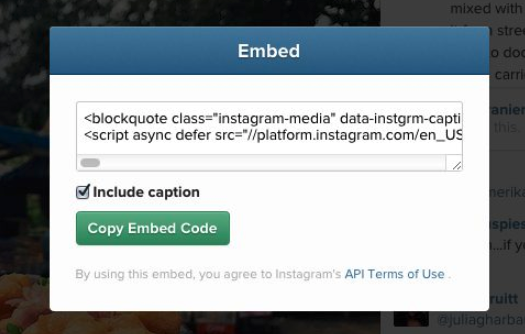
Notez que votre compte Instagram doit être public ET que le paramètre Embeds doit être activé pour permettre l'intégration de votre contenu ou de votre profil Instagram . Voici comment intégrer un article Instagram dans un article de blog en copiant le code d'intégration:
- Accédez à l'article que vous souhaitez intégrer et cliquez/tapez sur les trois points dans le coin supérieur droit.
- Cliquez/tapez sur "Embed", puis cliquez/tapez sur "Copy Embed Code" pour copier le code dans votre presse-papiers. Vous pouvez également cocher/décocher la case "Inclure la légende".
- Paste the embed code in your website’s HTML editor. Wrap the code with ‘<center>’ and ‘</center>’ tags to make sure the embedded post appears in the center of the blog post page.
Et voilà ! Votre Instagram est désormais intégrée à un article de blog. Votre Instagram apparaîtra également à côté de la publication intégrée, et lorsqu'un lecteur cliquera sur le Instagram , il sera redirigé directement vers votre Instagram . Assurez-vous que la publication que vous intégrez est en rapport avec le contenu du blog.
N'oubliez pas que si votre Instagram est public et que l'option « Intégration » est activée, n'importe qui peut copier le code d'intégration de votre profil ou de votre contenu. Vous pouvez choisir de désactiver manuellement l'option « Intégration » ou de rendre votre compte privé afin d'empêcher d'autres personnes de partager votre contenu sans autorisation.
Instagram Guide de croissance
Découvrez comment les entreprises et les créateurs tirent parti des dernières astuces pour développer leurs comptes Instagram - GRATUITEMENT !
Comment intégrer un article Instagram dans un article de blog WordPress
Savoir comment intégrer une Instagram sur votre site WordPress est une autre option pour élargir la portée Instagramvotre contenu Instagram. Pour commencer, vous devez vous procurer le plugin WordPress « Instagram Pro ». Malheureusement, la possibilité de coller directement un code Instagram sur un site WordPress a été supprimée par Instagram Facebook en 2020. Suivez ces étapes pour activer le plugin et associer votre Instagram à votre site WordPress.
- Installez le plugin sur votre site WordPress et activez-le dans le menu "Plugins" de votre site WordPress.
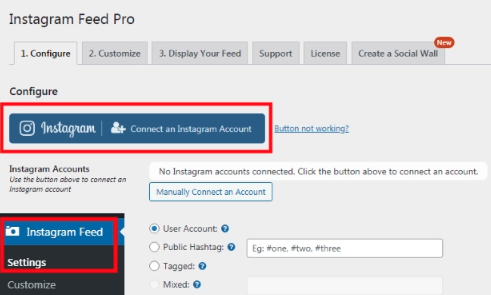
- Depuis votre tableau de bord WordPress, rendez-vous dans « FluxInstagram , cliquez sur « Paramètres », puis sur le bouton « Connecter un compte Instagram
- Choisissez si votre compte Instagram est "personnel" ou "professionnel", puis cliquez sur "Connecter".
- Vous serez redirigé vers votre compte Instagram ; cliquez sur "Allow" pour donner au plugin un accès en lecture seule, puis cliquez sur "Connect This Account" lorsque vous serez redirigé vers votre compte WordPress.
- Accédez à la rubrique «Instagram dans votre tableau de bord WordPress, cliquez sur « oEmbeds », puis sur « Activer Instagram ».
- Cliquez sur "Se connecter à Facebook", puis sur "Suivant" et sur "Terminé".
Vous êtes maintenant prêt à intégrer un article Instagram dans un article de blog WordPress :
- Copiez le code d'intégration de votre article sur Instagram .
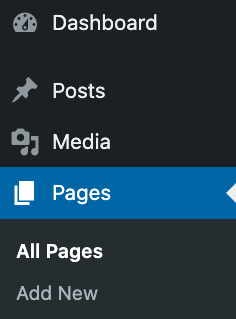
- Sur WordPress, rendez-vous dans « Pages » et cliquez sur « Ajouter » pour ouvrir l'éditeur WordPress, ou rendez-vous dans « Articles » et cliquez sur « Ajouter » si vous souhaitez intégrer votre Instagram dans un nouvel article de blog.
- Enfin, il vous suffit de coller le code et d'enregistrer votre article de blog.
Dernières réflexions : Utilisez la fonction Embeds de Instagrampour atteindre un plus grand nombre de personnes pour votre contenu Instagram
Les blogs restent populaires auprès de 77 % des internautes, et savoir comment intégrer une Instagram dans un article de blog est indispensable si vous possédez votre propre blog. Vous pouvez également envisager de collaborer avec un blogueur afin d’inciter d’autres personnes à partager votre Instagram et d’ atteindre un public plus large et mieux ciblé pour vos Instagram .
InstagramL’option « Intégration »Instagramvous offre la possibilité de gagner naturellement de nouveaux abonnés et d’augmenter l’engagement si vous possédez votre propre blog. Une autre méthode efficace pour diffuser votre contenu auprès du bon public et générer une croissance significative sur Instagram à vous associer à un partenaire disposant d’une expérience suffisante en matière de stratégie Instagram — un service de croissance tel que Path Social. Vous pouvez attirer les abonnés pertinents et susciter de l’engagement grâce à la technologie avancée de ciblage par IA exclusive Path Socialet à son équipe interne d’experts. Commencez dès aujourd’hui à développer votre compte et à gagner Instagram !





Vous souhaitez développer naturellement votre Instagram ?
Découvrez une plateforme conçue pour aider les créateurs à toucher un public authentique et engagé, sans prendre de raccourcis.
Explorez la plateforme