Instagram Le son ne fonctionne pas ? Meilleures solutions rapides !

Instagram Il s'agit d'une plateforme de réseaux sociaux très populaire qui compte des millions de publications quotidiennes de photos et de vidéos, ainsi que 2 milliards d'utilisateurs actifs par mois. L'un des problèmes les plus frustrants pour les utilisateurs est lorsque les vidéos d'Instagram s ne comportent pas de son. Qu'il s'agisse d'une vidéo drôle mettant en scène un chat ou d'un concert, l'absence de son déçoit aussi bien l'auteur que le spectateur.
Le son est essentiel pour offrir une expérience utilisateur optimale sur Instagram. Il permet de mettre en valeur une vidéo, de susciter des émotions chez les spectateurs et de retenir leur attention. Sans son, les vidéos perdent de leur efficacité et le message risque de ne pas passer correctement. À mesure qu’ Instagram ajoute de nouvelles fonctionnalités telles que Reels et IGTV, l’importance du son devient de plus en plus évidente. Bien que ces changements permettent aux créateurs de mettre en avant leurs talents à travers des vidéos plus longues, l’absence de son peut les désavantager.
Heureusement, il est facile de résoudre le problème lié au son qui ne fonctionne pas sur Instagram . Dans cet article, nous allons aborder les causes possibles des problèmes de son dans les vidéos de Instagram et les solutions pour y remédier. Une chose est sûre : en suivant les étapes décrites ici, vous pourrez profiter pleinement de l'expérience audio sur Instagram !

Raisons pour lesquelles votre Instagram Sound ne fonctionne pas
Il peut arriver que vous tombiez sur une vidéo sur Instagram qui ne comporte pas de son. Pas de panique : cela ne vient pas forcément de votre application ou de votre appareil. Pour vous en assurer, vous pouvez lire une autre vidéo via Instagram ou toute autre application prenant en charge le son. Si le problème persiste, plusieurs raisons peuvent expliquer pourquoi le son de vos vidéos sur Instagram ne fonctionne pas. En voici quelques-unes parmi les plus courantes :
- Le volume de l'appareil est trop faible ou la fonction « Muet » est activée. Si le volume de l'appareil est trop faible ou si la fonction « Muet » est activée, il se peut que la vidéo « Instagram » ne soit pas lue avec du son. Lorsque le volume sonore est trop faible pour être entendu clairement, essayez de l'augmenter ou de désactiver la fonction « Muet » de l'appareil.
- L'application de l'appareil est obsolète ou présente des dysfonctionnements. Si votre application « Instagram », et notamment le son, ne fonctionne pas correctement en raison de bugs, il se peut qu'une mise à jour soit nécessaire. Vérifiez la disponibilité des mises à jour sur l'App Store, puis téléchargez et installez la version la plus récente.
- Le système d'exploitation de l'appareil est obsolète ou incompatible. Un système d'exploitation incompatible ou obsolète peut être à l'origine de l'erreur Instagram sound not working. Vérifiez les mises à jour dans les paramètres de l'appareil et installez la dernière version.
- Le navigateur Web n'est pas compatible ou comporte des extensions qui bloquent le son. Si vous accédez à Instagram via un navigateur Web, assurez-vous qu'il est compatible avec l'application et qu'aucune extension n'empêche la lecture du son. Si le problème de son sur Instagram persiste, essayez de changer de navigateur ou de désactiver les extensions.
Connaître ces causes permet aux utilisateurs de résoudre le problème de son qui ne fonctionne pas sur Instagram depuis leur iPhone, leur appareil Android ou leur navigateur.
Instagram Le son ne fonctionne pas sur votre téléphone : Un véritable casse-tête pour les utilisateurs d'IG
Ne vous inquiétez pas si vous rencontrez des problèmes de son sur Instagram sur votre appareil mobile. Vous pouvez résoudre le problème en suivant les étapes suivantes.
Solutions faciles lorsque le son Instagram ne fonctionne pas sur l'iPhone ou les appareils Android
Le silence est d'or, mais seulement jusqu'à ce que vous ayez envie de partager des leçons de vie, vos talents musicaux, etc., via les Reels d'Instagram , et que vous deviez vous assurer que le son de votre application fonctionne correctement.
- Veillez à vider le cache et les données de l'Instagram . Videz le cache et les données de Instagramafin de supprimer tout fichier corrompu susceptible de provoquer des erreurs empêchant le son de fonctionner sur Instagram . Ouvrez l'application « Paramètres » sur votre appareil, accédez à « Applications » ou « Gestionnaire d'applications », recherchez Instagram, puis sélectionnez « Vider le cache » et « Effacer les données ». Vider régulièrement le cache et les données de votre application permet d'optimiser ses performances et d'éviter les dysfonctionnements.
- Vérifiez les mises à jour de l'application Instagram et de l'appareil. Vérifiez les mises à jour de votre application Instagram pour vous assurer que les nouvelles mises à jour de Instagram fonctionneront avec elle. Accédez à l'App Store ou au Google Play Store sur votre appareil et recherchez la version la plus récente de Instagram à mettre à jour. Maintenez votre application et votre appareil à jour pour corriger les bogues du son Instagram sur iPhone et Android.
- Désinstallez puis réinstallez l'application « Instagram ». Si rien d'autre ne fonctionne, désinstallez puis réinstallez l'application « Instagram » afin d'éliminer tout bug ou problème susceptible de continuer à causer des dysfonctionnements audio. Accédez aux paramètres de votre appareil, recherchez « Applications » ou « Gestionnaire d'applications », repérez « Instagram », puis cliquez sur « Désinstaller ». Une fois l'application supprimée, vous pouvez la réinstaller depuis l'App Store ou le Google Play Store.
Vérifier les périphériques lorsque le son de Instagram ne fonctionne pas
Si vous constatez que votre application « Instagram » est à jour mais que le son de « Instagram » ne fonctionne pas, il est grand temps de vérifier l'appareil mobile lui-même.
- Vérifiez que vos écouteurs ou casques Bluetooth fonctionnent correctement. Assurez-vous que vos écouteurs ou casques Bluetooth fonctionnent correctement. Parfois, les problèmes audio sur votre appareil sans fil sont dus à des problèmes de connexion. Vérifiez que le Bluetooth est activé et que votre appareil est appairé avec vos écouteurs ou votre casque.
- Redémarrez votre appareil. Le redémarrage de votre appareil peut résoudre les problèmes de son Instagram en éliminant les bogues ou les pépins qui affectent le son de votre appareil. Maintenez le bouton d'alimentation de votre appareil enfoncé et choisissez "Redémarrer".
- Vérifiez les paramètres sonores de l'appareil. Vérifiez les paramètres sonores de votre appareil pour vous assurer que le mode silencieux et la fonction "Ne pas déranger" sont désactivés et que le volume est élevé. Vous pouvez également faire des essais avec les réglages de la balance du son et de l'égaliseur pour voir si cela peut vous aider.
- Vérifiez les mises à jour de l'appareil. Mettez à jour le logiciel de votre appareil pour vous assurer que les nouveaux correctifs ou améliorations de Instagram fonctionneront avec lui.
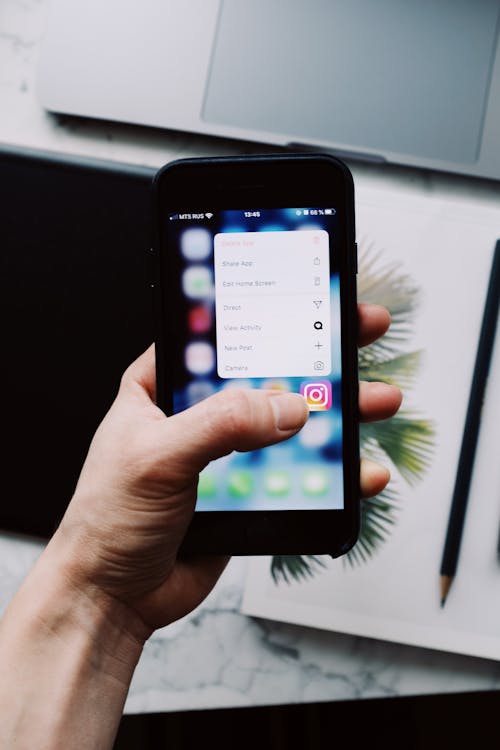
Avant d'aborder la résolution des problèmes audio liés à « Instagram » dans les navigateurs Web, voici quelques astuces supplémentaires très utiles pour résoudre d'autres problèmes audio courants liés à « Instagram », comme l'absence de sons pour les stories et les notifications sur « Instagram ».
Que faire lorsque le son de notification de Instagram ne fonctionne pas sur les appareils Android et iPhone ?
Vous manquez des mises à jour importantes concernant vos amis, vos abonnés ou vos célébrités préférées parce que le son des notifications d’ Instagram ne fonctionne pas sur Android et iPhone ? Ne vous inquiétez pas, nous avons la solution. Dans cet article, nous vous donnerons quelques conseils pour résoudre le problème lié au dysfonctionnement des sons de notification d’ Instagram sur Android et iOS.
- Vérifiez le volume des notifications. Commencez par vous assurer que le volume des notifications de votre appareil est activé. Vous pouvez régler le volume par défaut des notifications des applications sur Android et iPhone afin de ne manquer aucune nouvelle alerte d'Instagram .
- Désactivez le mode silencieux. Sur un Android ou un iPhone, si votre téléphone est réglé sur le mode vibreur ou silencieux, vous n’entendrez pas la sonnerie de notification d’ Instagram . Pour activer le mode sonnerie sur un iPhone, utilisez le bouton de mise en mode silencieux situé sur le côté de l’appareil. Les utilisateurs d’Android peuvent accéder au menu du volume depuis le côté en appuyant sur n’importe quelle touche de volume. Vous pouvez également appuyer sur l’icône de notification, puis sur le profil de sonnerie pour activer les appels et la sonnerie de notification.
Réparations faciles lorsque le son de la notification IG ne fonctionne pas
- Vérifiez les paramètres audio de Instagram. Assurez-vous que les paramètres audio de Instagram sont activés sur votre appareil. Si ce n'est pas le cas, vous risquez de rencontrer des problèmes de fonctionnement du son sur Instagram . De même, si vous avez complètement désactivé les notifications, vous ne pourrez pas entendre les alertes sur votre téléphone.
- Réactiver les notifications des conversations. Si vous avez désactivé les notifications pour certaines conversations sur Instagram , vous ne recevrez ni notification ni son de la part de l'application. Vous ne verrez les messages que si vous accédez au menu « Messages privés » (DM) de l'application. Veillez à réactiver les notifications pour toutes les conversations importantes sur Instagram .
- Supprimez « Instagram » de votre « Résumé programmé » (iPhone uniquement). Le « Résumé programmé » est une nouvelle fonctionnalité introduite avec iOS 15 qui vous permet de programmer des notifications pour les applications non essentielles. Si vous avez ajouté « Instagram » à votre « Résumé programmé », vous recevrez des notifications à des heures définies, sans son. Vous devrez supprimer « Instagram » du « Résumé programmé » de votre iPhone.
- Mise à jour Instagram. Un récent bug dans l'application Instagram pourrait avoir rendu les notifications de votre téléphone silencieuses. Rendez-vous sur le Google Play Store ou l'App Store pour installer la dernière mise à jour de Instagram .
Que faire lorsque le son de Instagram Story ne fonctionne pas ?
Instagram Les stories ne sont pas les mêmes sans musique, c'est pourquoi il est frustrant que la fonctionnalité musicale d' Instagram e ne fonctionne pas. Parfois, vos abonnés passent des heures à chercher la musique idéale pour accompagner leurs stories. Mais tout cela n'a aucune importance si vous ne pouvez pas profiter de la même expérience dans l'application. Mettons fin une bonne fois pour toutes au problème lié au son des stories d' e qui ne fonctionne pas !
Bonus : Instagram Le son de l'histoire ne fonctionne pas en raison de restrictions régionales
Si vous ne parvenez pas à écouter certaines histoires d’ Instagram , cela peut être dû à votre lieu de résidence. Certains pays interdisent l’accès à ces fichiers audio en raison de la réglementation relative aux droits d’auteur sur la musique. Vous vous trouvez dans l’un de ces pays si le message suivant s’affiche : « La musique d’Instagram n’est pas disponible dans votre région. » Mais pas d’inquiétude : vous pouvez toujours essayer d’utiliser un VPN pour résoudre ce problème.
Et si vous vivez dans un pays où vous ne devriez pas rencontrer de problèmes de son sur Instagram , il pourrait s'agir d'un problème technique. Dans ce cas, veuillez signaler le problème à l'adresse Instagram.
Corrections rapides pour Android lorsque le son d'IG Story ne fonctionne pas
- Désactivez le mode silencieux. Pour vérifier rapidement si vous pouvez écouter les stories d’ Instagram s en mode silencieux sans son, nous vous suggérons de modifier ce paramètre.
Sur Android : il suffit d’appuyer sur le bouton d’augmentation du volume pour quitter le mode silencieux. - Réactiver l'autorisation du micro et de la caméra. L'application « Instagram », qui empêche l'accès aux ressources nécessaires du téléphone, pourrait être une autre cause du problème audio rencontré avec les Stories. Par conséquent, pensez à désactiver toutes les autorisations, puis à les réactiver lorsque vous serez prêt à utiliser à nouveau Instagram .
Voici donc quelques moyens d'accéder aux autorisations de l'application Instagram sur votre Android :- Sélectionnez Instagram parmi les applications disponibles dans le menu Paramètres > Apps & Notifications d'Android.
- Ensuite, allez sur la page de l'application Instagram et sélectionnez "Stockage", puis "Vider le cache". Vous pouvez ensuite sélectionner "Effacer les données/Effacer le stockage".
- Redémarrer l'application Instagram . Il arrive parfois que l'application ne se lance pas correctement, ce qui entraîne des ralentissements ou un dysfonctionnement des sons d'Instagram . Voici la marche à suivre :
- Fermez l'application, ouvrez la liste des applications récemment utilisées, puis faites glisser votre doigt sur « Instagram » pour la fermer.
- Ensuite, relancez Instagram et essayez de visionner une Story depuis votre fil d'actualité. Si la Story est une vidéo, pensez à monter le volume pour vérifier si le son est coupé ou non.
- Désactivez le "mode économie d'énergie" sur Android en allant dans Paramètres > Batterie > Mode économie d'énergie pour le désactiver.
Corrections rapides sur Ios lorsque le son d'IG Story ne fonctionne pas
- Désactivez le mode silencieux. Pour l'iPhone et l'iPad : le bouton de mise en mode silencieux de l'iPhone se trouve sur le côté gauche. Pour l'activer, appuyez doucement sur le bouton contre l'écran jusqu'à ce que vous entendiez un clic. Votre téléphone est en mode silencieux si la ligne orange n'est plus visible.
- Redémarrez l'application IG. Que ce soit sur les appareils iOS ou Android, la procédure pour fermer et redémarrer Instagram est la même :
- Fermez l'application, ouvrez la liste des applications récemment utilisées, puis faites glisser votre doigt sur « Instagram » pour la fermer.
- Ensuite, relancez Instagram et essayez de visionner une Story depuis votre fil d'actualité. N'oubliez pas d'augmenter le volume pour vérifier si vous avez correctement résolu les erreurs liées au son qui ne fonctionne pas sur Instagram .
- Désactiver l'économie d'énergie sur l'iPhone. Voici les étapes à suivre :
- Cliquez sur "Paramètres".
- Faites défiler vers le bas et appuyez sur "Batterie".
- Si le mode économie d'énergie est activé, faites glisser le curseur vers la gauche pour le désactiver.
- Désactivez le mode Concentration sur votre iPhone. Le nouveau mode Concentration d'iOS 15 réduit ou élimine les bruits gênants sur votre iPhone. Il peut également couper le son des Stories d'Instagram sur les appareils iOS. Par conséquent, si le mode Concentration est activé sur votre iPhone, désactivez-le, puis essayez à nouveau de lire une Story vidéo sur votre compte Instagram.
- Résolvez le problème des Stories d’ Instagram s sous iOS 15 qui ne fonctionnent pas en le signalant. Essayez d’autres solutions avant de décider qu’il est temps de revenir à une version antérieure d’iOS. Instagram est généralement à l’écoute des plaintes de ses utilisateurs. C’est particulièrement vrai si le même problème revient sans cesse partout.
Après la dernière mise à jour d’iOS, de nombreux utilisateurs ont signalé des problèmes de son avec les Stories d’ Instagram s. Signaler le problème à Instagram pourrait être la première étape pour le résoudre.
Comment réparer le son Instagram qui ne fonctionne pas sur les navigateurs Web
Vous avez des difficultés à entendre le son des vidéos Instagram dans votre navigateur web ? Suivez les étapes suivantes pour résoudre le problème :
- Vérifiez la compatibilité de votre navigateur et mettez-le à jour. Assurez-vous d'utiliser un navigateur Web compatible et à jour. Le site Instagram fonctionne correctement avec les navigateurs Web les plus courants, tels que Google Chrome, Mozilla Firefox et Microsoft Edge. Vérifiez que vous disposez bien de la dernière version de votre navigateur.
- Désactiver les extensions de navigateur qui bloquent le son. Désactivez toute extension de navigateur susceptible d'interférer avec le son des vidéos Instagram . Pour ce faire, accédez à la page des extensions ou des paramètres et désactivez toute extension susceptible de causer le problème.
- Videz le cache et supprimez les cookies de votre navigateur. Videz régulièrement le cache et supprimez les cookies de votre navigateur afin d'éviter les dysfonctionnements et d'améliorer ses performances. Pour ce faire, accédez aux paramètres ou à l'historique de votre navigateur, puis videz le cache et supprimez les cookies.
- Vérifiez les paramètres sonores du navigateur. Vérifiez si les paramètres sonores de votre navigateur sont corrects. Vérifiez si les paramètres de volume de votre navigateur ou de votre appareil sont trop bas ou s'ils ne sont pas réglés sur le mode silencieux.
- Essayez un autre navigateur. Si vous avez déjà suivi toutes les autres étapes, essayez d'accéder à Instagram depuis un autre navigateur. Changer de navigateur peut permettre de résoudre les problèmes de son sur Instagram dus au navigateur lui-même.
Ces étapes devraient permettre de résoudre les problèmes audio liés aux vidéos d’ Instagram s dans vos navigateurs Web. Toutefois, si le problème persiste, veuillez contacter l’équipe d’assistance de Instagrampour obtenir de l’aide.
Une fois encore, mettez à jour votre navigateur et l'application « Instagram », videz le cache et supprimez les cookies de votre navigateur, puis vérifiez les paramètres audio de votre appareil afin d'éviter tout problème lié au dysfonctionnement du son sur Instagram .
Empêcher Instagram Sound de ne plus fonctionner à l'avenir
Même si les problèmes audio d'Instagram peuvent être très frustrants, vous pouvez prendre certaines mesures pour les éviter. Voici quelques conseils à garder à l'esprit :
- Vérifiez le son de la vidéo avant de la publier. Avant de publier une vidéo sur Instagram, prévisualisez-la et assurez-vous que le son fonctionne correctement. Cela vous permettra de repérer d'éventuels problèmes avant la mise en ligne de la vidéo et d'éviter ainsi de causer des désagréments à vos abonnés.
- Vérifiez régulièrement les mises à jour de l'appareil et de l'application. Il est essentiel de maintenir votre appareil et l'application Instagram à jour afin d'accéder aux fonctionnalités les plus récentes et aux corrections de bugs. Cela permet d'éviter les problèmes de son causés par des logiciels obsolètes.
- Évitez les extensions de navigateur susceptibles d'interférer avec le son. Si vous préférez utiliser Instagram dans votre navigateur Web, faites attention aux extensions que vous installez. Certaines extensions, telles que les bloqueurs de publicités ou les outils de confidentialité, peuvent perturber le son des vidéos de Instagram . Désactivez ces extensions ou utilisez un autre navigateur pour accéder à Instagram.
- Utilisez des appareils et des logiciels compatibles. Si vous rencontrez fréquemment des problèmes audio sur Instagram, assurez-vous que votre appareil et vos logiciels sont compatibles avec l'application. Instagram recommande d'utiliser la version la plus récente de l'application sur un ordinateur équipé du dernier système d'exploitation.
- Signalez les bugs et les problèmes au service d'assistance de Instagram . Si vous continuez à rencontrer des problèmes audio sur Instagram après avoir effectué les étapes de dépannage, pensez à contacter le service d'assistance de Instagram . Ces signalements peuvent aider les développeurs de l'application à identifier et à corriger les bugs à l'origine des problèmes audio.
Si vous souhaitez vous assurer que vos abonnés sur Instagram puissent profiter de votre contenu sans rencontrer de problèmes liés au son de Instagram , suivez les étapes ci-dessus.
Dernières réflexions : Ne vous laissez pas arrêter par Instagram Sound Not Working Issues !
Lorsque le son d’ Instagram ne fonctionne pas correctement, cela peut être frustrant pour les utilisateurs. Ainsi, si vous n’entendez pas le son dans les vidéos d’IG ou si vous rencontrez d’autres problèmes liés à l’audio, résolvez-les dès que possible en suivant les étapes que nous avons énumérées ci-dessus. N’oubliez pas que différents facteurs peuvent être à l’origine des problèmes de son sur Instagram et qu’ils peuvent nécessiter diverses méthodes de dépannage.
Nous espérons que cet article vous a donné toutes les informations dont vous avez besoin pour retrouver votre expérience IG.
Que diriez-vous de développer votre Instagram avec de la musique branchée ? Laissez Path Social vous ouvrir la voie.
Path Social ne ressemble pas aux autres agences spécialisées dans la croissance sur Instagram . Nous n'utilisons ni bots ni faux abonnés. Au contraire, nous recourons à des méthodes de prospection authentiques pour trouver et attirer des clients. Le résultat ? Un engagement sincère et une croissance durable !





Vous voulez une promotion puissante sur Instagram ?
Amplifiez votre portée grâce à des stratégies ciblées qui attirent un engagement réel et des adeptes.
Commencez dès maintenant votre promotion sur Instagram