Comment changer d'adresse e-mail sur Instagram: Sécurisez votre compte IG dès maintenant

L'ajout de votre adresse e-mail à votre profil Instagram n'est pas seulement nécessaire pour créer un compte sur la plateforme. Cela vous permet également d'accéder à de nombreuses fonctionnalités de sécurité de Instagram. Cela inclut notamment les notifications par e-mail en cas de connexions suspectes ou la possibilité de réinitialiser votre mot de passe si vous l'oubliez. Mais que faire si vous n'avez plus accès à votre boîte mail ou si vous changez d'adresse e-mail officielle ? Que se passe-t-il dans ce cas ? Aujourd'hui, nous allons vous expliquer comment modifier votre adresse e-mail sur Instagram.
Raisons pour lesquelles vous pourriez avoir besoin de changer votre adresse e-mail sur IG
Votre adresse e-mail est essentielle pour vous garantir une expérience fluide sur Instagram. Si, pour une raison quelconque, vous ne parvenez plus à accéder à votre compte, c'est grâce à votre adresse e-mail que vous pourrez en récupérer l'accès. En cas de modifications importantes apportées à votre compte, la plateforme vous enverra un e-mail de confirmation pour vous en informer. De plus, en communiquant votre adresse e-mail à Instagram , vous permettez à l'application d'améliorer les publicités qui vous sont proposées. Sympa, non ?
Cela dit, il existe de nombreuses raisons pour lesquelles une personne pourrait envisager de modifier l'adresse e-mail associée à son compte Instagram . En voici quelques-unes :
- Vous n'avez plus accès à votre messagerie. Il se peut que quelqu'un ait piraté l'adresse e-mail que vous avez utilisée pour créer votre compte Instagram . Peut-être avez-vous oublié votre mot de passe et ne parvenez-vous pas à le récupérer, malgré les questions de sécurité et tout le reste. Si vous ne pouvez pas accéder à votre boîte de réception, il est probablement préférable de changer également votre adresse e-mail Instagram . Ainsi, vous ne manquerez pas de notifications importantes et ne risquerez pas de vous retrouver bloqué hors de la plateforme.
- Vous vous êtes inscrit en utilisant l'adresse e-mail d'une autre personne. Si vous avez créé votre compte avec l'adresse e-mail d'un ami ou avec une adresse secondaire, remplacez-la par votre véritable adresse e-mail dès que possible. Vous ne pouvez pas continuer à utiliser l'adresse e-mail d'une autre personne pour votre compte. Si vous le faites, toutes les notifications importantes que vous devriez recevoir ne vous seront pas immédiatement visibles.
- Vous êtes en train de changer d'adresse e-mail pour adopter une adresse plus professionnelle. Les marques et les influenceurs qui s'étaient auparavant inscrits avec une adresse e-mail personnelle devraient envisager de la remplacer par une adresse professionnelle. Ainsi, tous les e-mails liés à Instagram seront directement envoyés dans votre boîte de réception professionnelle, et non dans votre boîte personnelle.
Comment modifier l'adresse électronique Instagram : Un guide pas à pas
Si vous vous trouvez dans l'une des situations ci-dessus, vous avez sans doute hâte de changer votre adresse e-mail. Heureusement, changer d'adresse e-mail sur Instagram est assez simple. Voici comment procéder, étape par étape :
1. Ouvrez l'application Instagram .
2. Accédez à votre profil en cliquant sur votre photo de profil dans le coin inférieur droit de l'écran.
3. Cliquez sur l'icône de hamburger (trois lignes horizontales) dans le coin supérieur droit. Vous accédez ainsi à vos paramètres.
4. Cliquez sur Centre de comptes en haut du menu.
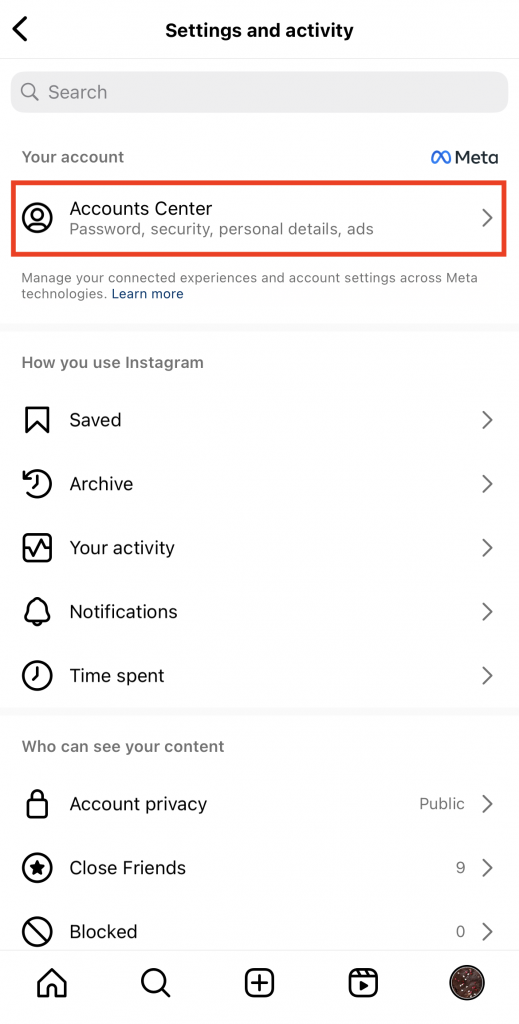
5. Faites défiler la page jusqu’à la section « Paramètres du compte » et cliquez sur « Informations personnelles ». Sur cette page, vous trouverez vos paramètres personnels, notamment votre numéro de portable et votre date de naissance.
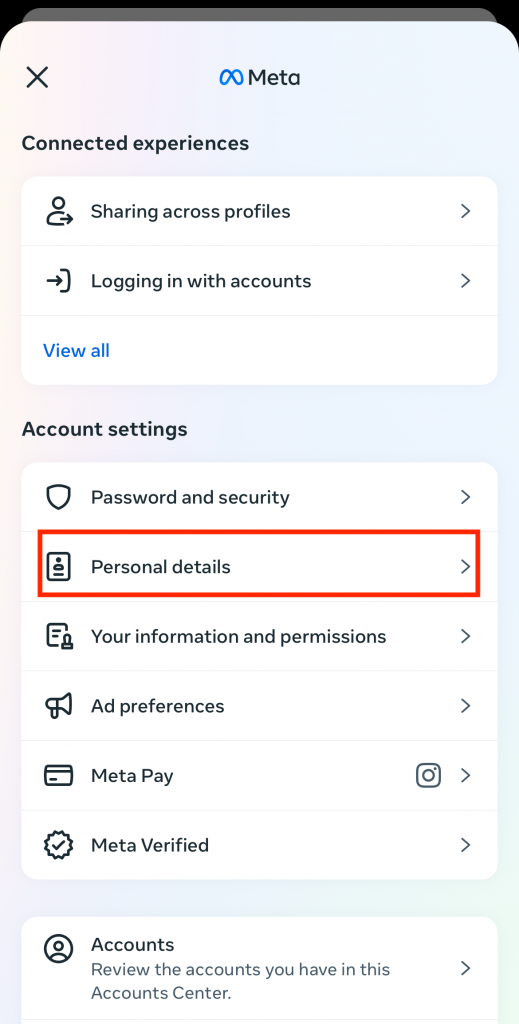
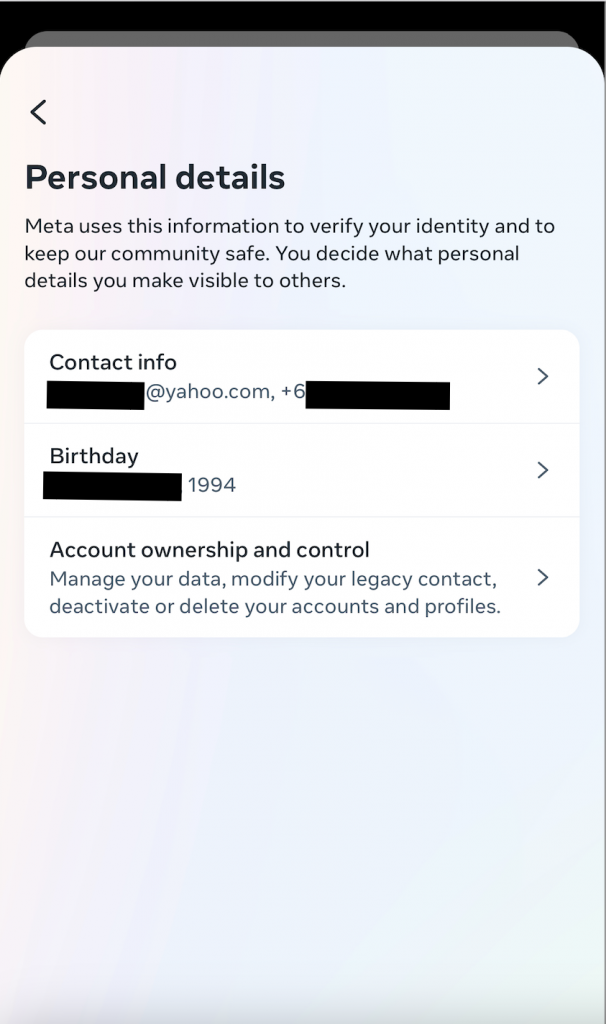
6. Cliquez sur Informations de contact. Vous accédez alors à une page qui répertorie toutes les adresses électroniques et tous les numéros de téléphone que vous avez associés à votre compte.
7. Cliquez sur Ajouter un nouveau contact.
8. Cliquez sur Ajouter un e-mail.
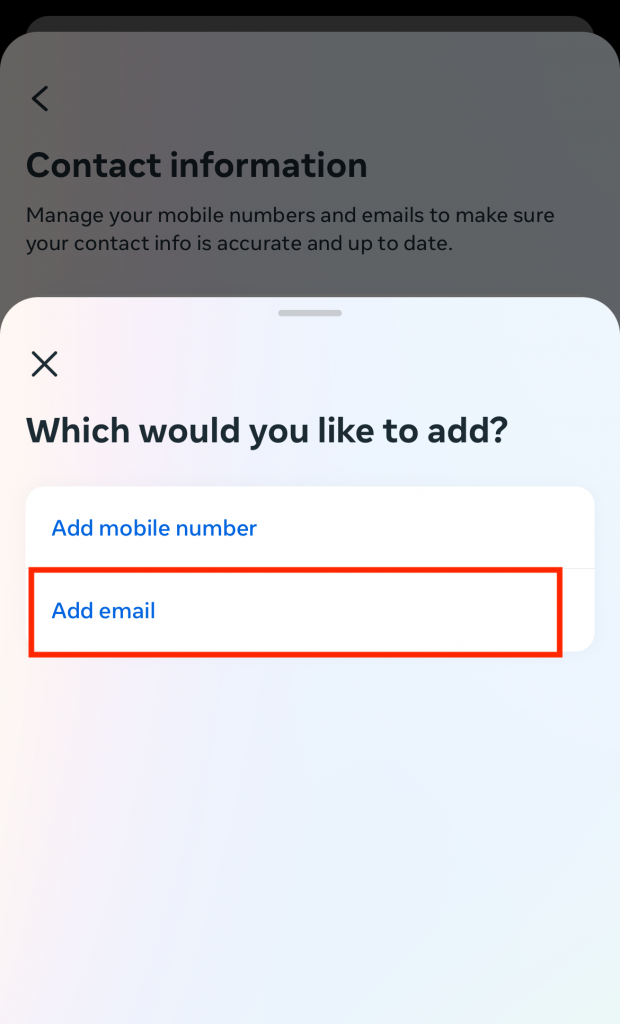
9. Saisissez votre nouvelle adresse électronique dans le champ prévu à cet effet.
10. Choisissez le compte auquel vous souhaitez lier l'adresse électronique. Notez que l'ajout d'une nouvelle adresse électronique remplacera l'adresse électronique précédente que vous avez connectée au compte.
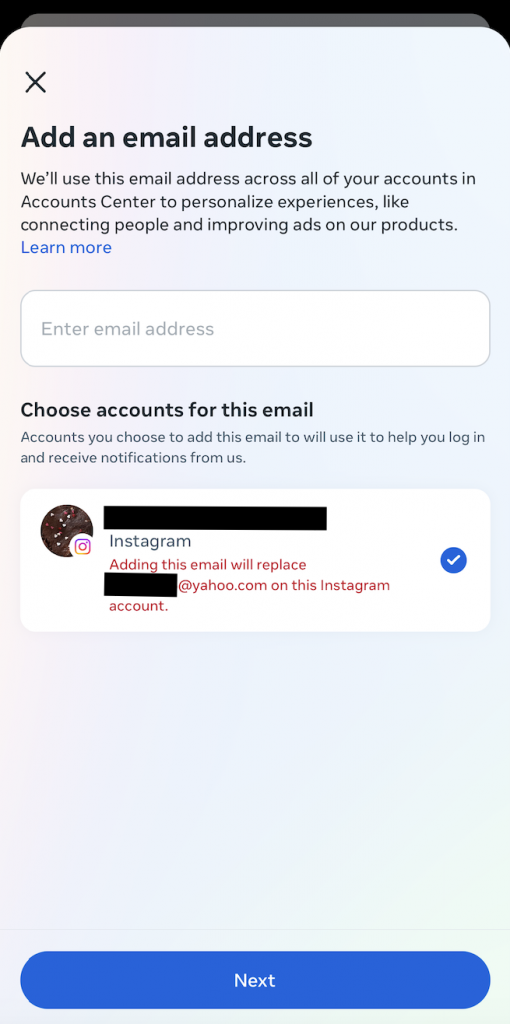
11. Saisissez le code de confirmation qui vous a été envoyé par e-mail pour finaliser le changement. Et voilà, c'est terminé !
Comment changer d'adresse électronique sur Instagram sans se connecter ?
Changer d'adresse e-mail est très simple lorsque vous avez accès à votre compte. Mais que faire si vous avez été victime d'un piratage ou si vous avez perdu votre mot de passe, ce qui vous empêche d'accéder au Centre des comptes ?
Si vous vous trouvez dans ce genre de situation, vous devrez suivre la procédure de récupération de compte. C'est le seul moyen de modifier votre adresse e-mail si vous en avez complètement perdu l'accès. Voici comment modifier votre adresse e-mail sur Instagram sans vous connecter, si vous devez suivre cette procédure :
1. Sur la page de connexion à Instagram , cliquez sur « Mot de passe oublié ».
2. Saisissez votre nom d'utilisateur dans le champ, puis cliquez sur Suivant.
3. Cliquez sur « Besoin d'aide ? », puis sur le bouton « Je ne peux pas accéder à cet e-mail ». Cela vous permettra de demander de l'aide à l'adresse Instagram afin de récupérer votre compte.
4. Sélectionnez la raison pour laquelle vous ne parvenez pas à vous connecter à votre compte. En général, une personne se trouvant dans cette situation choisirait l'option « Je me suis bloqué l'accès à ma messagerie ».
5. Sur la page suivante, Instagram vous demandera si vous avez des photos de vous sur votre page. Si vous cliquez sur « Oui », le site vous invitera à enregistrer un selfie vidéo. Cela peut aider la plateforme à vérifier que vous êtes bien le propriétaire du profil.
6. Saisissez une nouvelle adresse électronique à laquelle Instagram peut vous joindre pour des mises à jour.
7. Enfin, cliquez sur « Soumettre » afin que Instagram puisse commencer à traiter votre demande.
Instagram Il leur faudra ensuite un peu de temps pour vérifier si vous êtes bien le propriétaire légitime de la page, comme vous le prétendez. Ils vous redonneront ensuite accès à la page et modifieront votre adresse e-mail pour la remplacer par celle que vous leur avez fournie.
Comment modifier l'adresse électronique sur Instagram pour le bouton de contact de votre entreprise ?
Si vous disposez d'un compte professionnel sur Instagram, vous connaissez sans doute déjà les boutons de contact. Ces boutons apparaissent sur votre profil et permettent à vos clients de vous contacter facilement. Les marques partenaires qui mènent des campagnes d'influence les utilisent également couramment.
Souhaitez-vous que des partenaires potentiels puissent vous contacter par e-mail ? Associez votre adresse e-mail au bouton « Contact » de votre profil. Ainsi, les clients pourront cliquer sur le bouton « E-mail » de votre page et vous envoyer un message instantanément. Voici comment procéder :
1. Sur votre profil Instagram , cliquez sur « Modifier le profil ».
2. Dans la rubrique « Informations publiques sur l'entreprise », cliquez sur « Options de contact ».
3. Appuyez sur Email et saisissez l'adresse électronique que vous souhaitez utiliser.
4. Activez la case à cocher "Afficher les informations de contact".
Et voilà, c'est terminé ! Désormais, les partenaires potentiels pourront vous contacter très facilement par e-mail.
Conseil de pro : n'utilisez pas votre adresse e-mail personnelle pour cela, surtout si vous l'avez choisie de manière informelle. Préférez plutôt une adresse e-mail professionnelle. Selon l'éditeur de logiciels Podium, disposer d'une adresse e-mail professionnelle renforce la crédibilité de votre marque.
Modification d'autres données personnelles sur votre compte Instagram
Avez-vous besoin de modifier d'autres informations importantes sur votre compte Instagram ? Voici comment modifier deux des informations les plus importantes : votre nom et votre mot de passe Instagram .
Comment changer le nom de Instagram : Curating Your Instagram Handle (en anglais)
Vous envisagez de modifier votre identifiant Instagram — c'est-à-dire votre nom d'utilisateur — afin qu'il reflète mieux votre marque ? Voici comment modifier votre nom d'Instagram , étape par étape :
1. Sur votre profil Instagram , cliquez sur le bouton « Modifier le profil » situé sous votre biographie.
2. Cliquez sur le champ du nom d'utilisateur.
3. Saisissez le nouveau nom d'utilisateur de votre choix. Ce nom doit être unique, contrairement au nom d'affichage, qui n'a pas besoin de l'être. Cliquez ensuite sur « Terminé ».
Et voilà, c'est tout — un jeu d'enfant ! Notez que vous ne pouvez changer votre nom d'utilisateur que deux fois tous les 14 jours. Alors, essayez de ne pas en abuser !
Comment changer le mot de passe de Instagram : Ajoutez de la sécurité à votre page
Avez-vous besoin de sécuriser davantage votre page après quelques frayeurs de piratage ? Voici comment modifier les mots de passe de Instagram :
1. Allez dans vos paramètres Instagram et cliquez sur Centre de comptes.
2. Cliquez sur Mot de passe et sécurité.
3. Cliquez sur Modifier le mot de passe.
4. Choisissez le compte que vous souhaitez modifier.
5. Saisissez votre mot de passe actuel et celui que vous souhaitez modifier. Vous devrez également retaper ce dernier.
6. Pour finir, cliquez sur « Modifier le mot de passe » pour valider la modification.
Modifiez votre e-mail et sécurisez votre compte pour vous concentrer sur le développement de votre page
Si vous ne parvenez plus à accéder à votre messagerie ou si vous pensez avoir été piraté sur Instagram, modifiez immédiatement votre adresse e-mail. Agissez rapidement afin de sécuriser votre compte sans délai. Si nécessaire, modifiez également vos autres informations personnelles sur la plateforme, de votre mot de passe à votre nom d'utilisateur sur Instagram .
Maintenant que vous savez comment modifier votre adresse e-mail sur Instagram, vous pouvez garantir la confidentialité et la sécurité de votre compte à tout moment. Le reste du temps, vous pouvez vous concentrer sur quelque chose de plus passionnant : développer votre page. C'est là que nous intervenons.
Chez Path Social, nous nous efforçons d'identifier votre public cible, c'est-à-dire les personnes les plus susceptibles d'interagir avec votre contenu. Nous utilisons ensuite des techniques de promotion éprouvées pour que vos publications apparaissent dans leur fil d'actualité. Vous obtiendrez ainsi de nombreux « J'aime » et commentaires sur vos publications, ainsi qu'une augmentation significative de votre nombre d'abonnés. Développez votre page avec nous dès aujourd'hui !





Prêt à booster vos followers Instagram ?
Commencez à gagner des adeptes authentiques et à augmenter l'engagement dès aujourd'hui !
Augmenter le nombre de followers Instagram