Comment poster un GIF sur Instagram: Ajoutez des animations originales sur IG !

Ajouter des images animées et amusantes à votre contenu est un excellent moyen de mettre en avant votre personnalité décontractée et enjouée en ligne. Ce qui est génial, c’est que vous pouvez utiliser des GIF pour égayer de nombreux formats de contenu, des Instagram aux commentaires. Aujourd’hui, nous allons vous montrer comment publier un GIF sur Instagram apporter une touche de légèreté à votre contenu quotidien. C’est parti !
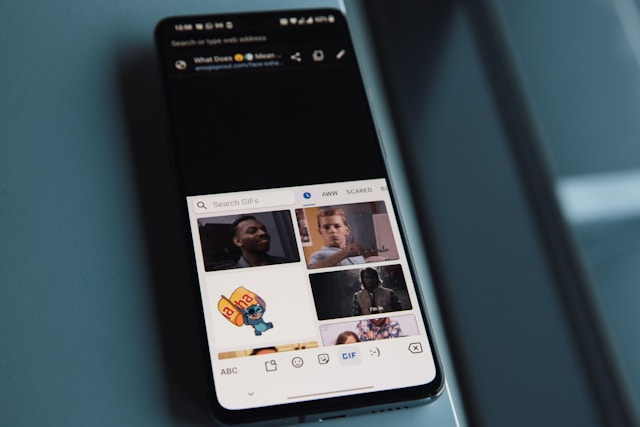
Pourquoi ajouter des GIFs à votre contenu sur les médias sociaux ?
Il y a quelques années, les images GIF faisaient fureur sur les réseaux sociaux, et certains internautes pourraient aujourd’hui penser qu’elles sont complètement dépassées depuis 2013. Le Guardian fait même état d’un recul général de l’utilisation des images GIF animées ces dernières années. Mais pour de nombreux inconditionnels des GIF, ces boucles graphiques ludiques ne se démoderont jamais.
Les GIF sont l'élément idéal à ajouter à un contenu sur n'importe quelle plateforme de médias sociaux pour lui donner un peu de personnalité. Ils sont parfaits pour les créateurs excentriques qui ne se prennent pas trop au sérieux et veulent s'exprimer avec légèreté.
Si vous privilégiez l'expression personnelle et les contenus divertissants et accessibles, plutôt que les contenus esthétiquement soignés mais artificiels, les GIF sont la solution idéale. Voici quelques avantages à publier des GIF sur Instagram ou sur n'importe quel autre réseau social, d'ailleurs !) :
- Il rend le contenu plus pertinent et plus authentique.
- Cela donne à votre contenu une touche légère, décontractée et libre, un peu comme lorsque l'on utilise des emojis.
- Il vous permet d'injecter de l'humour dans vos messages lorsque vous les utilisez comme des mèmes.
Comment poster un GIF sur Instagram Story
C'est super facile d'ajouter des GIF accrocheurs à vos Instagram grâce aux stickers « ». Voici comment publier un GIF dans une Instagram , étape par étape :
1. Créez une nouvelle Story en prenant une photo ou une vidéo ou en téléchargeant un média existant à partir de votre rouleau d'appareils photo.
2. Appuyez sur l'icône de l'autocollant en haut de l'écran de l'éditeur d'histoire.
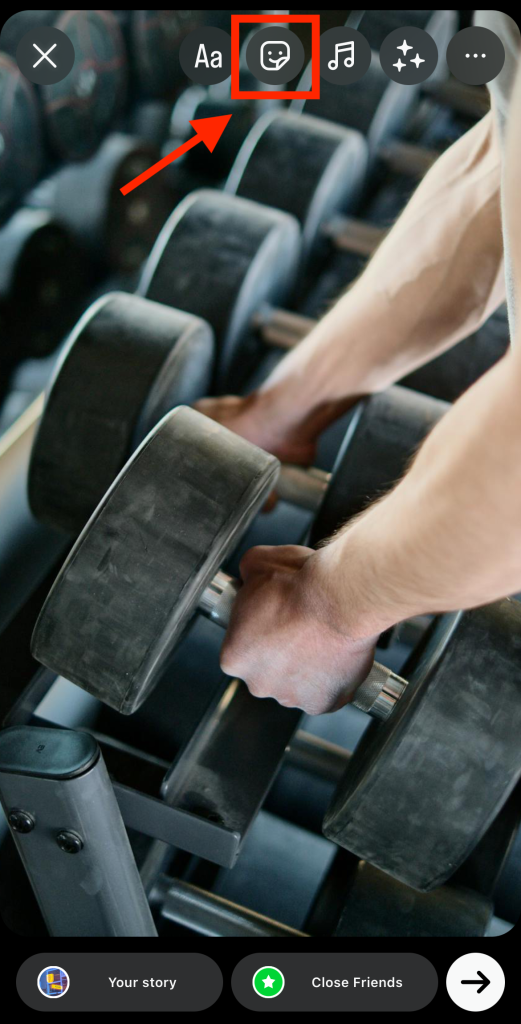
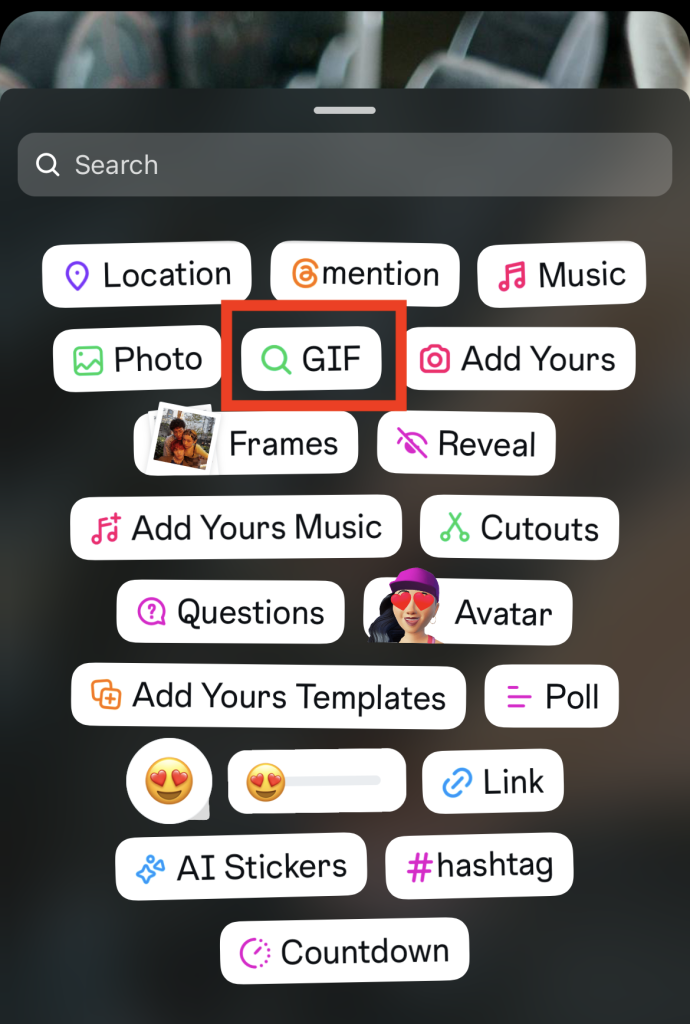
3. Sélectionnez l'option autocollant GIF .
4. Dans la barre de recherche, saisissez un mot-clé en rapport avec le type de GIF que vous souhaitez voir.
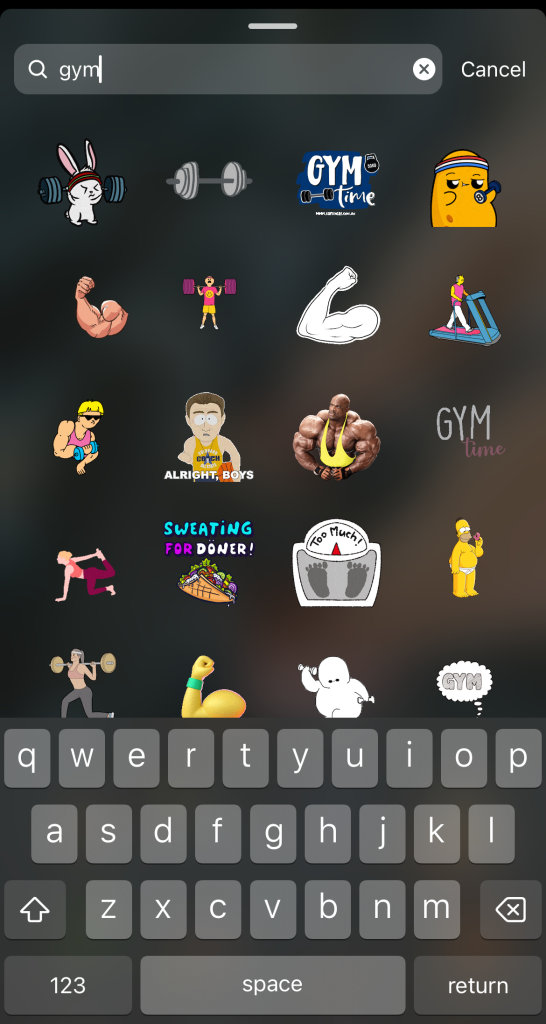
5. Appuyez sur le GIF que vous souhaitez ajouter à votre histoire.
6. Pincez et faites glisser l'autocollant GIF pour ajuster sa taille et sa position sur votre histoire.

7. Lorsque vous êtes satisfait de votre publication finale, cliquez sur l'icône de partage pour la publier dans votre Story.
Comment poster un GIF sur Instagram Comments
Vous pouvez également utiliser des GIF pour vous exprimer rapidement et de manière créative dans la section des commentaires d'une publication. Voici comment publier un GIF dans les commentaires d'Instagram :
1. Trouvez le message sur lequel vous souhaitez commenter un GIF et appuyez sur l'icône de la bulle de dialogue.
2. Appuyez sur l'icône de l'autocollant à côté de la barre Ajouter un commentaire en bas.
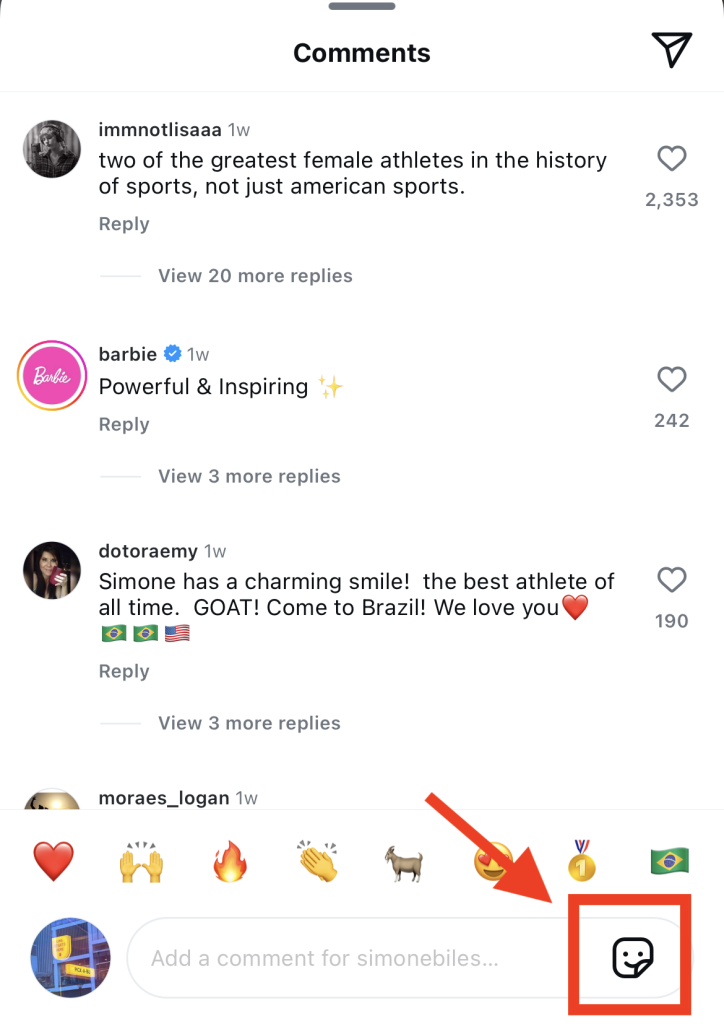
3. Utilisez la barre de recherche pour trouver le GIF que vous souhaitez utiliser comme commentaire.
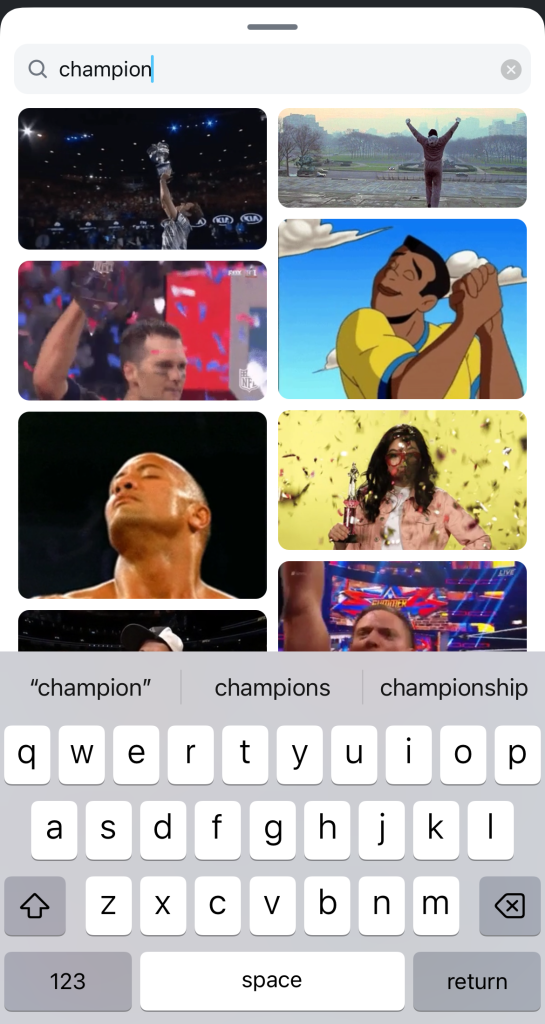
4. Cliquez sur le GIF que vous souhaitez commenter. Il sera instantanément envoyé en tant que commentaire sur l'article.
Comment poster un GIF dans IG Reels
Récemment, Instagram a également lancé une fonctionnalité appelée « Clip Hub » afin de faciliter l'intégration de GIF dans les Reels. Voici comment ajouter des GIF à vos Reels sur Instagram , étape par étape :
1. Créez un nouveau Reel et ajoutez-y toutes les photos, vidéos, textes et musiques de votre choix.
2. Positionnez le marqueur de ligne de temps à l'endroit où vous souhaitez ajouter un GIF.
3. Cliquez sur Clip hub en bas de l'éditeur.
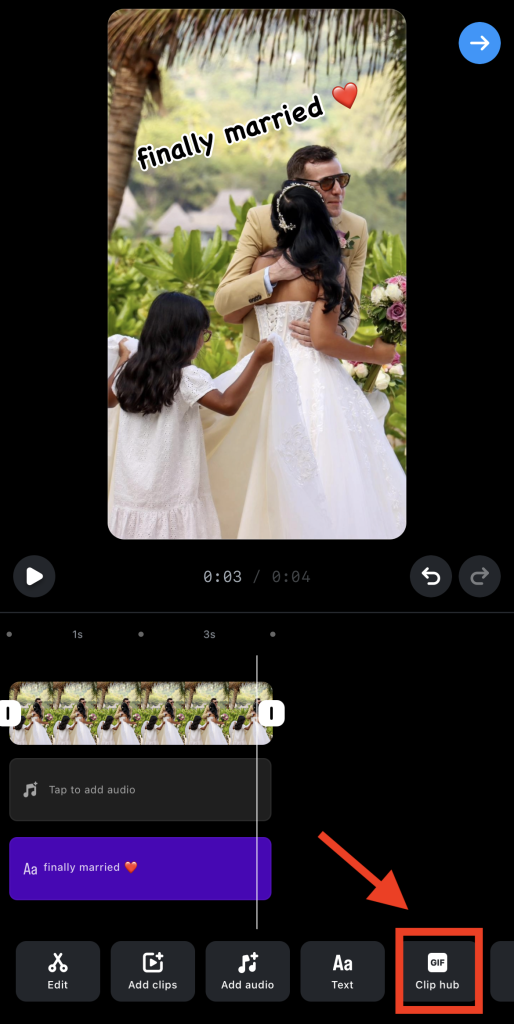
4. Utilisez la barre de recherche pour trouver un GIF que vous souhaitez utiliser.

5. Lorsque vous avez trouvé le GIF idéal, appuyez dessus.
6. Découpez la vidéo GIF comme vous le souhaitez. Vous pouvez également modifier sa vitesse et son échelle.
7. Appuyez sur Suivant pour l'ajouter à la bobine.

Comment télécharger des GIF à partir d'un site d'hébergement séparé ?
Vous souhaitez ajouter des GIF provenant de sites d'hébergement populaires tels que GIPHY et Tenor à votre contenu Instagram ? La meilleure façon de le faire est de convertir vos fichiers GIF en fichiers vidéo pour faciliter le téléchargement. Vous pouvez utiliser Wondershare Filmora, ou tout autre outil vidéo, pour y parvenir. Voici comment procéder :
1. Ouvrez votre application de conversion et téléchargez votre GIF.
2. Ajoutez du texte, des dessins et bien plus encore pour personnaliser votre GIF comme vous le souhaitez.
3. Exportez le graphique final sous forme de fichier vidéo et enregistrez-le sur votre appareil.
À partir de là, vous pouvez publier cette animation GIF sous forme de publication ou d'autocollant sur votre Instagram .
GIPHY simplifie encore davantage le processus. Sur le site web de GIPHY, vous pouvez enregistrer un GIF sous forme de vidéo MP4 de 15 secondes, une durée idéale pour les Stories. Vous pouvez ensuite ajouter cette vidéo directement à vos Stories et à vos Reels. Un jeu d'enfant !
Questions fréquemment posées
Puis-je publier un GIF sur un message Instagram ?
Malheureusement, non. Si vous publiez un fichier GIF sur votre fil d'actualité, Instagram comme une photo. Seule la première image du GIF sera visible. Il est préférable d'enregistrer le GIF au format vidéo et de le publier en tant que contenu vidéo.
Pourquoi ne puis-je pas publier de GIF sur les commentaires de Instagram ?
Si vous ne parvenez pas à publier des GIF dans la section des commentaires d'une publication, c'est peut-être parce que vous utilisez une version obsolète de l'application. Mettez à jour votre Instagram , puis essayez à nouveau de publier un GIF en commentaire.
Il est également conseillé de vérifier si votre connexion Internet est stable. Il arrive parfois que les GIF de la section des commentaires ne s'affichent pas entièrement en raison d'un signal Internet faible. Connectez-vous à une source Internet plus puissante, puis réessayez.
Pouvez-vous utiliser un GIF comme photo de profil sur Instagram?
Non. Instagram autorise Instagram les utilisateurs à publier des images statiques comme photo de profil. Les photos de profil doivent être nettes et facilement reconnaissables ; or, les images animées peuvent s'avérer assez gênantes, d'où cette restriction.
Utilisez les GIFs pour rendre votre contenu IG plus convaincant !
Ajouter des GIF animés à votre contenu vous permet de vous exprimer de manière ludique et humoristique. Certes, l'ajout de GIF à vos publications représente une étape supplémentaire dans le processus de création de contenu. Mais cela en vaut la peine, car cela vous permet d'interagir avec votre public de manière décontractée et spontanée.
Maintenant que vous savez comment publier un GIF sur Instagram, passons à l'étape suivante. Votre objectif est désormais d'amener les utilisateurs à voir vos publications contenant des GIF. Path Social vous y aider considérablement.
Nous utilisons des algorithmes de ciblage exclusifs basés sur l'intelligence artificielle pour mettre en avant votre contenu et nous assurer que votre public cible le voie. Plus vos publications seront vues, plus vous gagnerez d'abonnés. Nous avons déjà aidé de nombreux créateurs à atteindre cet objectif, à l'image de Terrell Conyers, qui a gagné 29 000 nouveaux abonnés grâce à notre aide. Vous pouvez vous aussi bénéficier de cette augmentation du nombre de fans grâce à nos stratégies qui ont fait leurs preuves.
Obtenez plus de Instagram followers avec Path Social aujourd'hui !





Vous cherchez le meilleur service de promotion Instagram ?
Bénéficiez d'un engagement réel, d'une audience ciblée et d'une croissance durable grâce à notre stratégie élaborée par des experts !
Essayez notre service de promotion Instagram