Cómo desactivar Instagram sin perder los datos

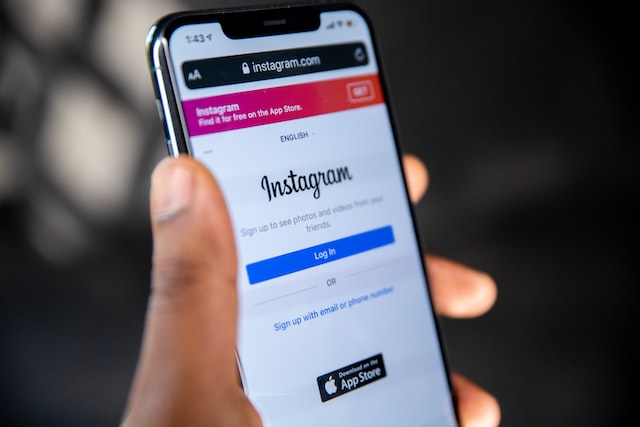
La aplicación de Instagram cuenta con varias funcionalidades. Entre las básicas se incluyen compartir fotos y vídeos, enviar mensajes y el marketing. Sin embargo, además de estas, dispone de funciones más avanzadas que garantizan cierta privacidad a los usuarios. Estas funciones abarcan desde el control del usuario sobre una publicación concreta hasta su perfil y su cuenta.
Una de estas funcionalidades es la opción de «desactivación». Esta opción permite a los usuarios cerrar sus cuentas cuando lo deseen. Supongamos que quieres tomarte un respiro del ajetreo de las redes sociales o desactivar tu cuenta de forma permanente para que no se pueda seguir utilizando. En ese caso, este artículo ofrece una explicación detallada de cómo desactivar Instagram. También explica cómo puedes descargar tus datos durante el proceso.
Cómo desactivar Instagram: Qué hacer antes de desactivar su cuenta Instagram

Al igual que cualquier otra plataforma de redes sociales actual, Instagram también almacena tu información en su base de datos. Sin embargo, te permite acceder a ella si lo solicitas. Esto es especialmente importante si has utilizado anteriormente la cuenta para promocionar tu negocio.
Los pasos para acceder a tus datos de Instagram son sencillos. No obstante, pueden pasar hasta 30 días hasta que recibas un enlace de descarga de Instagram. Antes de plantearte cómo desactivar Instagram, es fundamental que sepas que puedes solicitar tus datos a través de la aplicación Instagram , un ordenador o el navegador de tu móvil.
Para descargarlos desde un ordenador, estos son los pasos que debes seguir:
- Abre tu cuenta de Instagram y haz clic en tu foto de perfil para acceder a la configuración.
- En «Ajustes», pulsa en «Privacidad y seguridad».
- Busque "descarga de datos" y pulse sobre él para que aparezca el botón "solicitar datos".
- A continuación, introduce tu dirección de correo electrónico y pulsa «Siguiente».
- Esta acción le llevará a la página de verificación para introducir su contraseña y solicitar la descarga.
Estos son los pasos a seguir para solicitar tus datos a través de la app.
- Visita tu perfil pulsando sobre tu foto de perfil.
- Pulse el icono de menú situado en la parte superior derecha.
- En el menú, pulsa en «Seguridad». Esto te llevará a la opción «Descargar datos».
- A continuación, introduzca su dirección de correo electrónico y "solicitar descarga".
- Instagram también te pedirá tu contraseña. Introdúcela y toca "Hecho".
Para acceder a los datos de Instagram desde un navegador web, sigue estos pasos.
- Una vez que hayas iniciado sesión en tu cuenta, accede a tu perfil.
- En la esquina superior izquierda, haz clic en «Configuración».
- En «Ajustes», pulsa en «Privacidad y seguridad». A continuación, desplázate hasta «Descarga de datos».
- Aquí, haga clic en solicitar descarga.
- Introduce tu dirección de correo electrónico, haz clic en «Siguiente» e introduce tu contraseña.
- Tras hacer clic en «Solicitar descarga», Instagram te enviará un correo electrónico con un enlace a tus datos.
Cómo desactivar temporalmente Instagram en tus dispositivos móviles
Si te estás preguntando cómo desactivar temporalmente la función « Instagram », hay dos formas de hacerlo. Puedes utilizar tu iPhone para ello o la página web Instagram si utilizas un dispositivo Android.
Cómo desactivar la cuenta Instagram en Android
Instagram no permite a los usuarios desactivar sus cuentas a través de la aplicación para Android. Por lo tanto, si eres usuario de Android, lo mejor es utilizar un navegador web. Para desactivar una cuenta de Instagram en Android, sigue estos pasos.
- Abre tu navegador web y escribe la URL del sitio web de Instagram (https://www.instagram.com/). Si ya has iniciado sesión, esto te llevará directamente a tu página de inicio. De lo contrario, Instagram te pedirá que inicies sesión introduciendo tus datos.
- Tu foto de perfil está arriba a la derecha. Haz clic en ella y espera a que aparezca un menú desplegable.
- A continuación, toca en "perfil" y luego en "editar perfil".
- Desplácese hasta la parte inferior derecha de la página y pulse "Desactivar temporalmente mi cuenta".
- Al hacer esto, aparecerá una página en la que se te preguntará: «¿Por qué vas a desactivar tu cuenta?». Haz clic en el cuadro vacío y selecciona «Es algo temporal. Volveré enseguida».
- Esto hará que aparezcan más avisos. Una de ellas es la opción de reactivar la cuenta automáticamente.
- Para utilizar esta opción, pulsa en el recuadro vacío y selecciona un plazo. Instagram reactivará automáticamente tu cuenta una vez que venza el plazo. Si no deseas que esto ocurra, haz clic en «No reactivar automáticamente».
- A continuación, Instagram te pedirá que introduzcas tu contraseña. Si no la recuerdas, tendrás que restablecerla primero.
- Pulse el botón "Desactivar cuenta temporalmente".
- Al hacer clic aquí, Instagram te mostrará un mensaje para que confirmes la acción. Haz clic en «Sí» para continuar y en «No» si quieres cancelar la operación.
Cómo desactivar la cuenta Instagram en el iPhone
Los usuarios de iPhone pueden utilizar la aplicación para iOS « Instagram » para desactivar sus cuentas. Si eres usuario de iOS, sigue estos pasos para saber cómo desactivar tu cuenta de Instagram en el iPhone.
- Abre la aplicación en tu móvil. Si aún no la tienes, descárgala de la App Store antes de continuar.
- Si ya has iniciado sesión anteriormente, se te redirigirá directamente a tu página de inicio. De lo contrario, primero deberás iniciar sesión con tu nombre de usuario o correo electrónico y tu contraseña.
- En la esquina inferior derecha, haz clic en tu foto de perfil para abrir tu perfil.
- A continuación, haga clic en el icono desplegable de la esquina superior derecha.
- El icono abrirá un menú en el que puedes pulsar sobre ajustes.
- Un toque en "configuración" te llevará a otra página donde puedes hacer clic en "cuenta".
- Desplázate hasta encontrar la opción «Eliminar cuenta». A continuación, pulsa sobre ella para que aparezca la página de desactivación.
- Haga clic en "Desactivar cuenta" para abrir otra página en su navegador.
- En la nueva página, Instagram te preguntará por qué vas a desactivar tu cuenta. Selecciona la opción «Es algo temporal, volveré».
- Al seleccionar esta opción, Instagram te mostrará automáticamente un mensaje para reactivar tu cuenta. Elige el plazo en el cuadro vacío que aparece a continuación si deseas que la reactivación sea automática. De lo contrario, selecciona «No reactivar automáticamente».
- A continuación, Instagram le pedirá que introduzca su contraseña para confirmarla.
- A continuación, haz clic en «Desactivar temporalmente mi cuenta». Además, responde «sí» a la pregunta de verificación que aparecerá en pantalla.
Cómo desactivar Instagram: ¿Por qué no puedo desactivar mi cuenta de Instagram temporalmente?

Desactivar tu cuenta de Instagram implica seguir unos pasos muy sencillos, tal y como se ha visto anteriormente. Si ya has aprendido a desactivar temporalmente Instagram , pero aún así la echas de menos, aquí tienes algunos aspectos que debes tener en cuenta.
- ¿Has seguido los pasos incorrectos?
Si tienes dificultades para desactivar tu cuenta, vuelve a revisar los pasos. Lo más probable es que te hayas saltado uno o dos pasos o hayas pulsado el botón equivocado. Además, es posible que tengas que utilizar otro dispositivo, ya que Instagram solo permite a los usuarios desactivar su aplicación desde un iPhone o un navegador web. - Un error de Instagram
Al igual que cualquier otro servicio SaaS, Instagram también tiene sus propios fallos técnicos. Estos fallos, también conocidos como «bugs», pueden dificultar el proceso de desactivación, incluso si sabes cómo desactivar Instagram , ya que la mayoría de los errores alteran el flujo de trabajo de la aplicación. Sin embargo, no hay motivo para alarmarse, ya que los ingenieros de Instagram siempre solucionan los fallos técnicos. En primer lugar, espera unos días y vuelve a intentarlo. Si el problema persiste, ponte en contacto con su equipo de asistencia técnica. - Cuenta pirateada
. Otra razón por la que podrías necesitar ayuda para desactivar tu cuenta es si hay otro usuario accediendo a ella. Si te das cuenta de que alguien te ha pirateado la cuenta, ponte en contacto inmediatamente con el equipo de atención al cliente para que te ayuden. - Contraseña olvidada
Instagram te pedirá tu contraseña cada vez que quieras desactivar tu cuenta. Si la has olvidado, haz clic en «Olvidé mi contraseña». A continuación, intenta restablecerla siguiendo las instrucciones que aparecen en la página. - Problemas de verificación
Si últimamente se ha producido alguna actividad sospechosa en tu cuenta, es posible que la desactivación tarde más tiempo. El motivo es que Instagram necesita verificar tu cuenta para asegurarse de que nadie se está haciendo pasar por ti.
Cómo desactivar Instagram: Consejos para detectar la desactivación de la cuenta

Si ya sabes cómo desactivar Instagram y desactivas tu cuenta, Instagram te desconectará de todos tus dispositivos vinculados. Sin embargo, existen otras formas de comprobar si tu cuenta de Instagram ha pasado a ser invisible. A través de estas formas, también puedes comprobar si alguien que conoces ha desactivado su cuenta.
- Comprobar la visibilidad de la actividad
Cuando un usuario desactiva su cuenta, Instagram elimina toda su actividad anterior. Si el usuario que estás buscando ha interactuado alguna vez con tus publicaciones, visita tu perfil. Sus «Me gusta» y comentarios ya no deberían aparecer en las publicaciones.
También puedes comprobar la visibilidad de tu cuenta revisando las publicaciones con las que has interactuado en el pasado. Sin embargo, tendrás que hacerlo desde la cuenta de otra persona. Si no encuentras tus interacciones, Instagram te ha desactivado.
- Buscar la cuenta
Este método es la forma más sencilla de comprobar si tu cuenta o la de otra persona está desactivada. Sin embargo, aunque pueda ser preciso en tu caso, puede que no lo sea para otros. El motivo es que la persona puede haber cambiado su nombre o su nombre de usuario de Instagram . También podría ser que Instagram te haya bloqueado o restringido el acceso.
Para este método, abre la aplicación móvil y busca su nombre de usuario, su nombre o palabras clave específicas relacionadas con él o ella. Si el usuario ha desactivado su cuenta, no aparecerá en los resultados.
- Mirar a través de los mensajes
Instagram Los mensajes ofrecen información específica que quizá no encuentres en otras páginas. Para ello, haz clic en «Mensajes» en la esquina superior derecha de la aplicación y busca el nombre del usuario.
Si esto no funciona, escribe palabras clave de los mensajes que hayáis intercambiado. Si el usuario está activo, Instagram mostrará su cuenta. De lo contrario, aparecerá la indicación «Instagram ». Para confirmarlo, haz clic en el mensaje directo y comprueba su perfil. No debería aparecer nada en absoluto.
Cómo reactivar su cuenta Instagram
Por supuesto, ya has aprendido a desactivar una cuent Instagram . Sin embargo, es igual de importante saber cómo reactivarla. Este proceso solo consta de dos sencillos pasos. Son los siguientes:
- Abre la aplicación en tu móvil. Si aún no la tienes, puedes instalar fácilmente « Instagram » desde Google Play Store o App Store. También puedes abrir la página web Instagram en tu navegador.
- Inicia sesión en la aplicación o en la página web con tu nombre de usuario, correo electrónico y contraseña. Si los datos son correctos, Instagram reactivará tu cuenta de inmediato.
Si Instagram suspende tu cuenta, este procedimiento no te servirá. Tendrás que presentar una reclamación en Instagram. Para ello, rellena el formulario de reclamación de Instagram , envíalo y espera a que el equipo de asistencia se ponga en contacto contigo.
Cómo desactivar permanentemente la cuenta Instagram
Además de desactivar tu cuenta temporalmente, a continuación te explicamos cómo desactivar una cuent Instagram de forma permanente. Puedes hacerlo tanto a través de la aplicación Instagram como desde un navegador web.
Para la aplicación móvil:
- Abre la aplicación Instagram y pulsa tu foto de perfil en la parte inferior derecha de la pantalla.
- Se abre tu perfil, donde puedes hacer clic en el menú desplegable.
- Cuando se abra el menú, haz clic en «Configuración» y en «Ayuda».
- En la página de ayuda, haz clic en «Centro de ayuda». Al hacerlo, Instagram te llevará a una página en la que podrás hacer clic en «Gestionar tu cuenta».
- A continuación, haz clic en «Eliminar tu cuenta».
- Instagram aparecerá una guía sobre cómo eliminar tu cuenta.
- Sigue las instrucciones y borra tu cuenta.
Para el navegador web:
- Abra el sitio web Instagram en su navegador escribiendo simplemente esta URL(https://help.instagram.com).
- El navegador te llevará directamente al centro de ayuda, donde podrás hacer clic en «Gestionar tu cuenta».
- A continuación, haz clic en «Eliminar tu cuenta». Al hacerlo, se abrirá una página en la que podrás pulsar «¿Cómo elimino mi cuenta de Instagram ?».
- Siga las instrucciones de la página y lea atentamente las condiciones.
- Haga clic en el enlace "eliminar su cuenta" de la sección uno y seleccione el motivo por el que desea eliminar su cuenta.
- Instagram Te pedirá que vuelvas a introducir tu contraseña. A continuación, podrás pulsar en «Eliminar mi cuenta de forma definitiva».
Reflexiones finales sobre cómo desactivar la cuenta Instagram : ¿Vale la pena?
Saber cómo desactivar una cuenta de Instagram de forma permanente o temporal está muy bien. Sin embargo, si se trata de una cuenta empresarial, quizá te estés rindiendo demasiado pronto. Y es que una gestión eficaz y experta de Instagram puede revivir una cuenta inactiva de Instagram .
Esta gestión, y mucho más, es precisamente lo que ofrece Path Social . Se encargan del trabajo de marketing por ti para que puedas centrarte en otras actividades empresariales. El algoritmo de segmentación basado en IA de Path Socialy sus expertos en marketing digital con amplia experiencia dispararán la interacción con tu marca.
Aún no es demasiado tarde. Si has eliminado tu cuenta recientemente, aún dispones de 30 días para recuperarla en Instagram. También puedes reactivar tu cuenta y empezar a hacerla crecer con Path Social hoy mismo.





¿Quieres aumentar tu Instagram de forma natural?
Descubre una plataforma diseñada para ayudar a los creadores a llegar a seguidores reales y comprometidos, sin atajos.
Explora la plataforma