Cómo eliminar el fondo de una imagen - Guía completa

Imagina que has hecho una foto fantástica. Todo es perfecto, desde la iluminación hasta tu pose. El único problema es el fondo: resta protagonismo al elemento principal de la imagen y la desvirtúa. Es frustrante, ¿verdad? Se trata de un problema típico que lleva mucho tiempo preocupando a fotógrafos, artistas y diseñadores. Si no estás familiarizado con las aplicaciones, la pregunta «¿cómo eliminar el fondo de una foto?» seguramente también te resulte frustrante. Pero no te preocupes; ¡tenemos todas las respuestas!
Eliminar el fondo de una foto o cambiar el color de fondo Instagram abre un sinfín de posibilidades creativas. Te permite aislar el sujeto y situarlo en un entorno totalmente nuevo, lo que aporta un toque profesional a tus obras de arte, diseños o imágenes.
Aprender la técnica de la eliminación de fondos es una habilidad que merece la pena desarrollar, si quieres crear fotografías excepcionales, imágenes llamativas o collages estéticamente atractivos. Así que empecemos a aprender.
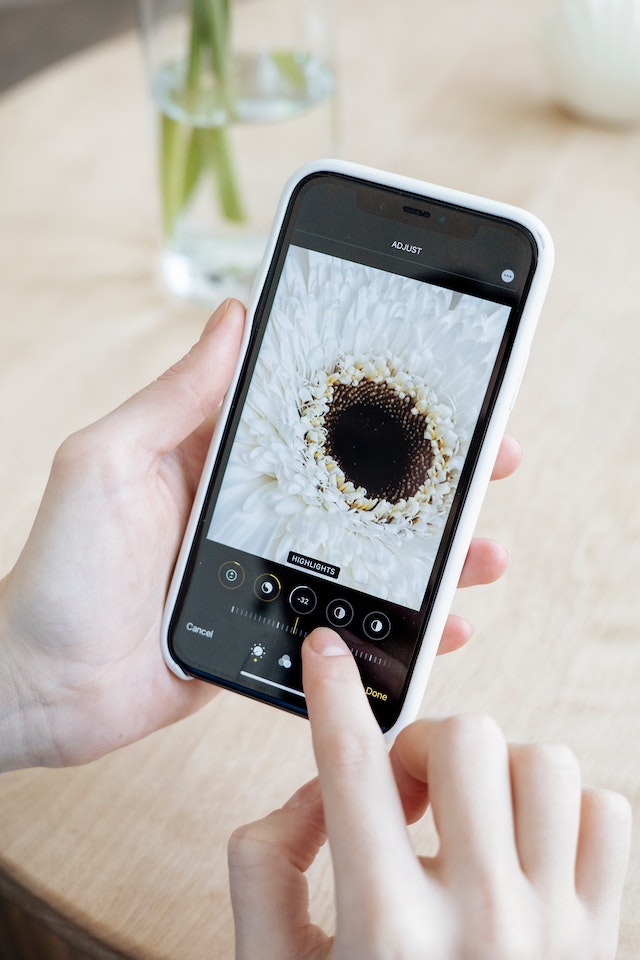
Cómo quitar el fondo de una foto en 4 sencillos pasos
Aquí tienes cuatro sencillos pasos para eliminar un fondo de una foto:
Paso 1: Selecciona el software o aplicación de edición de fotos que prefieras. Photoshop y Canva son dos opciones habituales.
Paso 2: Abra la imagen en su aplicación a la que desea eliminar un fondo.
Paso 3: Busca una función o herramienta que te permita añadir o modificar el fondo. Puedes utilizar el panel "Capas" de Photoshop para añadir una capa para el fondo.
Paso 4: Ahora ya puedes subir o compartir tu imagen.

Los mejores métodos para "Cómo quitar el fondo de una foto"
Afortunadamente, existen varios métodos y tecnologías que pueden ayudar en esta tarea. Las posibilidades van desde sofisticadas aplicaciones de edición fotográfica, como Adobe Photoshop, hasta páginas web fáciles de usar. El objetivo común de todos los métodos es separar con fluidez el sujeto del fondo, y cada uno de ellos aporta una cualidad única.
Sin embargo, para quienes prefieran un enfoque más automatizado, hoy en día todo el mundo tiene a su alcance programas de inteligencia artificial. Con ellos, puedes eliminar el fondo y hacer que tus fotos resulten más atractivas con gran precisión. Actualmente son opciones muy populares entre quienes buscan una solución sencilla y rápida.
Así que sigue leyendo para conocer todos los detalles sobre este revolucionario método. Te revelaremos lo esencial sobre cómo eliminar el fondo de una foto. ¿Listo para mejorar tu Instagram ? Sigue leyendo.
Cómo eliminar el fondo de una imagen en Photoshop
Puede eliminar fácilmente el fondo indeseable de su imagen con el eliminador de fondo de imagen gratuito: Adobe.
Para aprender «cómo eliminar el fondo de una imagen en Photoshop», abre la foto en Photoshop. A continuación, busca el panel de capas situado en la parte derecha de la pantalla. Puedes duplicar la capa actual pulsando Comando+J en un Mac o Ctrl+J en un ordenador con Windows.
Ya casi has terminado. Busca el icono «Eliminar fondo» en la ventana «Acciones rápidas». Haz clic en él y Photoshop se encargará del resto. El sujeto permanecerá intacto, mientras que la aplicación eliminará automáticamente el fondo.
Cuando lo utilices, recuerda que es una forma rápida y sencilla de eliminar el fondo. Es posible que los bordes de la imagen no queden perfectos. Así que, si no te importa, merece la pena probarlo.
Aquí tienes dos funciones de Adobe Photoshop que te beneficiarán:
Herramienta de selección rápida
Se trata de una práctica herramienta que detecta rápidamente dónde se cierra el área del sujeto y dónde comienza el fondo en tu imagen utilizando tecnología de vanguardia.
Esta herramienta funciona bien cuando hay una diferencia clara entre el objeto principal que elijas y el fondo que hay detrás. Sin embargo, puede resultar confuso si los colores o los motivos son demasiado similares. Además, es posible que tengas que dedicar mucho tiempo a añadir o eliminar partes de la selección.
Una vez que hayas utilizado la herramienta de selección rápida para crear la selección inicial, puedes ampliarla o reducirla. De este modo, tendrás más control sobre qué partes de la imagen se incluyen o se excluyen de la selección.
Si te estás preguntando cómo eliminar el fondo de una imagen con esta herramienta, aquí tienes los seis sencillos pasos para empezar:
- Ve a Photoshop y abre tu imagen.
- En la caja de herramientas de Photoshop, busca la herramienta «Selección rápida» en el menú de la izquierda. Intenta encontrarla junto a la herramienta «Varita mágica».
- Active la opción "Mejorar bordes" haciendo clic en la casilla Configuración. Esto puede mejorar la calidad y suavidad de los bordes de la selección.
- Desplácese sobre la región que desea seleccionar mientras hace clic en la herramienta. La herramienta Selección rápida buscará tonos relacionados e intentará localizar los bordes de la selección.
- Si quieres añadir más elementos, solo tienes que hacer clic y arrastrarlos a otra ubicación.
- También puede borrar partes de la selección de la herramienta que recogió más de lo que pretendía. Mantenga pulsadas las teclas Opción o Alt mientras se mueve sobre la parte que desea eliminar en un ordenador Mac o Windows.
Cómo eliminar el fondo de una imagen con la herramienta Borrador de fondo
La herramienta Borrador de Fondo es la respuesta a "Cómo eliminar el fondo de una imagen". El programa permite eliminar fondos de imágenes en las que el sujeto y el fondo tienen diferencias aparentes de profundidad. Recoge el color en el centro del pincel y elige píxeles con el color exacto o uno similar. Puedes mover el ratón sobre ellos para seleccionar lo que quieres excluir del fondo de tu imagen. He aquí cómo hacerlo:
- Inicia Photoshop y abre tu imagen.
- Busca en la barra de herramientas de Photoshop la herramienta «Borrador de fondo». Si haces clic y mantienes pulsada la herramienta «Borrador» o pulsas la tecla «E», podrás abrir el submenú «Borrador» que la contiene.
- Asegúrate de que el pincel tenga el tamaño adecuado. Puedes modificarlo mediante la barra de menú o las teclas de corchete [ o ]. Los pinceles más pequeños son esenciales para las zonas que requieren precisión, ya que los más grandes funcionan más rápido. También puedes ampliar un área para centrarte en un detalle concreto.
- Asegúrate de seleccionar un valor alto para la dureza del pincel. Los bordes difuminados pueden provocar marcas no deseadas. Para cambiar el nivel de dificultad, pulsa la tecla Mayús junto con cualquiera de las teclas de corchete.
- Establezca "Buscar bordes" como la opción Límites del menú.
- Cuando quieras borrar un color, coloca el centro del pincel sobre él y haz clic. La herramienta conservará algunos colores, al tiempo que eliminará todas las manchas coincidentes dentro de los límites de tolerancia.
- La tolerancia de la herramienta determina cuántos colores puede borrar. Empieza con un valor de tolerancia de 25 y, a continuación, modifícalo según sea necesario.
- Tenga en cuenta que la herramienta borra cualquier color similar sobre el que se coloque si la cruz reticular no se encuentra sobre el color de fondo que pretendía borrar.
- De forma predeterminada, la herramienta «Borrador de fondo» tiene configurada la opción «Muestreo continuo», lo que indica que toma muestras de los colores de forma continua mientras arrastras el pincel.

¿Cómo eliminar el fondo de una imagen en el iPhone?
Hay varios beneficios de cambiar y eliminar los fondos de tus historias Instagram o fotos al azar. ¿Quieres aprender a eliminar el fondo de una foto en iPhone? Repasemos algunas de las mejores opciones para usuarios de iPhone y veámoslas paso a paso para que aprendas cómo funcionan.
Cómo eliminar el fondo de una imagen Acceso directo
Puedes descargar la aplicación de acceso directo para eliminar el fondo como usuario de iPhone. Te permitirá eliminar el fondo fácilmente. Utiliza un atajo específico para usar la API de Adobe para reconocer y eliminar fondos de las imágenes de tu teléfono.
Sin embargo, recuerda que no puedes mejorar o arreglar el borde de una imagen modificada si el acceso directo no edita la foto con precisión. Aquí tienes algunos consejos:
- Instala la aplicación de acceso directo en tu teléfono.
- Tras la descarga, es posible que necesites permiso para utilizar una aplicación de terceros. Para ello, ve a «Ajustes», selecciona «Accesos directos» y marca la casilla «Permitir accesos directos no fiables».
- Ahora, puedes acceder a ella en línea o en la galería de aplicaciones de acceso directo.
- Asigna a ese acceso directo el nombre que quieras, como «BG Remover».
- Para autorizar y añadir el acceso directo a tu biblioteca, haz clic en la opción «Añadir acceso directo no fiable».
- Ahora, puedes utilizar la aplicación para eliminar el fondo.
- Puedes seleccionar una imagen de la galería y dar permiso a la aplicación para que acceda a tus fotos.
- Para guardar la imagen en tu galería, toca la imagen, pulsa el icono «Compartir» y, a continuación, selecciona la opción «Guardar imagen». Para guardar los cambios que hayas realizado, hazlo antes de pulsar «Hecho» en la imagen.
Cómo utilizar la aplicación Preview en Mac para eliminar fondos
Aunque no está hecho especialmente para editar imágenes en el iPhone, es útil si copias las fotos de tu iPhone al ordenador o las sincronizas a través de iCloud.
Si tienes un Mac, probablemente ya estés familiarizado con Vista Previa, una aplicación que se utiliza con frecuencia para marcar documentos y hacer capturas de pantalla. Pero Vista Previa también incluye algunas funciones interesantes de edición de fotos. «Instant Alpha», su herramienta integrada, puede ayudarte a eliminar los fondos de tus imágenes.
Veamos seis pasos para eliminar el fondo de una foto en un iPhone y trasladarlos a Vista Previa:
- Abra Vista Previa en su Mac y seleccione la imagen que desea editar.
- Haga clic en el botón Marcar de la barra de herramientas. Tiene el aspecto de la punta de un bolígrafo.
- Busque el botón Alfa instantáneo que parece una varita mágica y haga clic en él.
- Selecciona el área del fondo que deseas borrar pulsando y arrastrando el cursor sobre ella. La aplicación Vista previa elegirá automáticamente los píxeles contiguos del mismo color. La región que selecciones se resaltará en color rosa.
- Pulsa la tecla Supr del teclado para borrar los píxeles de la imagen.
- Si es necesario, sigue los pasos 4 y 5 para eliminar todo el fondo. Es posible que tengas que repetir este proceso varias veces para eliminar por completo el fondo, ya que «Vista previa» solo elimina partes del área seleccionada.
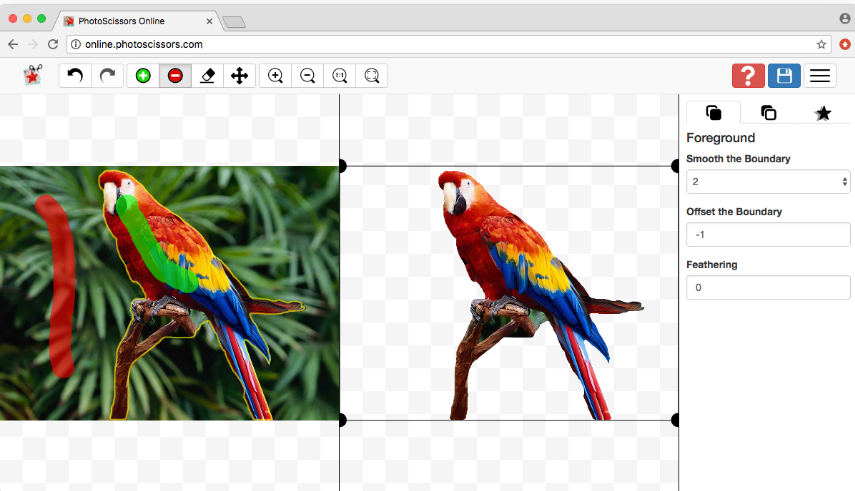
Cómo quitar el fondo de una foto con PhotoScissors
La aplicación PhotoScissors está disponible para iPhone y iPad. Para los usuarios de Mac que busquen una alternativa basada en la web, también existe una versión de escritorio. Sin embargo, hay una limitación: en la versión gratuita no se pueden guardar las fotografías modificadas. En la versión gratuita se empieza con cinco créditos y se puede modificar una imagen por crédito.
A continuación te explicamos cómo eliminar el fondo de una imagen con PhotoScissors:
- Ve a la aplicación y sube la imagen para eliminar el fondo.
- La aplicación marcará una máscara verde sobre el sujeto principal (tu foto).
- Para elegir una imagen de tu smartphone y subirla, abre la aplicación y pulsa el icono de la carpeta.
- La aplicación marcará con una máscara verde la imagen que desea eliminar.
- Ten en cuenta que todo lo que cubra la máscara verde formará parte del recorte final, mientras que todo lo que quede fuera de la máscara se eliminará para crear el fondo.
- Utilice el dedo para trazar sobre determinados aspectos que desee resaltar y coloque el recorte si la aplicación no se aplica adecuadamente.
- Por último, toca para examinar la foto sin el fondo si estás satisfecho con la máscara.
Cómo eliminar el fondo de una imagen con Pixel Cuts
Con las herramientas adecuadas, puedes eliminar el fondo de una imagen fácilmente. Por ejemplo, Pixel Cuts te permite hacerlo en tres sencillos pasos. A continuación te explicamos cómo:
- Haz una foto o, si lo prefieres, elige una de tu galería.
- Para eliminar el fondo, desliza el dedo hacia abajo por el control deslizante.
- Una vez eliminado el fondo, puedes, si es necesario, retocar los bordes del recorte. Para utilizar las herramientas de edición «Borrar» y «Restaurar», selecciona «Perfeccionar».

Cómo eliminar el fondo de una imagen en Canva
Aprende a eliminar el fondo de una imagen en Canva siguiendo estos tres pasos.
1. Abrir Canva
Ve a Canva y sube una foto a la que quieras cambiar el fondo. Puedes hacerlo buscándola en la caja de herramientas "Qué vas a diseñar hoy". Verás la opción "Proyectos" en la parte izquierda de la pantalla. Haz clic en ella para seleccionar el proyecto que desees.
2. Haga clic en "Editar foto" en el menú
Una vez que hayas abierto el proyecto en Canva, selecciona la imagen de la que quieras eliminar el fondo. Busca el enlace «Editar foto» en la esquina superior izquierda de la pantalla. Pulsa en el enlace «Editar foto» para acceder a las opciones de edición de la imagen elegida. Al hacerlo, verás las opciones de edición en la parte izquierda del panel de control de Canva.
3. Seleccione la herramienta de eliminación de fondo
Selecciona la herramienta «Eliminador de fondo» una vez que tengas acceso a la opción de edición. Con esta herramienta, puedes borrar el fondo de tu imagen y conservar solo el sujeto principal. Y ya está. Así de sencillo es eliminar un fondo con Canva.
Cómo eliminar el fondo de una imagen - En pocas palabras
La falta de experiencia con los fondos o el desconocimiento de las herramientas de edición fotográfica no deberían limitar tu creatividad fotográfica. Tras repasar esta guía exhaustiva, ahora dispones de múltiples técnicas para eliminar fondos de las imágenes mediante Adobe Photoshop, Canva o una aplicación específica como PhotoScissors.
Pero, mientras te atreves a traspasar los límites de la fotografía y la narración visual, ¿por qué no amplías tu alcance y compartes tu excepcional trabajo con un público más amplio en Instagram? Ahí es donde Path Social en Path Social . Contamos con una plataforma interna exclusiva de Instagram y un algoritmo propio de segmentación basado en IA para realizar un seguimiento de todas tus Instagram , , lo que te garantiza que construyas una Instagram auténtica y duradera.
Así que, ¿por qué limitar tus impresionantes imágenes a tu red local cuando pueden cautivar al público de todo el mundo? Empieza a crecer y a ganar seguidores en Instagram hoy mismo. ¡El mundo espera tu próxima imagen cautivadora!





¿Quieres seguir el crecimiento de tu cuenta de Instagram ?
Analice su progreso y obtenga información valiosa con nuestra herramienta de seguimiento gratuita.
Comprueba ahora el crecimiento de tu cuenta de Instagram