Aleja la negatividad: Cómo ocultar comentarios en Instagram

Hoy en día, a veces la gente se siente demasiado a gusto a la hora de compartir sus opiniones en las redes sociales. De hecho, se sienten tan a gusto que, en ocasiones, consideran necesario dejar comentarios negativos o inapropiados en las publicaciones de otras personas. Por ese motivo, muchos creadores prefieren desactivar los comentarios en sus Instagram .
Por eso, hoy vamos a ver cómo ocultar los comentarios en Instagram mantener la paz en la plataforma. ¡Sigue leyendo para saber más!
3 razones por las que alguien podría querer ocultar comentarios en Instagram
A la mayoría de las marcas y creadores les encantaría que la gente acudiera en masa a sus contenidos para dejar comentarios. Pero eso solo se aplica a los comentarios positivos y constructivos. Tener secciones de comentarios en las que cualquiera pueda expresar lo que piensa abre la puerta a los comentarios negativos en Instagram y otras redes sociales. A continuación, te presentamos tres de las razones más comunes por las que cualquier creador querría evitarlo ocultando los comentarios.
1. Reducir al mínimo los comentarios groseros y ofensivos de los detractores
Una de las razones más evidentes para querer ocultar los comentarios de una publicación es evitar la negatividad. Es una forma de evitar ser víctima del ciberacoso, que UNICEF define como el acoso a través de los medios digitales. Según la definición de la organización, el ciberacoso también incluye los comentarios «hirientes, abusivos o amenazantes» que se publican en Internet.
Los comentarios ofensivos no solo son hirientes, sino que pueden arruinar por completo el ambiente positivo que quieres transmitir en tu página. Por eso, es totalmente comprensible que no quieras ver en tu contenido comentarios groseros que incumplan las normas de la comunidadInstagram.
Los comentarios groseros e inapropiados pueden resultar perturbadores no solo para un creador, sino también para su público. Por eso, ocultar los comentarios malintencionados equivale a proteger a tu comunidad de la dureza y la ansiedad.

2. Para reducir la cantidad de spam en las secciones de comentarios de tus publicaciones
Ocultar los comentarios también reduce la cantidad de spam que acaba en tus entradas de Instagram . Los bots y los servicios de promoción de productos pueden dejar comentarios aleatorios e irrelevantes en las publicaciones de la gente. Estos no añaden ningún valor a tu contenido e incluso pueden perjudicar a tus seguidores si son víctimas de ellos.
Los comentarios spam no hacen más que saturar la sección de comentarios de tus publicaciones. Incluso pueden eclipsar los comentarios auténticos que publican tus seguidores, que quieren interactuar contigo. Por eso, si tienes problemas con el spam, ocultar los comentarios podría ser una buena solución.
3. Mantener a la audiencia centrada en su contenido creativo
Por último, es posible que algunos usuarios prefieran ocultar sus comentarios para que el protagonismo recaiga en su contenido creativo. A veces, las conversaciones divertidas e interesantes que surgen en los comentarios de una publicación pueden resultar muy atractivas para la gente. Sin embargo, esto les resta tiempo que podrían dedicar simplemente a disfrutar del arte y el contenido de otra persona.
Ocultar los comentarios por completo es una idea fantástica para centrar la atención en tu contenido, y no en las opiniones de los demás al respecto.
Cómo ocultar comentarios en Instagram desactivándolos
Ahora que ya sabes por qué alguien podría querer ocultar los comentarios de sus publicaciones, vayamos al meollo de la cuestión. Hay muchas formas diferentes de ocultar Instagram en tus publicaciones. Veamos cada una de ellas.
La forma más sencilla de ocultar los comentarios es desactivar la función de comentarios en determinadas entradas. Esto hace que desaparezca toda la sección de comentarios de ese contenido concreto. He aquí cómo hacerlo:
1. Vaya a su perfilInstagram y abra la entrada del feed en la que desea ocultar comentarios.
2. Haga clic en los tres puntos horizontales de la esquina superior derecha de la entrada.
3. Pulse Desactivar comentarios.
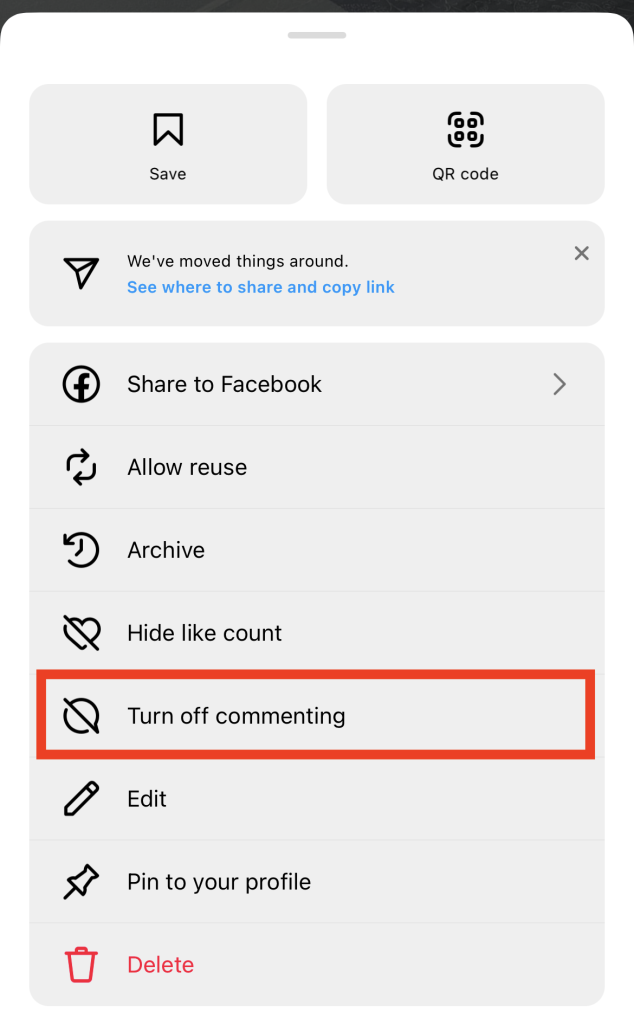
¡Y ya está! Así de fácil, ya puedes ocultar la sección de comentarios de esa publicación. No aparecerá ningún bocadillo debajo de tu contenido en el que los usuarios puedan hacer clic para dejar un comentario. En lugar de comentarios, verás un mensaje en gris que dice «Los comentarios están desactivados» debajo de tu publicación.
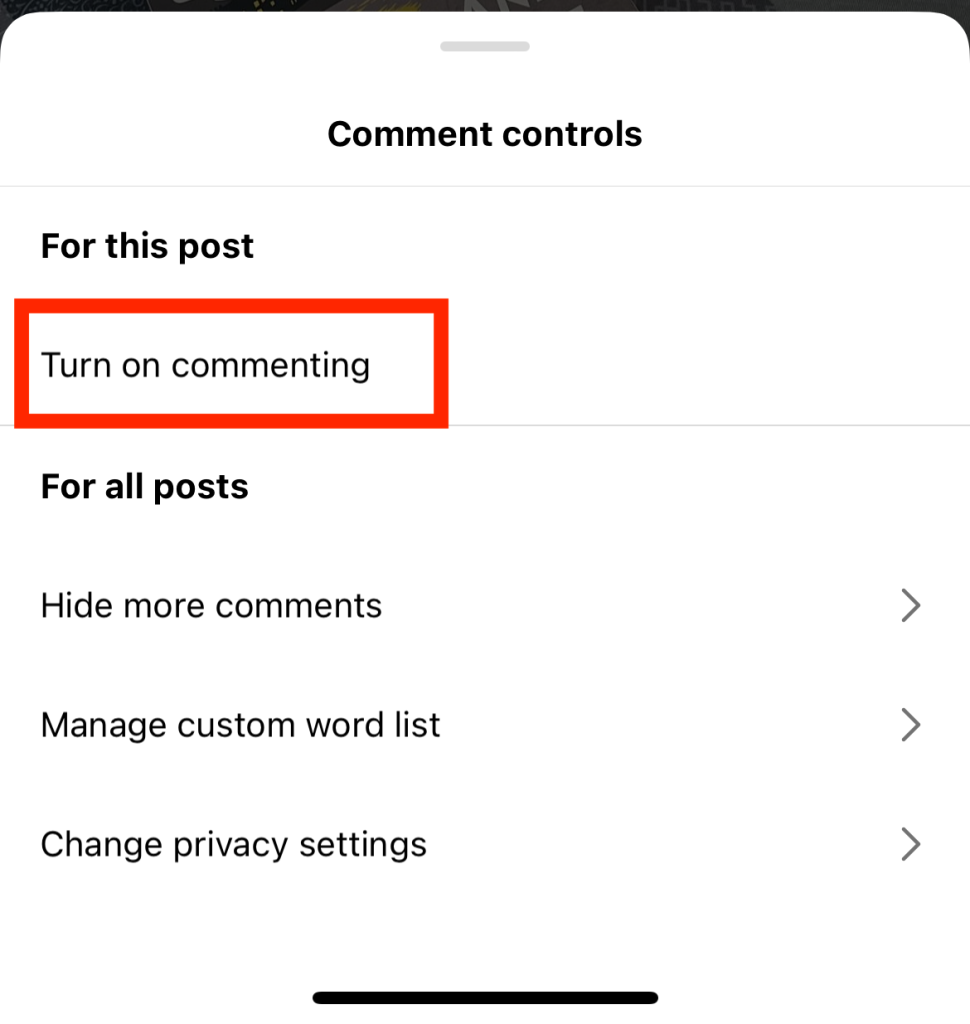
Si cambias de opinión, volver a activar la función de comentarios también es muy fácil. Debajo de tu publicación, haz clic en«Revisar controles». A continuación, selecciona«Activar comentarios». De este modo, todo el mundo podrá volver a comentar tu publicación.
Cómo ocultar un comentario grosero y ofensivo en Instagram
Quizá también te interese ocultar solo los comentarios negativos. Eso también es posible gracias a una función llamada «palabras ocultas» y al filtrado avanzado de comentarios. La idea es muy sencilla, en realidad. Cuando activas esta función, Instagram los comentarios que considera ofensivos o no deseados.
Incluso puedes hacer una lista de palabras específicas que no quieres ver en tu sección de comentarios. Instagram ocultará automáticamente cualquier comentario que incluya estas palabras en tus entradas.
He aquí cómo ocultar el comentario de alguien en Instagram cuando es ofensivo e inapropiado:
1. Abre tu aplicación Instagram y ve a tu perfil.
2. Haga clic en las tres líneas horizontales de la esquina superior derecha de la página para abrir la Configuración.
3. Desplácese hacia abajo hasta la sección Cómo pueden interactuar los demás con usted y pulse Palabras ocultas.
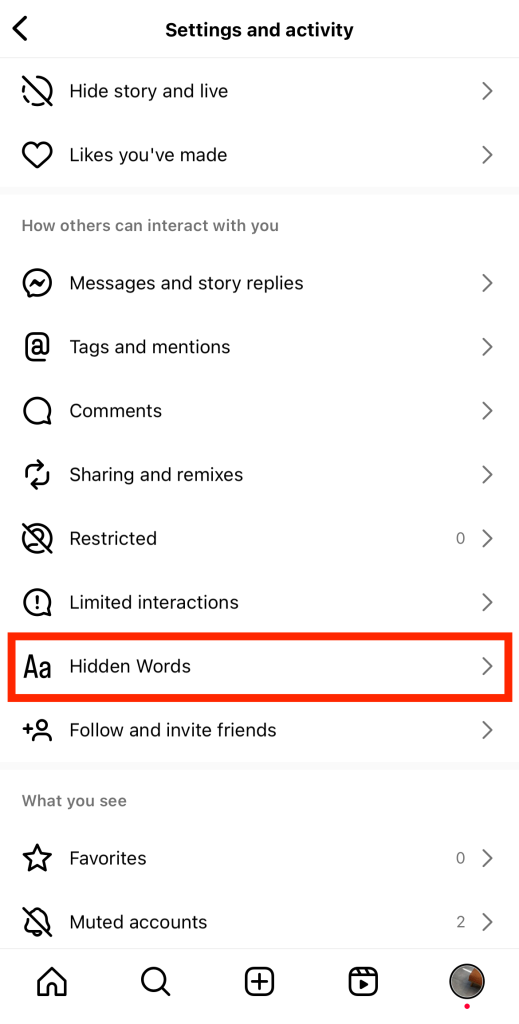
4. Active la casilla Ocultar comentarios.
5. Debajo debería aparecer otro botón con la etiqueta Filtrado avanzado de comentarios. Enciéndelo también para obtener la configuración de filtrado de comentarios más estricta de Instagram.
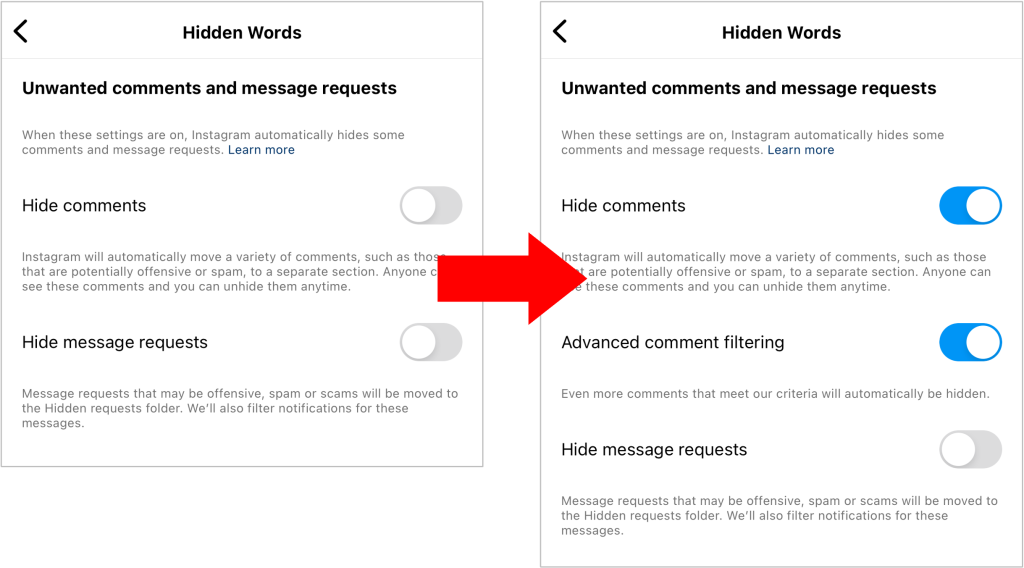
Si activas estas opciones, Instagram estará Instagram a los comentarios negativos, ofensivos y de spam que se publiquen en tu contenido. El algoritmo los ocultará al instante.
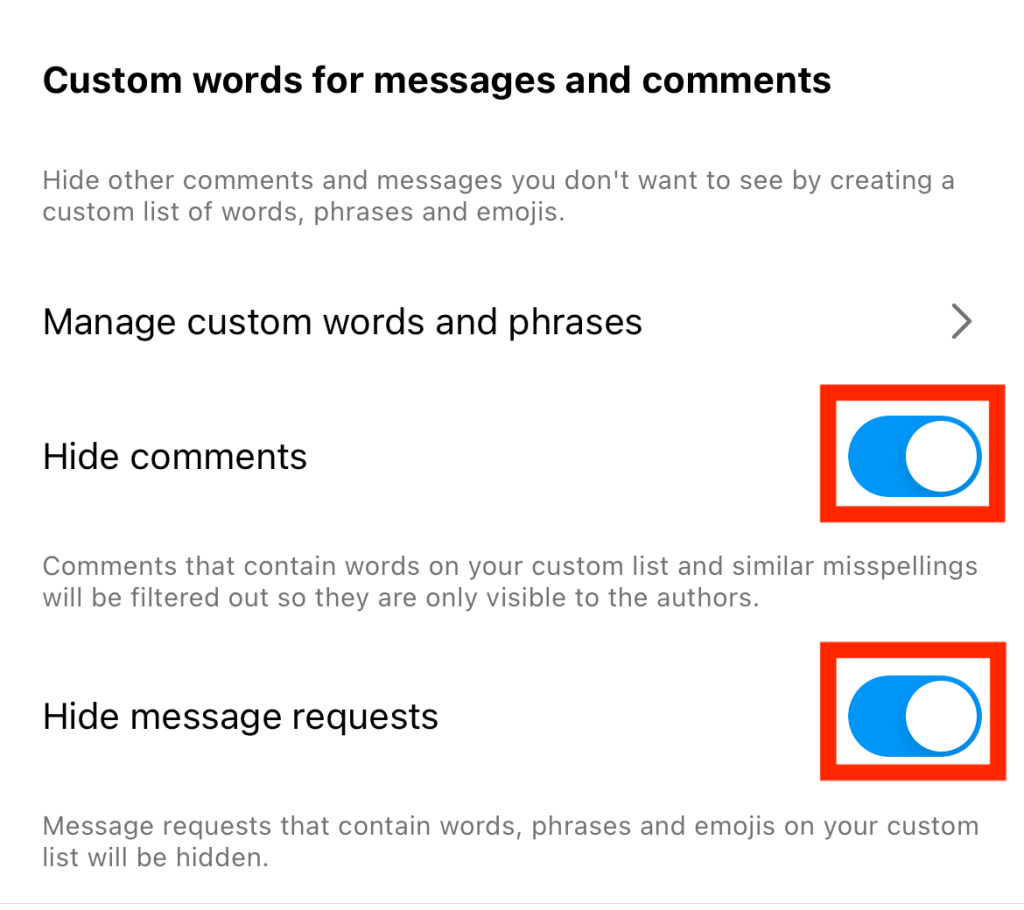
Como se ha mencionado anteriormente, también puedes elegir palabras ocultas personalizadas que no quieras que aparezcan en los comentarios. A continuación te explicamos cómo configurarlo:
1. En la configuración de «Palabras ocultas», desplázate hasta la sección «Palabras personalizadas para mensajes y comentarios ».
2. Haga clic en Administrar palabras y frases personalizadas.
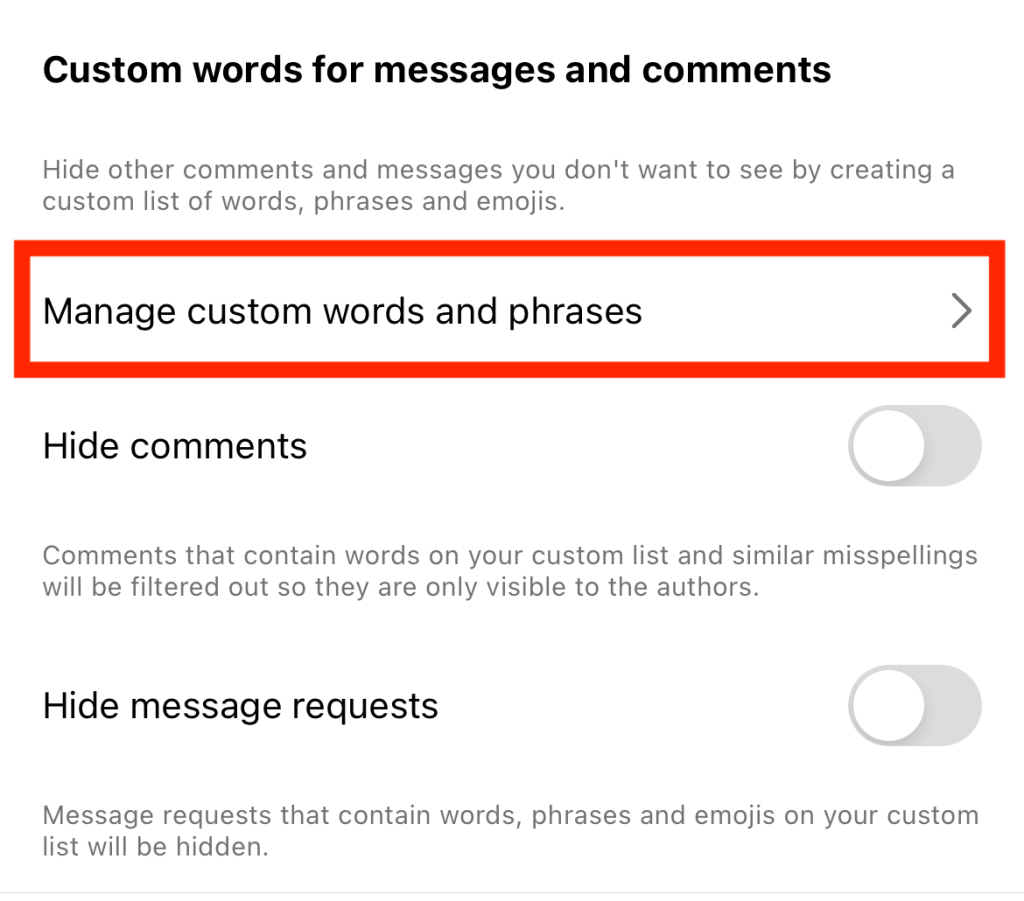
3. Añade palabras personalizadas que no quieras ver en los comentarios de tus entradas.
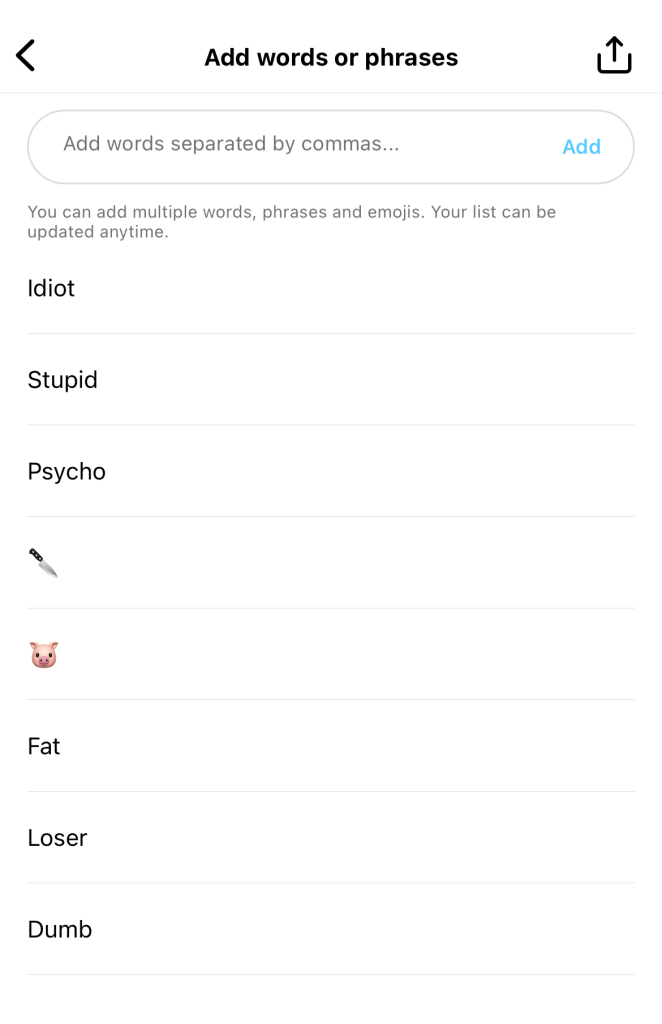
4. Termine de añadir palabras a su lista y pulse el botón Atrás .
5. Activa las opciones que te permiten ocultar los comentarios y las solicitudes de mensajes que contengan tus palabras ocultas personalizadas. De este modo, todos los comentarios y solicitudes de mensajes directos futuros que contengan esas palabras desaparecerán.
Limitar las Reflexiones de Alguien: Cómo ocultar comentarios en Instagram sin que se enteren
La forma más fácil de evitar los comentarios de cualquier persona en tu página es, sencillamente, bloquearla en Instagram. La cuestión es que, si bloqueas a alguien, tarde o temprano se dará cuenta, ya que notará que no puede ver tu perfil.
¿Te molestan los comentarios que deja un usuario concreto en tu publicación? Tenemos un truco para ocultar los comentarios en Instagram que se den cuenta. En lugar de bloquearlos, puedes restringirles el acceso.
Cuando restringes a alguien en Instagram, esa persona será la única que podrá ver los comentarios que deje en tu contenido. Para todos los demás —incluido tú mismo—, sus comentarios ya no aparecerán. No obstante, tendrás la posibilidad de ver sus comentarios si lo deseas. A continuación, podrás elegir entre aprobarlos para que sean visibles para el público o eliminarlos.
A continuación te explicamos cómo restringir a alguien y limitar su capacidad para comentar tus entradas:
1. Ve a una de tus entradas que hayan comentado anteriormente y abre la sección Comentarios.
2. Desliza el dedo hacia la izquierda en un comentario que el usuario haya publicado previamente en tu entrada.
3. Haga clic en el icono gris de un globo de diálogo con un signo de exclamación en su interior.
4. Pulse Restringir.
Extra: ¡Cuando hayas restringido a alguien, esa persona tampoco podrá ver si estás conectado!
Si cambias de opinión respecto a restringir a alguien, también puedes quitarle la restricción con la misma facilidad. Para ello, ve a su perfil y haz clic en los tres puntos horizontales que aparecen en la parte superior de la página. A continuación, pulsa en «Quitar restricción».
Mantén la atención en tu vídeo: Cómo ocultar comentarios en Instagram Reels
¿Quieres que la gente se centre en el Reel en el que has trabajado tanto, en lugar de en los comentarios desagradables que dejan desconocidos? Desactiva la sección de comentarios de ese vídeo. A continuación te explicamos, paso a paso, cómo ocultar los comentarios en Instagram :
1. Ve a tu perfil y abre el Carrete del que quieras ocultar comentarios.
2. Haga clic en los tres puntos de la parte inferior derecha del Carrete.
3. Pulse Administrar.
4. Pulse Desactivar comentarios.
¡Pan comido! Así de fácil te aseguras de que todo el mundo se quede mirando tus vídeos y no los comentarios negativos que hay debajo.
Habla con tus fans sin distraerte: cómo ocultar comentarios en Instagram Live
A menudo, los seguidores comparten sus reflexiones en tu sesión Instagram para, en cierto modo, «hablar» contigo en directo. Pero para muchos creadores y propietarios de marcas que organizan una sesión en directo, esto puede resultar una gran distracción. Como estás leyendo constantemente los comentarios, podrías desconectarte durante la retransmisión. Eso es algo que no debes hacer bajo ningún concepto si quieres mantener el interés de tus seguidores, clientes potenciales y seguidores.
¿Quieres reducir al mínimo los comentarios cuando retransmites en directo? Aquí te explicamos cómo ocultar los comentarios en Instagram Live:
- Abra el menú Opciones en la parte inferior de su pantalla Live.
- Elija desactivar la función de comentarios.
- Se acabó. No verás más comentarios que te distraigan hasta que vuelvas a activar la función.
Por cierto, el filtrado avanzado de comentarios también oculta los comentarios negativos que se dejen en tu retransmisión en directo. Así que activa esta función si quieres que los comentarios ofensivos permanezcan ocultos durante tu retransmisión.
Oculte los comentarios y céntrese en el crecimiento de su InstagramCon Path Social
Gestionar los comentarios que recibes en tus publicaciones tiene muchas ventajas. Al ocultar los comentarios negativos, contribuyes a que el espacio en línea sea más seguro, no solo para ti, sino también para tus seguidores.
Ocultar los comentarios mediante filtros y ajustes en la configuración es una forma tediosa, pero que merece la pena, de gestionar esta negatividad. Además, al cerrar la sección de comentarios, también le das a tu contenido creativo una mejor oportunidad de destacar.
Como ya sabes cómo ocultar comentarios en Instagram, estás listo para gestionar de forma eficaz las conversaciones dentro de tu comunidad. Así que ahora puedes centrarte en otras cosas importantes para mejorar tu presencia en línea, como hacer crecer tu página. Hacerlo es increíblemente fácil con Path Social.
Nuestro equipo te ayuda a localizar a tu público objetivo en Instagram, esté donde esté. A continuación, promocionamos tu página entre ellos para que vean el contenido que más les interese. Esto potencia la visibilidad, la interacción e incluso el aumento de seguidores. ¡Atrae a más seguidores potenciales y haz crecer tu Instagram con Path Social hoy mismo!





¿Quieres una potente promoción Instagram ?
Amplíe su alcance con estrategias específicas que atraigan la participación y seguidores reales.
Comienza ya tu promoción Instagram