Éloigner la négativité : Comment masquer les commentaires sur Instagram

De nos jours, les gens ont parfois trop tendance à se laisser aller lorsqu’ils partagent leurs opinions sur les réseaux sociaux. C’est d’ailleurs tellement facile qu’ils jugent parfois nécessaire de laisser des commentaires négatifs ou inappropriés sous les publications d’autrui. C’est pour cette raison que de nombreux créateurs préfèrent désactiver les commentaires sur leurs Instagram .
C'est pourquoi, aujourd'hui, nous allons voir en détail comment masquer les commentaires sur Instagram préserver la sérénité sur la plateforme. Poursuivez votre lecture pour en savoir plus !
3 raisons pour lesquelles quelqu'un pourrait vouloir masquer les commentaires sur Instagram
La plupart des marques et des créateurs adoreraient que les internautes se ruent sur leur contenu pour y laisser des commentaires. Mais cela ne vaut que pour les retours positifs et constructifs. Le fait d’avoir des sections de commentaires où chacun peut s’exprimer librement ouvre la porte aux commentaires négatifs sur Instagram et d’autres réseaux sociaux. Voici trois des raisons les plus courantes pour lesquelles tout créateur souhaiterait éviter cela en masquant les commentaires.
1. Limiter au maximum les commentaires grossiers et blessants des détracteurs
L'une des raisons les plus évidentes de vouloir masquer les commentaires d'un message est d'éviter les propos négatifs. C'est un moyen d'éviter d'être victime de cyberharcèlement, que l'UNICEF définit comme du harcèlement via les médias numériques. Selon la définition de l'organisation, le cyberharcèlement inclut également les commentaires « blessants, injurieux ou menaçants » publiés en ligne.
Non seulement les commentaires blessants sont blessants, mais ils peuvent aussi complètement gâcher l'ambiance positive que vous souhaitez créer sur votre page. Il est donc tout à fait légitime de ne pas vouloir voir apparaître sur vos publications des commentaires grossiers qui enfreignent les règles communautairesInstagram.
Les commentaires grossiers et déplacés peuvent être source de détresse non seulement pour un créateur, mais aussi pour son public. Ainsi, masquer les commentaires malveillants revient à protéger votre communauté contre la méchanceté et l'anxiété.
2. Réduire le nombre de spams dans les sections de commentaires de vos articles
Le masquage des commentaires permet également de réduire la quantité de spam qui se retrouve dans vos messages Instagram . Les robots et les services de promotion de produits peuvent laisser des commentaires aléatoires et non pertinents sur les messages des internautes. Ces commentaires n'ajoutent aucune valeur à votre contenu et peuvent même nuire à vos fans s'ils en sont victimes.
Les commentaires indésirables ne font qu'encombrer la section des commentaires de vos publications. Ils risquent même de noyer les commentaires authentiques postés par vos abonnés qui souhaitent interagir avec vous. Ainsi, si vous êtes confronté à un problème de spam, masquer les commentaires pourrait être une bonne solution.
3. Pour que le public reste concentré sur votre contenu créatif
Enfin, certains utilisateurs peuvent préférer masquer leurs commentaires afin de mettre l'accent sur leur contenu créatif. Il arrive parfois que des échanges drôles ou intéressants dans les commentaires d'une publication captivent fortement les internautes. Mais cela les empêche de consacrer du temps à simplement apprécier l'œuvre et le contenu de quelqu'un.
Masquer complètement les commentaires est une excellente idée pour que l'attention reste concentrée sur votre contenu, et non sur les avis des autres à son sujet.
Comment masquer les commentaires sur Instagram en les désactivant ?
Maintenant que vous savez pourquoi on peut vouloir masquer les commentaires sur ses publications, passons aux détails pratiques. Il existe plusieurs méthodes pour masquer Instagram sur vos publications. Voyons chacune d’entre elles.
Le moyen le plus simple de masquer les commentaires est de désactiver la fonction de commentaire sur des articles spécifiques. Cela permet de faire disparaître l'ensemble de la section des commentaires sur le contenu en question. Voici comment procéder :
1. Allez sur votre profilInstagram et ouvrez l'article du flux dont vous souhaitez masquer les commentaires.
2. Cliquez sur les trois points horizontaux dans le coin supérieur droit du message.
3. Appuyez sur Désactiver les commentaires.
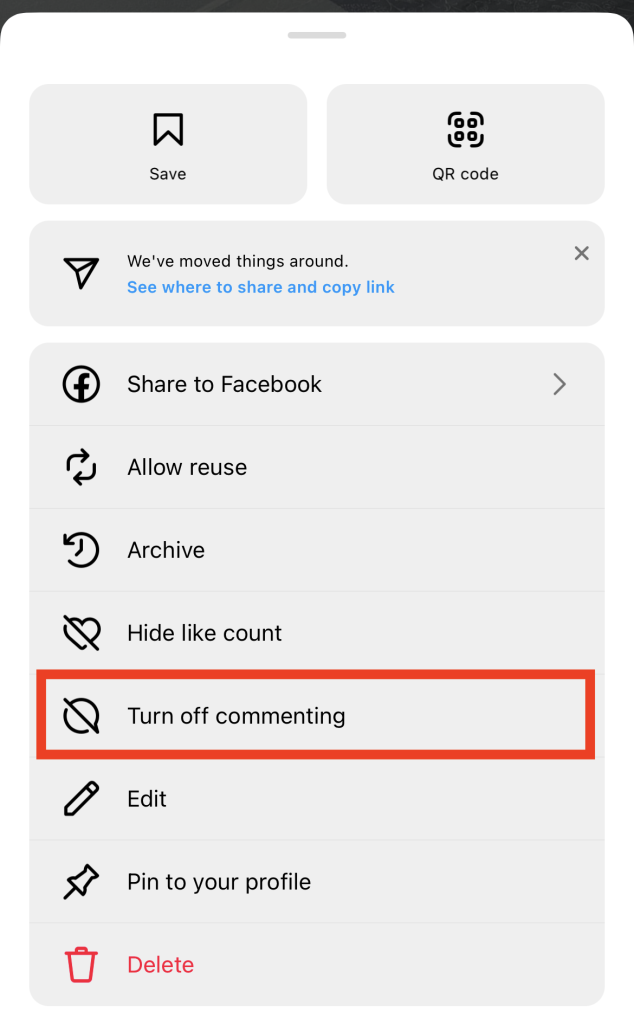
Et voilà ! En un clin d'œil, vous pouvez masquer la section des commentaires de cette publication. Il n'y aura plus de bulle de dialogue sous votre contenu sur laquelle les internautes pourraient cliquer pour laisser un commentaire. À la place des commentaires, vous verrez s'afficher sous votre publication un message en gris indiquant « Les commentaires sont désactivés ».
Si vous changez d'avis, réactiver la fonctionnalité de commentaires est tout aussi simple. Sous votre publication, cliquez sur «Vérifier les paramètres ». Sélectionnez ensuite «Activer les commentaires ». Cela permettra à tout le monde de pouvoir à nouveau commenter votre publication.
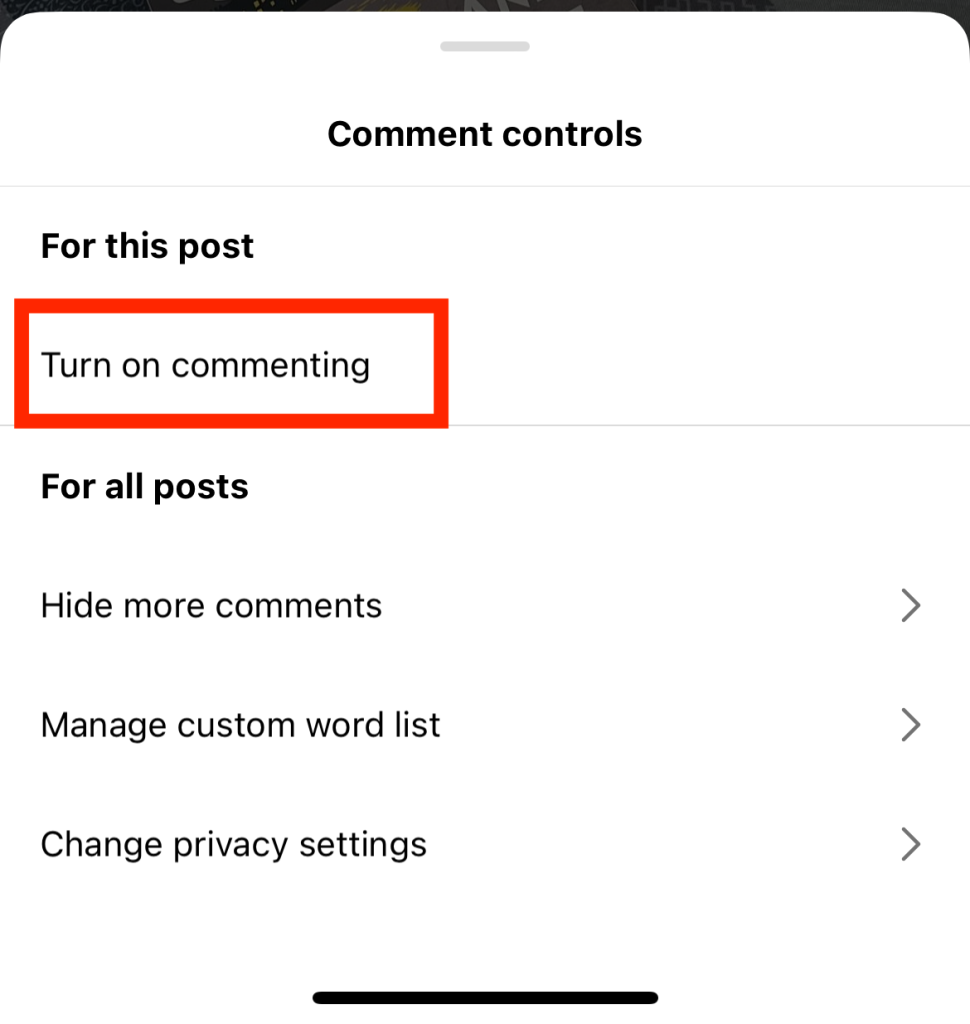
Comment masquer un commentaire grossier et offensant sur Instagram ?
Vous pourriez également souhaiter masquer uniquement les commentaires négatifs. C'est tout à fait possible grâce à une fonctionnalité appelée « mots masqués » et au filtrage avancé des commentaires. Le principe est très simple, en réalité. Lorsque vous activez cette fonctionnalité, Instagram les commentaires qu'il juge offensants ou indésirables.
Vous pouvez même dresser une liste de mots déclencheurs spécifiques que vous ne voulez pas voir dans votre section de commentaires. Instagram masquera automatiquement tous les commentaires qui contiennent ces mots sur vos articles.
Voici comment masquer le commentaire d'une personne sur Instagram lorsqu'il est offensant et inapproprié :
1. Ouvrez votre application Instagram et allez dans votre profil.
2. Cliquez sur les trois lignes horizontales dans le coin supérieur droit de votre page pour ouvrir vos paramètres.
3. Faites défiler vers le bas jusqu'à la section Comment les autres peuvent interagir avec vous et appuyez sur Mots cachés.
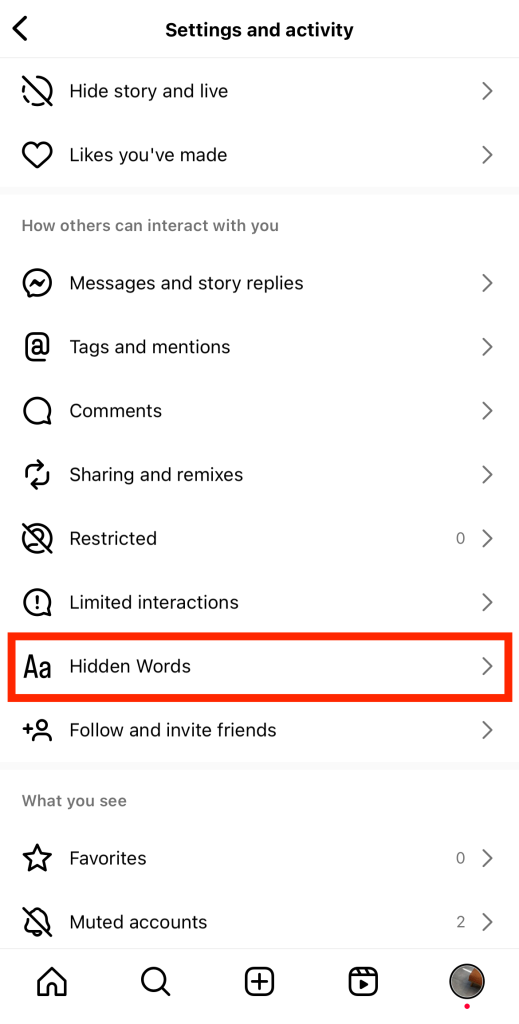
4. Activez la case à cocher intitulée Masquer les commentaires.
5. Un autre bouton doit apparaître en dessous, intitulé Filtrage avancé des commentaires. Activez-la également pour obtenir les paramètres de filtrage des commentaires les plus stricts de Instagram.
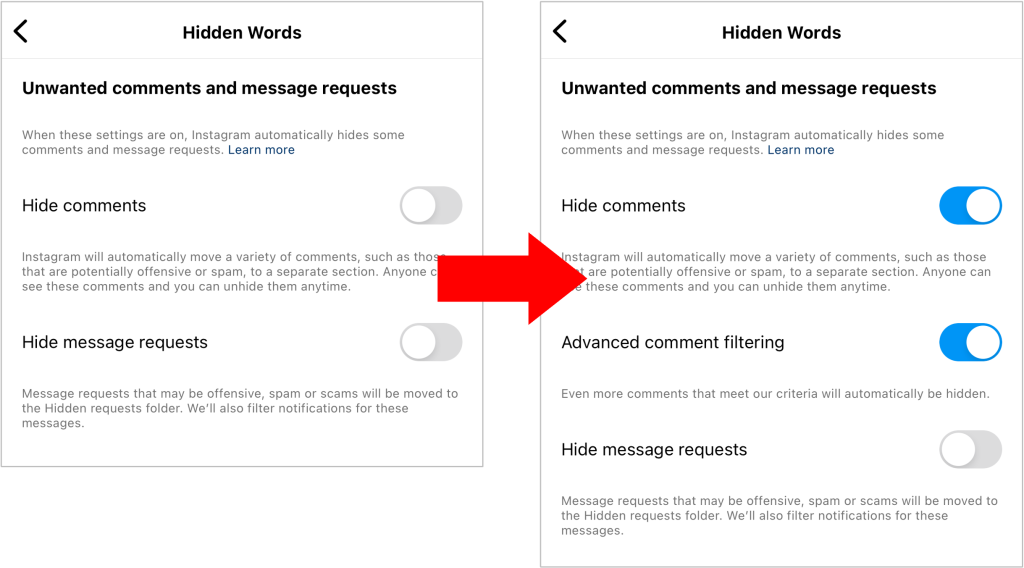
En activant ces options, Instagram les commentaires négatifs, offensants et indésirables publiés sur vos publications. L'algorithme les masquera alors instantanément.
Comme indiqué précédemment, vous pouvez également choisir des mots masqués personnalisés que vous ne souhaitez pas voir apparaître dans les commentaires. Voici comment procéder :
1. Dans les paramètres « Mots masqués », faites défiler jusqu'à la section « Mots personnalisés pour les messages et les commentaires ».
2. Cliquez sur Gérer les mots et phrases personnalisés.
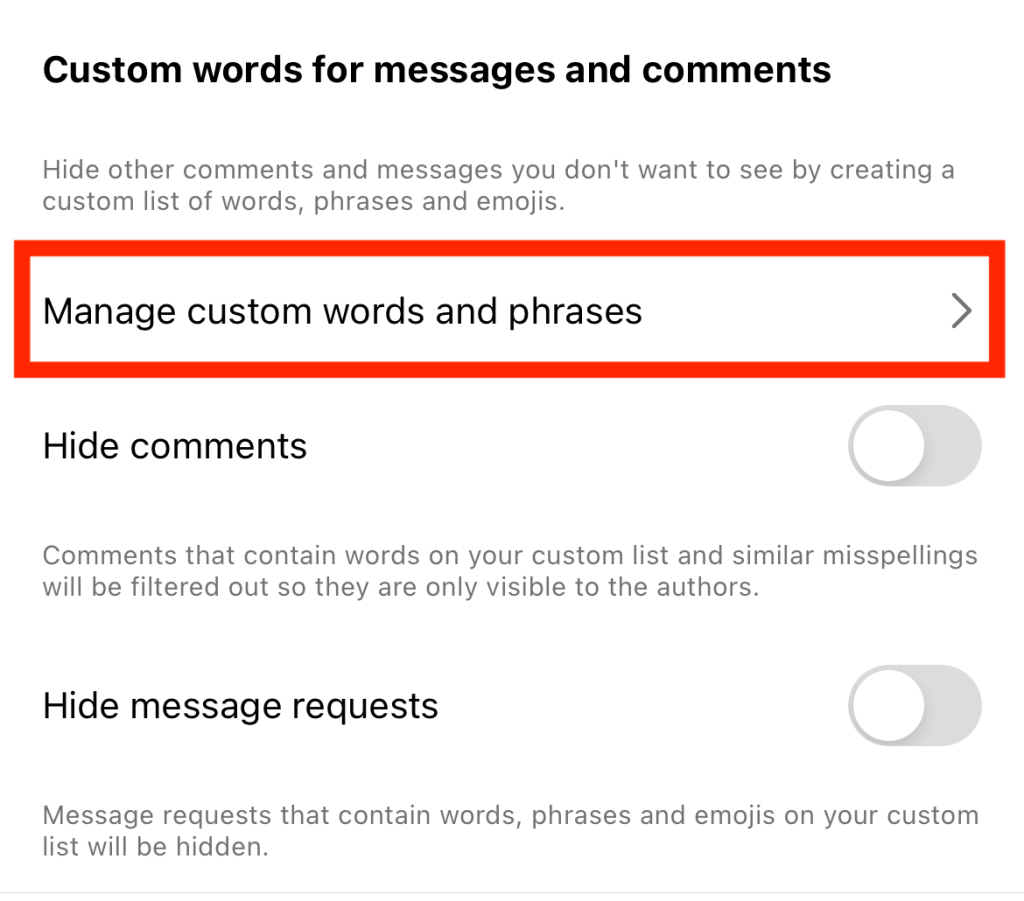
3. Ajoutez des mots personnalisés que vous ne souhaitez pas voir apparaître dans les commentaires de vos articles.
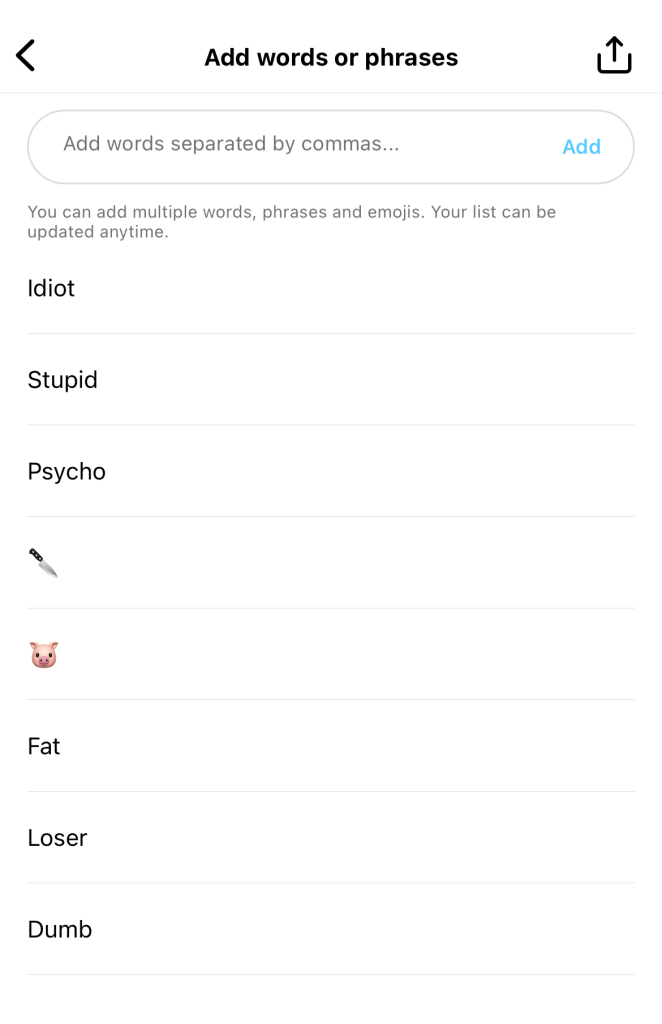
4. Terminez d'ajouter des mots à votre liste et cliquez sur le bouton Précédent.
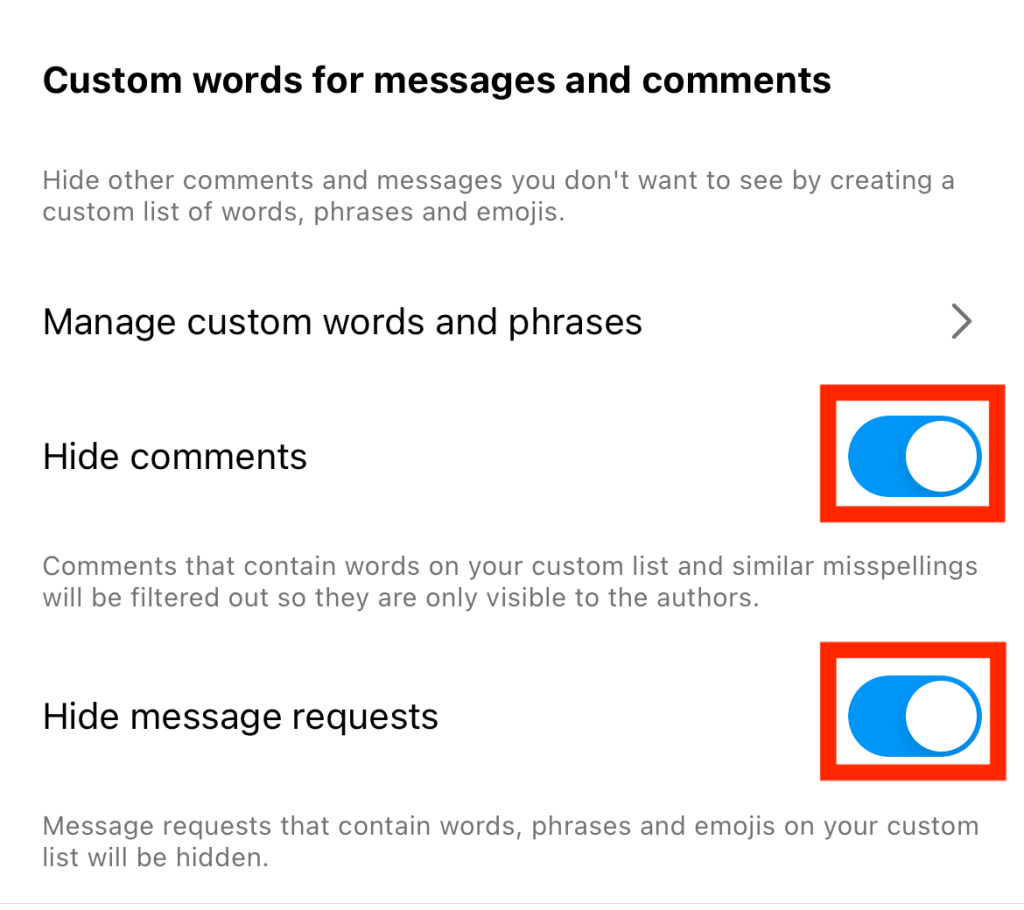
5. Activez les boutons qui vous permettent de masquer les commentaires et les demandes de messages contenant les mots masqués que vous avez définis. Ainsi, tous les futurs commentaires et demandes de messages privés contenant ces mots disparaîtront.
Limiter les réflexions de quelqu'un : Comment masquer les commentaires sur Instagram sans qu'ils le sachent ?
Le moyen le plus simple d'ignorer les commentaires d'une personne sur votre page est tout simplement de la bloquer sur Instagram. Le problème, c'est que si vous bloquez quelqu'un, cette personne s'en rendra compte tôt ou tard, car elle constatera qu'elle ne peut plus consulter votre profil.
Vous en avez assez des commentaires qu'un utilisateur en particulier laisse sur vos publications ? Nous avons une astuce pour masquer ses commentaires sur Instagram il s'en rende compte. Au lieu de le bloquer, vous pouvez limiter son accès.
Lorsque vous restreignez l'accès d'une personne sur Instagram, elle sera la seule à pouvoir voir les commentaires qu'elle laisse sur vos publications. Pour tous les autres utilisateurs, y compris vous-même, ses commentaires n'apparaîtront plus. Vous aurez toutefois la possibilité de consulter ses commentaires si vous le souhaitez. Vous pourrez alors choisir de les valider pour les rendre visibles au public ou de les supprimer.
Voici comment restreindre les droits d'une personne et limiter sa capacité à commenter vos articles :
1. Allez sur l'un de vos articles qu'ils ont déjà commenté et ouvrez la section Commentaires.
2. Glissez vers la gauche sur un commentaire que l'utilisateur a précédemment publié sur votre article.
3. Cliquez sur l'icône grise d'une bulle de dialogue avec un point d'exclamation à l'intérieur.
4. Appuyez sur Restreindre.
Bonus : lorsque vous bloquez quelqu'un, cette personne ne verra pas non plus si vous êtes en ligne !
Si vous changez d'avis concernant la restriction d'un utilisateur, vous pouvez tout aussi facilement lever cette restriction. Pour ce faire, rendez-vous sur son profil et cliquez sur les trois points horizontaux situés en haut de la page. Appuyez ensuite sur « Lever la restriction ».
Gardez les projecteurs sur votre vidéo : Comment masquer les commentaires sur les bobines Instagram
Vous souhaitez que les internautes se concentrent sur le Reel sur lequel vous avez travaillé dur plutôt que sur les commentaires désagréables laissés par des inconnus ? Désactivez la section des commentaires pour cette vidéo. Voici comment masquer les commentaires sur Instagram , étape par étape :
1. Allez dans votre profil et ouvrez le Reel pour lequel vous souhaitez masquer les commentaires.
2. Cliquez sur les trois points en bas à droite de la bobine.
3. Appuyez sur Gérer.
4. Appuyez sur Désactiver les commentaires.
Un jeu d'enfant ! En un clin d'œil, vous pouvez ainsi vous assurer que tout le monde garde les yeux rivés sur vos vidéos, et non sur les commentaires négatifs qui les accompagnent.
Parlez à vos fans sans vous distraire : comment masquer les commentaires sur Instagram Live
Les fans partagent souvent leurs réflexions sur votre session Instagram pour, en quelque sorte, « vous parler » en direct. Mais pour de nombreux créateurs et responsables de marques qui animent un Live, cela peut être extrêmement perturbant. Comme vous passez votre temps à lire les commentaires, vous risquez de vous déconcentrer pendant votre diffusion. C’est à éviter à tout prix si vous souhaitez maintenir l’intérêt de vos fans, de vos clients potentiels et de vos abonnés.
Vous souhaitez limiter les commentaires lorsque vous diffusez en direct ? Voici comment masquer les commentaires sur Instagram Live:
- Ouvrez le menu Options en bas de votre écran Live.
- Choisissez de désactiver la fonction de commentaire.
- Voilà, c'est fait ! Vous ne verrez plus de commentaires gênants jusqu'à ce que vous réactiviez la fonction.
Au fait, le filtrage avancé des commentaires masque également les commentaires négatifs laissés sur votre Live. N'hésitez donc pas à activer cette fonctionnalité si vous souhaitez que les commentaires offensants restent masqués pendant votre diffusion.

Cachez les commentaires et concentrez-vous sur la croissance de votre Instagramavec Path Social
La gestion des commentaires que vous recevez sur vos publications présente de nombreux avantages. En masquant les commentaires négatifs, vous contribuez à rendre l'espace en ligne plus sûr, non seulement pour vous-même, mais aussi pour vos abonnés.
Masquer les commentaires à l'aide de filtres et de réglages dans vos paramètres est une méthode fastidieuse, mais qui en vaut la peine, pour gérer ces commentaires négatifs. De plus, en désactivant la section des commentaires, vous offrez à votre contenu créatif une meilleure chance de se démarquer.
Puisque vous savez déjà comment masquer les commentaires sur Instagram, vous êtes désormais prêt à gérer efficacement les échanges au sein de votre communauté. Vous pouvez donc désormais vous concentrer sur d’autres aspects importants pour améliorer votre présence en ligne, comme le développement de votre page. C’est incroyablement simple à faire avec Path Social.
Notre équipe vous aide à identifier votre public cible sur Instagram, où qu’il se trouve. Nous lui présentons ensuite votre page afin que les utilisateurs découvrent le contenu qui leur correspond le mieux. Cela permet d’améliorer votre visibilité, d’augmenter l’engagement et même de développer votre nombre d’abonnés. Attirez davantage d’abonnés potentiels et développez votre Instagram dès aujourd’hui avec Path Social!





Vous voulez une promotion puissante sur Instagram ?
Amplifiez votre portée grâce à des stratégies ciblées qui attirent un engagement réel et des adeptes.
Commencez dès maintenant votre promotion sur Instagram