Instagram ¿No funciona la página de exploración? Pruebe estos métodos

Instagram | 29 de noviembre de 2024
La página «Explorar» de Instagram una de las funciones más útiles que ofrece la aplicación. El Instagram personaliza esta página para cada usuario, en función de sus intereses y del contenido que cree que le gustará. Eso significa que Instagram de una persona es completamente diferente a la de cualquier otra. Sin embargo, dista mucho de ser perfecta. A veces, los usuarios se encuentran con el problema de que la página Instagram no funciona.
Pueden surgir muchos problemas al acceder a la página «Explorar» de Instagram. A veces, la aplicación indica que«no se ha podido cargar laInstagram » o no se actualiza con contenido nuevo relevante. Otras veces, el Instagram no funciona del todo bien y la página muestra publicaciones que no siempre te gustan.
Sea cual sea el problema al que te enfrentes, un Instagram que no funcione correctamente en tu página contribuye a que la experiencia de los usuarios sea menos satisfactoria. Por eso, hoy vamos a profundizar en cuestiones como «¿por qué no Instagram mi Instagram ?» y otros problemas. ¡Además de ofrecerte Instagram y soluciones a los problemas más comunes!

4 consejos para solucionar los problemas de carga de Instagram en la página Explorar
¿Eres principiante en Instagram? Aquí tienes todo lo que necesitas saber sobre la página Explorar y cómo solucionarlo. La página Explorar de Instagram es la sección definitiva a la que acudir cuando busques contenidos que te interesen. En ella encontrarás contenidos de cuentas que te encantan y creadores de contenidos que quizá descubras por primera vez.
Por eso, cuando surgen problemas Instagram en la página «Para ti», la experiencia del usuario suele verse afectada. Por suerte, hay muchas cosas que puedes hacer para intentar solucionar el problema. Aquí tienes cuatro consejos para que la página «Explorar» vuelva a funcionar si está dando problemas.
1. Compruebe si su conexión a Internet es estable
Instagram una plataforma en línea. Si no estás conectado a Internet o si la conexión Wi-Fi es lenta, la aplicación no funcionará con la misma fluidez. Esto puede ocurrir cuando te encuentras en una zona apartada o si utilizas una red Wi-Fi pública compartida. Esto puede provocar problemas, como que la página «Explorar» de Instagram una eternidad en cargarse, si es que llega a cargarse.
Comprueba bien tu conexión a Internet para ver si es estable. Utiliza una herramienta de medición de velocidad en línea para comprobar a qué velocidad va. Si tu conexión a Internet es lenta o no funciona en absoluto, probablemente sea la causa de tus Instagram .
2. Actualice la aplicación a la última versión
Instagram actualiza periódicamente la aplicación para corregir errores y fallos técnicos, así como para mejorar la experiencia general de los usuarios. ¿Quizás tu aplicación presenta fallos y tu feed no se carga? Puede que se deba a que no has actualizado a la última versión de Instagram.
Comprueba periódicamente en la App Store o en Google Play Store si hay actualizaciones disponibles para Instagram. De esta forma, podrás mantener la aplicación siempre al día y evitar problemas de rendimiento mientras te desplazas por el feed. Con la aplicación actualizada, encontrarás muy pocos errores y problemas en tu página de Instagram.
3. Reinicie su aplicación
Algo tan sencillo como cerrar y volver a abrir la aplicación puede resolver errores y problemas técnicos en Instagram . Verás que los pequeños problemas, como la lentitud en la carga o la falta de respuesta, desaparecen al volver a abrir la aplicación. Al reiniciar Instagram, se eliminan pequeños problemas de la caché, lo que permite que la aplicación funcione como si fuera nueva.
4. Esté atento a las actualizaciones del sistema operativo
Además de actualizar las aplicaciones, también debes asegurarte de que tu dispositivo tenga siempre instalada la última versión del sistema operativo. Si no está actualizado, pueden surgir problemas de compatibilidad entre Instagram y tu dispositivo. Esto se debe a que es posible que los sistemas operativos más antiguos no cuenten con las funcionalidades y configuraciones necesarias para admitir las últimas funciones Instagram. Por lo tanto, si quieres Instagram funcione sin problemas en todo momento, actualiza siempre tu sistema operativo.
¿Está Instagram caído? Señales de que hay un fallo universal en IG
¿Sigues dándole vueltas al tema y preguntándote: «¿Por qué Instagram funciona mi página de «Explorar» en Instagram ?»? O quizá no te aparecen las notificaciones. Los consejos anteriores funcionan bien si hay problemas con tu conexión, tu dispositivo o la configuración de la aplicación. Pero a veces, el problema no eres tú en absoluto, sino que es la propia plataforma la que está fallando.
¿Te estás preguntando:«¿Está Instagram ?» Aquí tienes algunas señales de que el fallo en la Instagram no es un problema tuyo, sino uno generalizado y sistémico.
Más de una función no funciona en la aplicación
A veces, solo la página «Explorar» de Instagram fallos. Pero si notas problemas en otras partes de la aplicación, es posible que haya problemas a nivel general de la plataforma. Por ejemplo, si ni la página «Explorar» ni Instagram funcionan, no se trata solo de un problema de la primera.
Cuando varias secciones de la aplicación no funcionan correctamente, es señal de que hay un problema general por parte Instagram. Puede que se deba a dificultades técnicas o a trabajos de mantenimiento en sus servidores. En cualquier caso, lo mejor es esperar pacientemente a que Instagram estos problemas.

Busque anuncios en los canales oficiales de Instagram
Instagram cuenta con canales oficiales en otras plataformas, como X (antes Twitter). La empresa suele utilizar este tipo de cuentas para informar de cualquier problema o fallo que se produzca en la aplicación. En ellas explican al público qué está pasando exactamente con la aplicación y cuándo esperan solucionarlo. Así que, si quieres recibir las últimas noticias directamente de la fuente, echa un vistazo a las plataformas oficiales Instagram.
Entra en Twitter o Reddit para ver lo que dice la gente
A principios de marzo de 2024, Meta sufrió una interrupción generalizada del servicio. La CNN informó de que, durante dos horas, más de 500 000 usuarios comunicaron que no podían iniciar sesión en sus Instagram de Facebook e Instagram .
Por supuesto, esto ocupó la portada de muchos de los principales medios de comunicación. Sin embargo, también fue tema de conversación en plataformas y foros como X y Reddit. En estos sitios, los usuarios se quejaban del problema y de lo frustrante que resultaba no poder utilizar las aplicaciones.
Así que, si quieres asegurarte de que Instagram que tienes Instagram no te pasan solo a ti, echa un vistazo a otras redes sociales. La gente siempre habla y suele publicar en Internet cuando hay problemas técnicos importantes como este. Si otros también se están quejando, sabrás que el problema no está en tu lado, sino Instagram.
Sitios web de comprobación de estado que detectan problemas técnicos en los sitios web
Hay algunas páginas web que informan de si otra página web está experimentando problemas técnicos en ese momento. Entre ellas se encuentra Down Detector, que te permite consultar los informes de incidencias enviados por los usuarios en las últimas 24 horas. También puedes consultar Meta Status, una página dedicada a detectar interrupciones en las funciones empresariales y el software de Meta. Echa un vistazo a estas páginas para saber rápidamente si Instagram o no.
Descubre contenido nuevo e interesante: cómo restablecer la página «Explorar» de Instagram
A veces, aunque la página «Explorar» funcione correctamente, es posible que no muestre contenido que se ajuste a tus preferencias. En lugar de ver contenido que realmente te guste, es posible que los tipos de publicaciones que aparecen allí te resulten poco interesantes o incluso incómodos.
¿Quieres actualizar elalgoritmo de Instagram para que la página Explorar de instagram te muestre contenidos que te gusten? A continuación te explicamos cómo restablecer la página Explorar de Instagram .
Actualiza rápidamente tu página de exploración
La forma más sencilla de reiniciar Instagram Explore es actualizando la página. Todo lo que tienes que hacer para refrescar la página es tirar de ella hacia abajo en la pantalla y luego soltarla. Esto borra el contenido de la página que se estaba mostrando previamente y actualiza tu feed.
Dicho esto, aunque este método te muestra contenido nuevo rápidamente, no modifica en absoluto el Instagram . Seguirás viendo contenido que no te interesa demasiado. Así que, si quieres una forma más eficaz de hacerlo, sigue leyendo.
Dígale al algoritmo Instagram que "no le interesa".
Una forma de modificar lo que el Instagram considera relevante para ti es marcar las publicaciones como«no interesantes». Al hacerlo, puedes mejorar la forma en que la aplicación te muestra el contenido en tu página «Explorar» de Instagram. De este modo, le indicas a la aplicación que no te gustan este tipo de publicaciones. Poco a poco, Instagram mostrarte menos contenido de este tipo en tu página «Explorar».
A continuación te explicamos cómo indicar a Instagram que no te interesan determinados mensajes:
- Abra la aplicaciónInstagram .
- Vaya a la página Explorar tocando el icono de la lupa en la fila inferior de la pantalla.
- Haz clic en una de las entradas de la página que no prefieras ver.
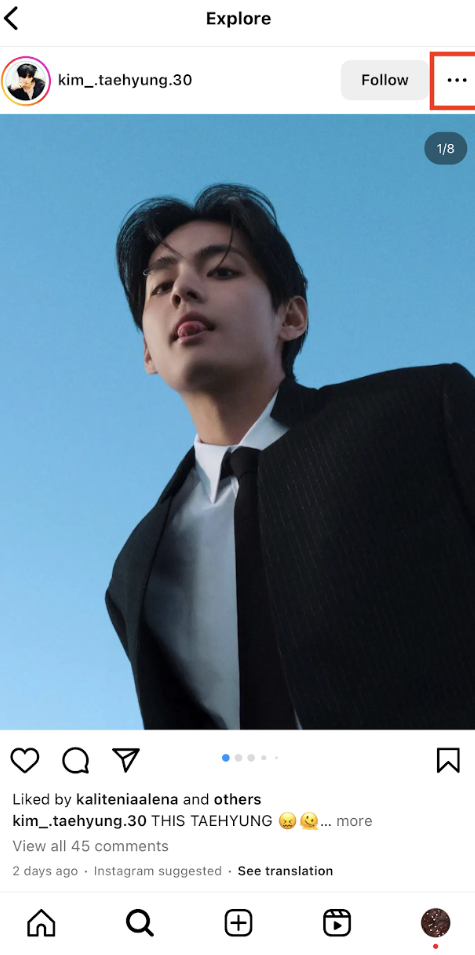
- Haga clic en los tres puntos de la esquina superior derecha de la pantalla.
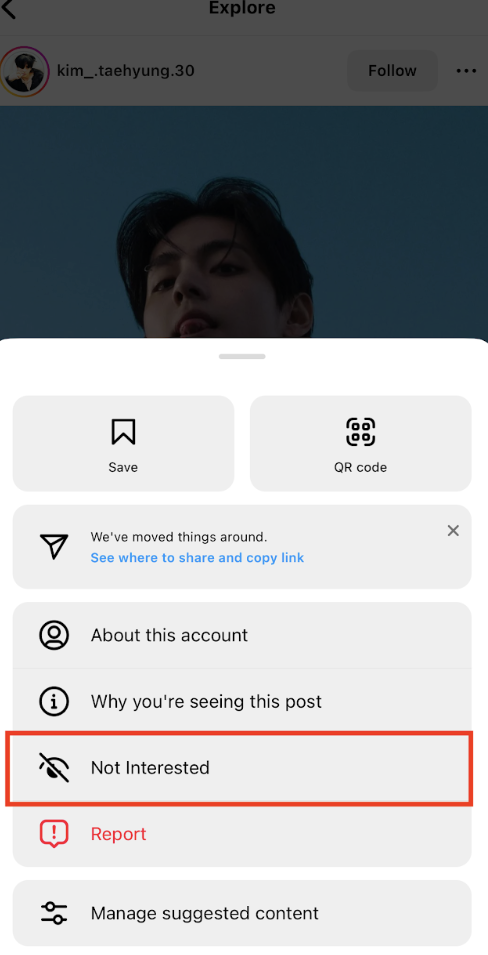
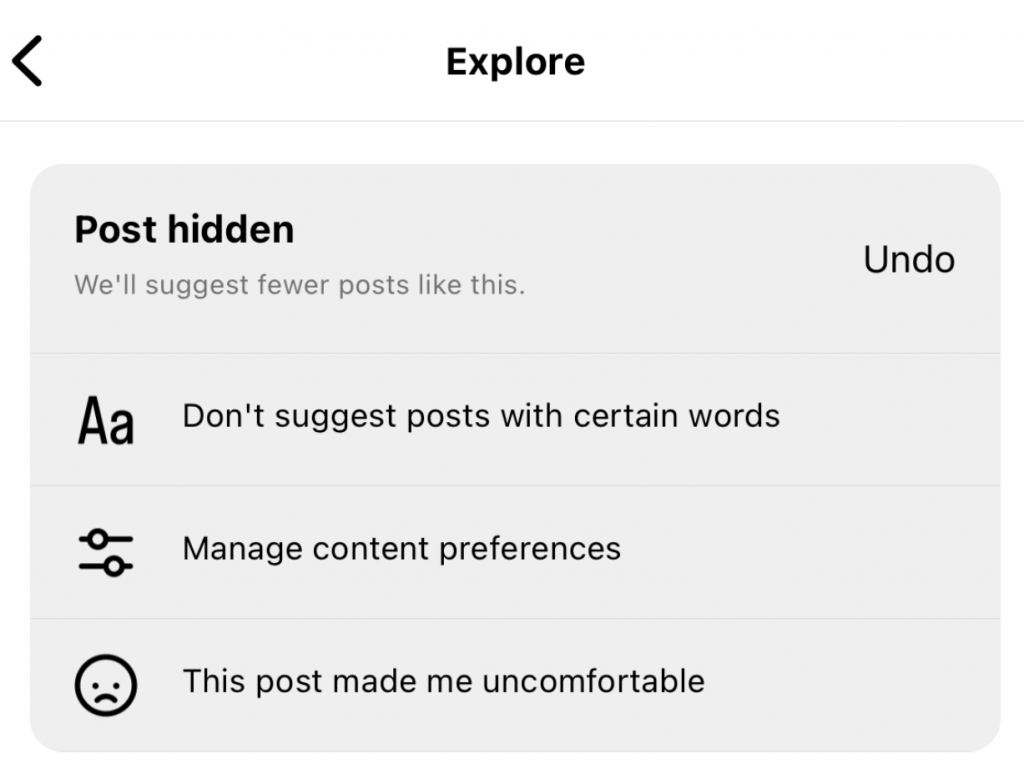
- De entre las opciones que aparecen, pulsa «No me interesa». De este modo, Instagram ocultará inmediatamente la publicación de tu página «Explorar» y Instagram tu feed.
- Explica a Instagram por qué no te ha gustado la publicación. Haz clic en si ocultaste la publicación porque contenía ciertas palabras o si te incomodó verla.
Borrar la caché y los datos de la aplicación en los ajustes del dispositivo
La página «Explorar» basa sus sugerencias de publicaciones en factores como los creadores de contenido con los que interactúas y tu historial de búsqueda personal. ¿Quieres restablecer lo que el Instagram considera importante para ti? Borra la caché de la aplicación en tu dispositivo. Esto puede borrar tu historial y tus interacciones recientes, lo que equivale a un restablecimiento Instagram .
Borrar la caché es fácil si tienes un dispositivo Android. Solo tienes que ir a los ajustes del dispositivo y borrar la caché y el historial en la sección de almacenamiento Instagram. Sin embargo, en los dispositivos de Apple no es tan sencillo. En los iPhone y los iPad, tendrás que desinstalar o eliminar la aplicación y volver a descargarla para borrar la caché.
Y así es como se solucionan los problemas de funcionamiento de la página Instagram Explorar
La página «Explorar» de Instagram una forma estupenda de descubrir el tipo de contenido que realmente te gusta. Te muestra publicaciones relacionadas con tus principales intereses o contenido de Instagram que el algoritmo cree que te gustarán. Es una parte fundamental de Instagram. Pero, por desgracia, a veces puede fallar.
Hay muchas formas de solucionar los problemas relacionados con la página «Explorar». Puedes utilizar técnicas de resolución de problemas para que una página que no funciona bien vuelva a funcionar correctamente si Instagram fallos. Y si quieres restablecer tu página, hay formas de manipular el Instagram para conseguirlo.
Si tienes algún otro problema, siempre puedes acudir directamente a la fuente. Ponte en contacto con Instagram para resolver problemas más complejos.
Con los consejos y trucos anteriores, nunca te sentirás frustrado ni desconcertado porque la página Instagram no funcione. En lugar de perder el tiempo intentando arreglarlo, podrás volver a ponerla en marcha en cuestión de segundos. Esto te deja un montón de tiempo para centrarte en lo que es más importante, como hacer crecer tu página. Nosotros podemos ayudarte con eso.
La herramienta de segmentación propia Path Socialpuede identificar con precisión al público objetivo que tiene más probabilidades de interactuar con tu contenido. A continuación, les mostramos tu contenido. Quién sabe, ¡quizás con nuestras estrategias promocionales acabes apareciendo en las páginas «Explorar» de otros usuarios! En un abrir y cerrar de ojos, verás cómo aumenta tu número de seguidores. ¡Consigue más seguidores hoy mismo!
Preguntas frecuentes
¿Tiene más preguntas sobre la página de exploración Instagram ? Consulte nuestras preguntas frecuentes para obtener más información sobre esta función.
¿Arreglará una actualización mi página Explorar en Instagram?
La actualización a la última versión de la aplicación puede corregir errores que afectan a la página Explorar. Las actualizaciones periódicas garantizan las últimas funciones de Instagram.
¿No funciona la página Explorar si mi cuenta Instagram es nueva?
Técnicamente, sí que funciona. Sin embargo, Instagram nuevas Instagram necesitan tiempo para recopilar datos sobre tus preferencias. Por eso, es posible que el Instagram tarde un poco en empezar a funcionar. Con el tiempo, te mostrará contenido relevante en tu página de Instagram.
¿Por qué la página de exploración funciona con Wi-Fi pero no con datos móviles?
Es posible que tengas problemas debido a restricciones de red, una conexión de datos móviles más lenta o la configuración de la aplicación. Comprueba si tu conexión de datos es estable y si Instagram acceso a los datos móviles en la configuración de tu dispositivo.





¿Quieres aumentar tu Instagram de forma natural?
Descubre una plataforma diseñada para ayudar a los creadores a llegar a seguidores reales y comprometidos, sin atajos.
Explora la plataforma