Cómo editar una publicación en Instagram después de publicarla-Guía para principiantes

Instagram Las publicaciones se pueden editar. Instagram te permite realizar modificaciones en tus publicaciones una vez publicadas. Pero, ¿hasta qué punto? Desde pies de foto deslumbrantes hasta etiquetas fascinantes, pasando por retocar esas instantáneas de pura magnificencia. Exploremos el caprichoso viaje de la magia tras la publicación. Aprende con nosotros a editar una publicación de Instagram . Pero primero, repasemos los pasos para publicar tu entrada en Instagram .

Cómo publicar en Instagram
Tanto si quieres compartir tus alucinantes aventuras de viaje, obras maestras culinarias que te hacen la boca agua o hacer que tu negocio despegue, Instagram está a punto de convertirse en tu terreno de juego de posibilidades infinitas. Lo único que tienes que hacer es seguir estos pasos increíblemente sencillos para aprender a publicar en Instagram.
- Abra la aplicación Instagram en su dispositivo móvil e inicie sesión en su cuenta.
- Saca a relucir tu lado más fotográfico y captura un momento que grite «¡perfecto para Instagram!». O también puedes elegir una joya de tu galería. Puede ser una foto o un vídeo. Además, puedes seleccionar varias fotos para el carrusel, que es algo así como una publicación de álbum de fotos de Instagram .
- Mejora tus imágenes con filtros, brillo y todas las herramientas de edición para que tu publicación destaque como el confeti en una tarta de cumpleaños. Aunque los filtros se aplican al 100 % por defecto, puedes reducir la intensidad para conseguir un toque más sutil.
- Puedes recortar un vídeo, editarlo, convertirlo en un «reel» y añadirle música. Hay muchas cosas que puedes hacer.
- Es hora de escribir el pie de foto de tu publicación en Instagram . No seas tímido. Da rienda suelta a tu creatividad y crea un pie de foto que enganche a tu público más rápido que una canción pegadiza en la radio. Si se te olvida algo en el pie de foto, puedes aprender a editar los pies de foto de las publicaciones de Instagram en la última parte de este blog.
- Aumenta el alcance de tu publicación añadiendo hashtags relevantes que encajen con tu foto.
- Etiqueta a tus amigos, a tus «amigos-enemigos» o incluso a tus mascotas en tu publicación
- Marca tu ubicación.
- Toca "Compartir" para publicar contenidos.
¿Puedo editar un mensaje de Instagram después de publicar?
¿Te estás preguntando: «¿Puedo editar una publicación de Instagram ?»? Para la mayoría de las modificaciones, no es necesario borrarla y volver a empezar desde cero. Solo tienes que realizar los cambios en tu publicación. A continuación te ofrecemos 10 formas de aprender a editar una publicación de Instagram una vez publicada.

1. Cómo editar fotos en Instagram después de publicarlas
Si te estás preguntando cómo editar fotos en Instagram después de publicarlas, actualmente no hay forma de hacerlo. Por desgracia, por ahora no puedes realizar ninguna edición directa en tu foto o vídeo original en Instagram . Pero siempre hay una solución: borrar, recortar y volver a subir la foto hasta que quede perfecta. Dale a esa foto una segunda oportunidad para brillar.
Además, hay otros elementos en Instagram que puedes editar. Sigue leyendo para descubrirlos.
2. Cómo editar Instagram Post Reescribir pie de foto
Es posible que tu publicación de « Instagram » contenga precios desactualizados, un pie de foto aburrido o un error ortográfico que se te haya pasado por alto, pero todo eso se puede solucionar fácilmente. Tenemos una forma de ayudarte a reescribir los pies de foto de tus publicaciones de « Instagram » y darles un nuevo aire.
A continuación te explicamos cómo editar tu publicación en Instagram para reescribir ese pie de foto en un estilo totalmente nuevo:
- Abre la aplicación Instagram y ve directamente a tu perfil. Busca la publicación cuyo pie de foto quieras actualizar y toca sobre ella.
- Ahora, fíjate bien en la esquina superior derecha de tu publicación. Verás tres puntos escondidos en esa esquina. Tócalos suavemente y aparecerá una ventana emergente con una lista de opciones. Toca «Editar» y se abrirá el cuadro de pie de foto, listo para que des rienda suelta a tu brillantez lingüística.
- Es hora de dar rienda suelta a tu creatividad. Vuelve a leer tu pie de foto original e imagina las posibilidades. ¿Quieres añadirle un toque de humor, darle un poco de ingenio o meter un juego de palabras?
- Una vez que hayas ideado tu nuevo y llamativo pie de foto, empieza a escribir sin parar. Disfruta del toque fresco y original de tus palabras reescritas y añade emojis para darle más vida a la publicación. Deja que tu personalidad brille con luz propia.
- Lee detenidamente tu nueva obra maestra y asegúrate de que queda exactamente como querías. No dudes en hacer cualquier retoque o ajuste adicional hasta que quede perfecta. Al fin y al cabo, este es tu momento de brillar.
- Cuando estés satisfecho con tu pie de foto modificado, pulsa el botón «Hecho». Instagram ya ha guardado de forma segura tu pie de foto de Instagram .
3. Cómo editar Instagram Post Borrar una imagen
Antes, esto era algo imposible en Instagram. Pero, gracias a las nuevas actualizaciones, ahora puedes eliminar la imagen que no quieras de tu carrusel.
A continuación te explicamos cómo puedes hacerlo:
- Fíjate en la esquina superior derecha de tu publicación, donde verás tres puntos. Tócalos y verás cómo se abre un menú.
- Entre las opciones, busca y selecciona «Editar». Prepárate para adentrarte en el mundo de la manipulación de imágenes y las técnicas de selección.
- Ahora, con un simple deslizamiento, navega por el carrusel de imágenes de tu publicación de « Instagram ». A medida que lo explores, verás un pequeño icono con forma de papelera situado en la esquina superior izquierda de cada imagen. Toca este icono cuando encuentres la imagen que quieras eliminar.
- Al elegir "Eliminar", la imagen no deseada sale del carrusel. Instagram mostrará una confirmación.
- No dudes en repetir este proceso y despedirte de varias imágenes.

4. Cómo editar Instagram Post Etiqueta de ubicación
¿Olvidaste añadir la etiqueta de ubicación? Emprendamos una aventura de edición:
- Abre Instagram y busca el post social que anhela tu experiencia en localización.
- Mira hacia la esquina superior derecha del poste con tres puntos. Dales un toque.
- Entre las opciones que aparecen, pulsa en «Editar». Es hora de poner en práctica tus dotes de edición.
- Busca la opción "Añadir ubicación" y tócala.
- Introduce tu ubicación, explora los resultados y elige el más adecuado.
- Cuando tengas a la vista la ubicación que has elegido, pulsa «Hecho» en la esquina superior derecha. Instagram guardará los cambios.
5. Cómo editar y Añadir música a Instagram Post
Lamentablemente, la tarea de añadir música a una entrada después de haberla compartido está actualmente fuera de nuestro alcance. No es posible añadir música a una publicación de Instagram . Pero hay una solución si quieres añadir una melodía pegadiza a tu entrada.
Tendrás que dar un pequeño rodeo para añadir música a tu post. Sigue estos pasos para aprender a editar Instagram post para añadir música a Instagram post:
- Lo primero es lo primero: despídete de tu publicación original. Tendrás que pulsar el botón de «Eliminar» y olvidarte de ella.
- Una vez que te hayas despedido de tu publicación, es hora de volver a hacer magia. Vuelve a publicar tu contenido, esta vez con la música que quieras. Elige la melodía perfecta, da rienda suelta a tu creatividad y deja que la música le dé un nuevo aire a la publicación.
6. Cómo editar Instagram Post Alt-Text
A continuación te explicamos cómo editar una entrada de Instagram y mejorar el texto alternativo en un abrir y cerrar de ojos:
- Abre Instagram y busca ese puesto que necesita un retoque.
- Busca esos tres puntos en la esquina superior derecha y pulsa sobre ellos.
- Seleccione "Editar" en el menú.
- Pulsa "Editar texto alternativo" y da rienda suelta a tu creatividad.
- Edite el texto alternativo.
- Termina con un toque en "Hecho" en la esquina superior derecha. Tus cambios están bloqueados y cargados.
7. Cómo editar Instagram Portada de Post Reel
La portada de tu Reel merece brillar como una estrella. Al fin y al cabo, es lo primero que verá tu público. Tiene que causar ese efecto «¡guau!». Si tu portada actual te parece un poco sosa, tenemos buenas noticias: ahora cambiar la foto de portada es pan comido:
- Ve al Reel que quieras, al que hay que actualizar la portada.
- Haz clic en los tres puntos.
- Seleccione la opción "Editar" en la ventana emergente.
- Busca el botón "Portada" y pulsa.
- Seleccione un fotograma existente o cargue su imagen de portada.
- Cuando estés satisfecho con tu elección, pulsa en «Hecho».
8. Cómo editar Instagram Post que Archivaste
Has archivado una entrada de « Instagram », pero ahora crees que con unos pequeños retoques podrías hacerla más relevante y actual. Es posible.
A continuación te explicamos cómo editar un post en Instagram que lleva tiempo en tus archivos:
- Para empezar, visite su página de perfil. Busca tres líneas horizontales en la esquina superior derecha. Pulse sobre ellas.
- Entre las opciones que aparecen en el menú desplegable, selecciona «Archivar».
- Elija la opción "Entradas" del menú superior dentro de la sección de archivo.
- Selecciona el puesto.
- Pulse sobre los tres puntos.
- De entre las opciones que se muestran, selecciona la opción «Mostrar en el perfil».
- Cuando vuelva a aparecer en primer plano, pulsa los tres puntos situados en la esquina superior derecha de tu publicación.
- Localice y pulse la opción "Editar" de la ventana emergente.
- Haz los cambios necesarios en tu entrada. Añade tu toque artístico y un poco de creatividad.
- Una vez que hayas terminado de editar, pulsa «Hecho» en la esquina superior derecha de la pantalla. Tus cambios se guardarán de forma segura, listos para impresionar al mundo.
- Instagram le pedirá que confirme su deseo de actualizar el mensaje. Pulse "Actualizar" para confirmar. Instagram habrá guardado sus cambios de forma permanente (hasta que vuelva a modificarlos).
9. Cómo editar Instagram Post Comentar
Ya es hora de que empieces a controlar tus comentarios en Instagram . A continuación te explicamos cómo hacerlo:
- Abre tu perfil de Instagram y localiza el post que está acumulando comentarios no deseados.
- Mira hacia la parte superior de tu mensaje y localiza el botón de los tres puntos. Dale un toque.
- De entre las opciones que aparecen, selecciona «Desactivar comentarios». Disfruta de la maravillosa ausencia de charlas indeseadas.
- Si no quieres desactivar los comentarios para todo el mundo, basta con restringir o bloquear a los seguidores que publiquen comentarios ofensivos.
10. Cómo editar Instagram Post ¿Visibilidad?
Al ajustar la visibilidad de tu publicación en Instagram , puedes controlar quién puede ver tu contenido y asegurarte de que llegue al público al que va dirigido.
A continuación se explica cómo editar la visibilidad de los mensajes de Instagram :
- Abre la aplicación Instagram en tu dispositivo y ve a tu perfil.
- Busque la entrada cuya visibilidad desea modificar.
- Pulse sobre los tres puntos de la esquina superior derecha de su imagen perfecta.
- Seleccione "Editar" en las opciones del menú.
- En la pantalla de edición, busca los ajustes de visibilidad.
- En función de tus preferencias de privacidad, puedes elegir entre las siguientes opciones:
- Público: Cualquier persona dentro o fuera de Instagram puede ver tu mensaje.
- Seguidores: Sólo tus seguidores aprobados pueden ver la publicación.
- Amigos íntimos: La publicación sólo será visible para un grupo selecto de seguidores que hayas añadido a tu lista de Amigos íntimos.
- Favoritos: Esta opción puede aparecer en determinadas cuentas y te permite compartir la publicación con tus seguidores favoritos.
- Seleccione la opción de visibilidad deseada para su entrada.
- Cuando estés satisfecho con los cambios, pulsa «Hecho» o el icono de la marca de verificación para guardar las modificaciones.
Cómo editar Instagram Post en su ordenador
Al utilizar Instagram desde el móvil o el ordenador, hay algunas diferencias interesantes que conviene tener en cuenta.
A continuación, te explicaremos cómo realizar la edición en un ordenador. Así pues, si vas a utilizar tu ordenador de sobremesa para realizar los cambios, sigue estos pasos:
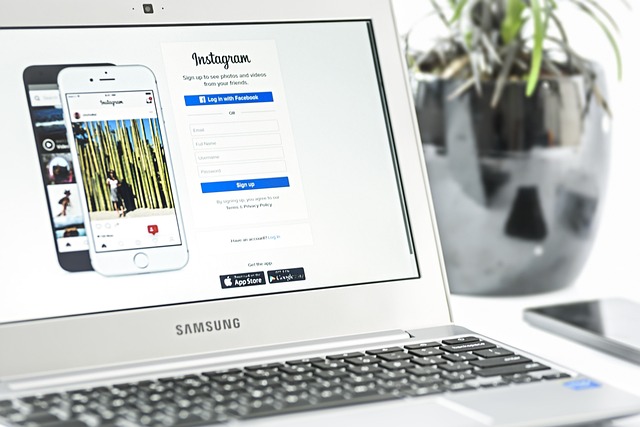
- Abra su navegador y vaya a Instagram. Conéctese a su cuenta.
- En la parte inferior izquierda de la pantalla, busca la opción «Perfil».
- Echa un vistazo a tu perfil hasta que lo encuentres y, a continuación, fíjate en la parte derecha de la pantalla. Verás tres puntos. Haz clic en ellos y selecciona la opción que dice «Editar».
- Con la interfaz de edición al alcance de la mano, deja que fluya tu creatividad. Cuando estés satisfecho, solo tienes que hacer clic en «Hecho» para dar por terminado el proceso.
Cómo editar Instagram Post Con iOS Web Layout en el ordenador
Ahora bien, si te mueres de ganas de tener ese diseño de aplicación web de iOS en tu ordenador, hay una forma de conseguirlo. Tenemos un as en la manga virtual:
- Busca la publicación que quieras editar y haz clic con el botón derecho del ratón. Entre las opciones, selecciona «Inspeccionar».
- En el panel «Inspector», busca la barra de herramientas del dispositivo. Actívala pulsando Ctrl + Mayús + M. Podrás ver el diseño de la aplicación web para iOS en la pantalla de tu ordenador.
- Un último paso para desbloquear las proezas de edición. Actualiza la página y verás cómo reaparecen las funciones de la aplicación web para iOS. Ahora puedes editar y subir publicaciones como lo harías en tu dispositivo móvil.
¿Por qué no debes editar un post de Instagram ?
Cuando publicas algo en Instagram, el algoritmo evalúa tu contenido en función de la interacción inicial. Cuantos más «Me gusta» consigas en la primera hora, mejor.
Con un alto nivel de interacción, tu imagen destaca por encima del resto en los feeds, las páginas de exploración y los primeros resultados de búsqueda.
Pero aquí es donde las cosas pueden complicarse: al editar la publicación, se reinicia la clasificación de interacción. Tendrás que empezar de cero, esta vez con menos impulso.
Aunque te hemos enseñado a editar las publicaciones de Instagram , ten cuidado. Editarlas puede reducir la interacción en Instagram . Comprueba bien el pie de foto, las etiquetas, la ubicación y los hashtags antes de compartirlas.
Si te equivocas, no te asustes. Borra la publicación y vuelve a subirla al día siguiente para obtener los mejores resultados.
Recuerda, debes jugar sabiamente para conquistar el algoritmo Instagram .
¿Por qué no puedo editar un mensaje en Instagram?
Vaya. ¿Atascado en la "Zona de no edición"? Aquí están los posibles culpables:
- Wi-Fi débil
- Permisos de aplicación no verificados
- Atasco de la caché
- Versión obsoleta de Instagram
- Aplicación de terceros
- Falta de espacio
- Tiempo de inactividad
¿No ha tenido suerte? Póngase en contacto con el servicio de asistenciaInstagram .
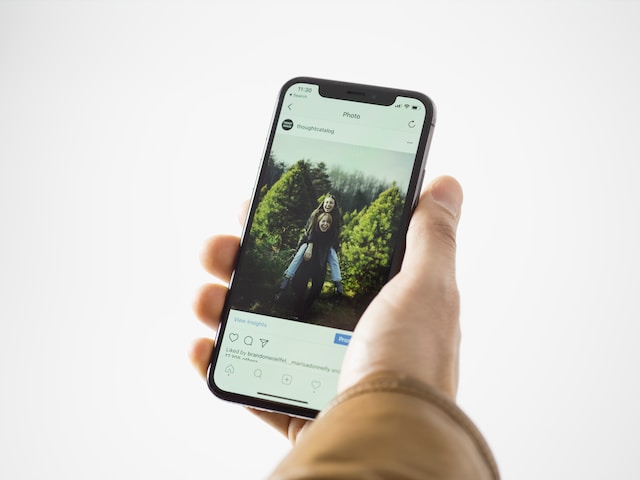
Cómo editar Instagram Post en pocas palabras
Al editar tus publicaciones de Instagram , mejorarás la calidad de tu contenido y reforzarás tu vínculo con tus queridos seguidores. Aprovecha el poder de la edición y observa cómo prospera tu presencia en Instagram .
¿Te preocupa perder interacción cada vez que editas una publicación en Instagram ? Únete a Path Social, donde hemos ayudado a cientos de influencers y empresas a crear una comunidad Instagram orgánica, segmentada y comprometida. Consigue resultados inigualables y crea una comunidad Instagram próspera y duradera. Empieza hoy mismo a aumentar tu número de seguidores y potencia tu Instagram con Path Social.





¿Quieres aumentar tu Instagram de forma natural?
Descubre una plataforma diseñada para ayudar a los creadores a llegar a seguidores reales y comprometidos, sin atajos.
Explora la plataforma