Instagram una de las redes sociales más populares, con alrededor de 1.000 millones de usuarios activos. La popularidad de la plataforma se debe a su versatilidad, que permite a los usuarios compartir contenidos y establecer conexiones en línea. Aunque Instagram una interfaz web, su aplicación móvil sigue siendo la mejor forma de acceder a todas sus funciones.
Instagram mantiene a los usuarios al corriente de la actividad de su cuenta mediante el envío de notificaciones. Las notificaciones son fundamentales, ya que avisan a los usuarios de nuevas actividades, como «me gusta», comentarios y comparticiones. Sin embargo, en ocasiones los usuarios pueden encontrarse con problemas porque las notificaciones de Instagram no funcionan.
Además, algunos usuarios han tenido problemas porque Instagram no funciona durante la reproducción de vídeos, lo que les ha causado frustración. Muchos usuarios también han informado de que sus Instagram han desaparecido, lo que les ha dejado con la incertidumbre de si se han perdido actualizaciones importantes. En esta entrada del blog analizaremos las posibles causas de estos problemas y ofreceremos soluciones.
¿Por qué no funcionan mis notificaciones IG?
Si te preguntas por qué no funcionan Instagram , puede haber varias razones. A veces, se debe a cambios en el algoritmo, a la conexión a Internet o incluso al sistema operativo de tu dispositivo.
Algunos usuarios tienen problemas porque Instagram no aparecen en su bandeja de entrada, no reciben las notificaciones de las publicaciones o no se actualiza la aplicación. Si te estás preguntando: «¿Por qué Instagram no me Instagram notificaciones?», puede deberse a varias causas. A continuación, vamos a explicar algunas de las razones por las que Instagram fallan, junto con sus soluciones prácticas.
Cómo solucionar problemas comunes con Instagram Notificaciones no funciona
Si te estás preguntando cómo solucionar el problema de que Instagram no funcionan, no te preocupes: hay varios métodos que puedes probar. Quizás hayas activado el «Modo Instagram para reducir las distracciones y necesites un recordatorio sobre cómo desactivarlo. Soluciona el problema tanto en dispositivos Android como iOS comprobando la configuración, actualizando la aplicación o reiniciando el dispositivo. El «Modo Instagram silencia las notificaciones durante un periodo determinado, así que comprueba bien si lo tienes activado.
Instagram Notificaciones DM no funcionan - Notificaciones Push
Desactivar las notificaciones push es uno de los motivos más habituales por los que las notificaciones Instagram no funcionan. Es posible que los usuarios desactiven esta opción para ahorrar datos o simplemente para gestionar las aplicaciones de sus teléfonos. Sin embargo, Instagram que no activen Instagram pueden darse cuenta de que sus alertas no funcionan.
Tanto si utilizas un iPhone como un dispositivo Android, te conviene asegurarte de que las notificaciones Instagram estén activadas. Al activar Instagram , te asegurarás de no perderte nada. Recibe actualizaciones en tiempo real sobre «me gusta», comentarios y nuevos seguidores para mejorar tu interacción con la aplicación.
Para asegurarte de que recibes las notificaciones, sigue estos pasos para activar las notificaciones push:
- Para iPhone:
- Ve a Ajustes > Notificaciones.
- Buscar y tocar Instagram.
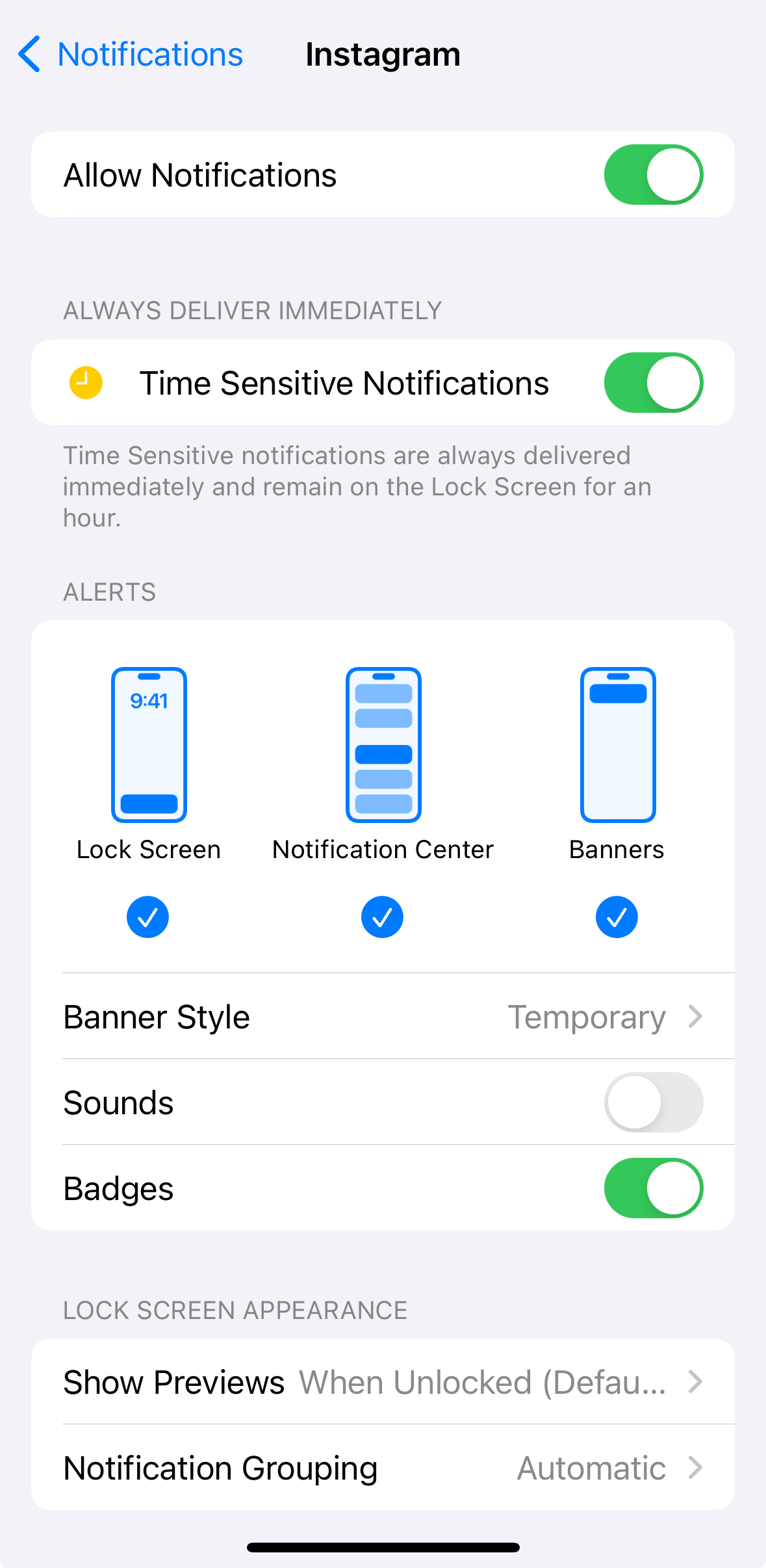
- Activa Permitir notificaciones y personaliza la configuración de las alertas.
- Para Android:
- Abre Ajustes > Aplicaciones > . Instagram.
- Pulse Notificaciones y active Mostrar notificaciones.
- Ajusta tus preferencias de notificación.
Activando estos ajustes te aseguras de recibir actualizaciones en tiempo real de tu actividad en Instagram .
¿Por qué se retrasan mis notificaciones de Instagram ? Prueba a borrar la caché de tu aplicación
Las notificaciones push pueden retrasarse o no funcionar debido a la rotura de los datos de caché de la aplicación Instagram . Esto también puede verse a veces cuando las notificaciones de Instagram del usuario desaparecen de su pantalla de inicio. Los usuarios que borran los datos de caché de Instagram tienden a ver una solución al problema. Esta técnica sencilla pero eficaz puede solucionar errores sin tener que reinstalar Instagram.
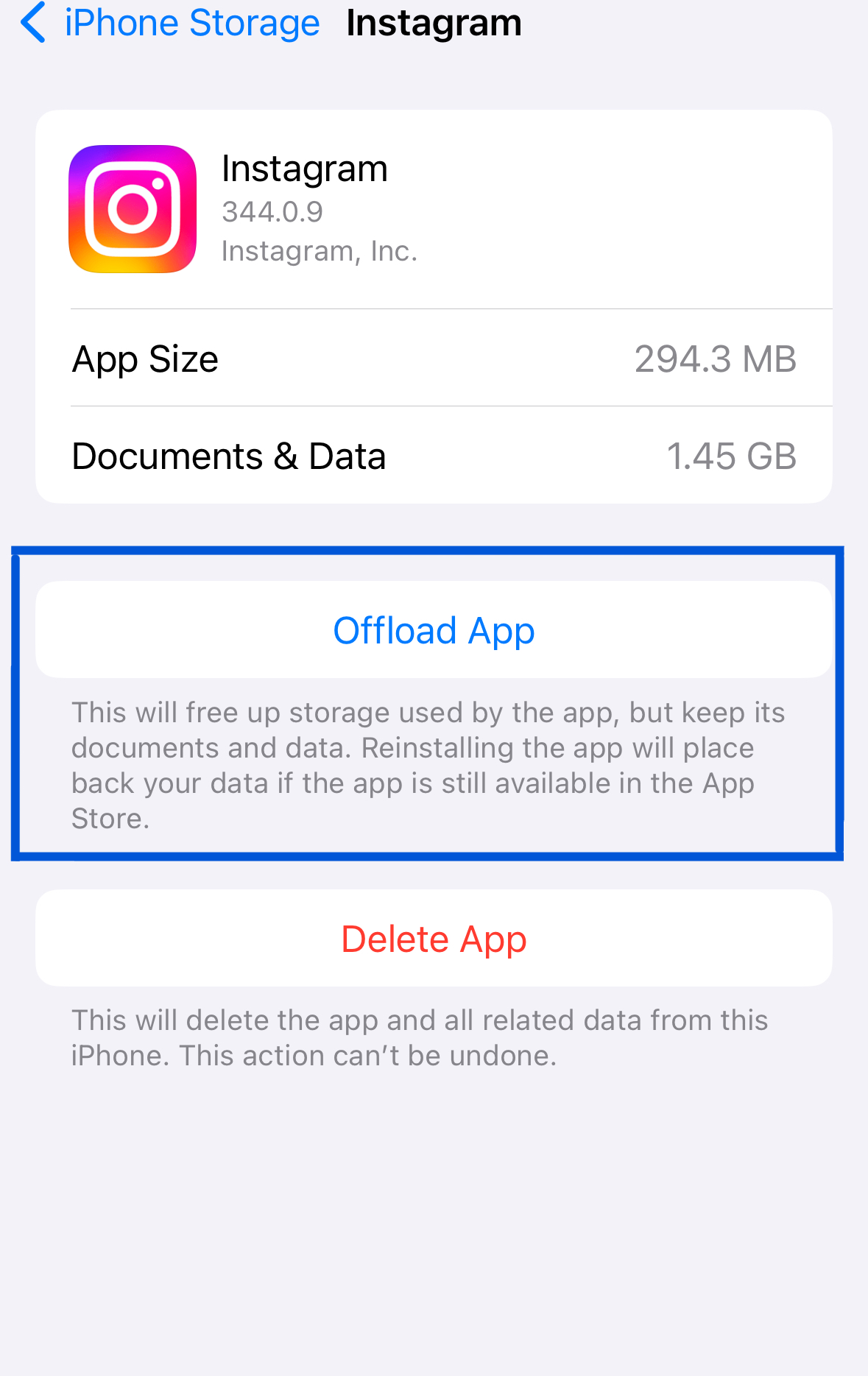
Borrar periódicamente la caché Instagram en los ajustes de tu dispositivo puede mejorar su velocidad. Este mantenimiento rutinario ayuda a que todo funcione sin problemas. Para tu dispositivo iOS, sigue estos pasos:
- Pulse Configuración
- Vaya a General > Almacenamiento del iPhone
- Localice Instagram y selecciónelo
- Toque Descargar App
- Una vez descargada, pulsa para volver a descargar la aplicación.
En los dispositivos Android, sigue estos pasos:
- Pulsa la aplicación Ajustes en tu dispositivo Android.
- Desplázate hacia abajo y selecciona Apps o Administrador de aplicaciones, según tu dispositivo.
- Busque y pulse Instagram en la lista de aplicaciones instaladas.
- En la pantalla «Información de la aplicación», pulsa en «Almacenamiento » o en «Almacenamiento y caché».
- Verás dos opciones: Borrar caché y Borrar almacenamiento o Borrar datos. Pulse en Borrar caché.
- Cuando aparezca el mensaje de confirmación, pulsa «Aceptar» para borrar la Instagram .
Mis notificaciones de Instagram están activas pero no funcionan - Actualice la aplicación Instagram
¿Tienes algún problema porque Instagram están activadas pero no funcionan? Puede que se deba a una actualización reciente de la aplicación. Para solucionarlo, asegúrate de tener Instagram la última versión de Instagram .
Consulta con frecuencia la tienda de aplicaciones para comprobar si hay actualizaciones y asegurarte de que tienes la versión más reciente de la Instagram . Al actualizar la aplicación, podrás acceder a sus últimas funciones, correcciones de errores y mejoras.
Soluciones adicionales para resolver los problemas de notificación de Instagram
A veces, el problema va más allá de una aplicación obsoleta o de una caché llena. Si las soluciones anteriores no funcionan, es posible que tengas que comprobar la configuración avanzada de tu dispositivo o de la aplicación.
Instagram ¿Notificaciones no funcionan iPhone? Comprueba la configuración de DND
Si Instagram no funcionan en tu iPhone, comprueba la configuración de «No molestar» (DND) de tu dispositivo. Si esta opción está activada por error, podría silenciar todas las notificaciones entrantes, incluidas las de Instagram.
Si desactivas la función «No molestar», te asegurarás de recibir todas las notificaciones de inmediato, incluidas las de Instagram.
Para desactivar esta opción, sigue estos pasos:
- Accede a los Ajustes de tu dispositivo.
- Selecciona "Enfocar" y luego "No molestar".
- Desactiva el modo «No molestar». Una vez desactivado, tu dispositivo volverá a recibir notificaciones.
Desactivar el modo de bajo consumo
Desactivar el modo de bajo consumo mejorará la recepción de notificaciones. Esta actualización elimina las restricciones sobre los procesos en segundo plano, lo que garantiza una recepción rápida de Instagram .
Para desactivar el modo de bajo consumo en tu dispositivo móvil iOS, sigue estos pasos:
- Ve a los ajustes de tu dispositivo.
- Introduzca "Batería" en la barra de búsqueda.
- Selecciona el modo de bajo consumo.
- Desactívalo.
La desactivación del modo de ahorro de energía en Android varía en función del teléfono. Aquí están las instrucciones generales:
- Acceda al panel desplegable arrastrándolo hacia abajo desde la parte superior de la pantalla.
- Busca el modo de ahorro de energía.
- Desactive el modo de ahorro de energía.
También puedes ir a «Ajustes», buscar«ahorro de energía» y desactivarlo. Los pasos concretos pueden variar ligeramente en función del fabricante de tu dispositivo Android.
¿Por qué no funcionan mis notificaciones de Instagram ? Comprueba las restricciones de tu aplicación de fondo
Las restricciones de las aplicaciones en segundo plano pueden retrasar la recepción de notificaciones, lo que afecta a determinados dispositivos e interrumpe las alertas. Limitar el uso de datos móviles para las aplicaciones que se ejecutan en segundo plano ahorra consumo de datos, pero también puede limitar las notificaciones. Si tu teléfono utiliza una cantidad mínima de datos en segundo plano, esto podría retrasar o impedir que te lleguen Instagram .
Ajuste la configuración de su dispositivo para permitir que Instagram se ejecute en segundo plano para mejorar las alertas en tiempo real. Esto garantiza que las alertas sigan llegando para que siempre puedas saber qué está pasando con tu cuenta.
- Vaya a Configuración y haga clic en General.
- Haga clic en Actualizar aplicación en segundo plano.
- Elige Wi-Fi o Wi-Fi y datos móviles.
Póngase en contacto con Instagram Support To Fix IG Notifications
Ponerse en contacto con Instagram es una de las medidas más eficaces que pueden tomar los usuarios cuando tienen problemas Instagram . El equipo de atención al cliente puede ayudar a resolver cualquier problema que impida que las notificaciones funcionen correctamente. Entre estos problemas se incluyen fallos técnicos, problemas específicos de la cuenta o incidencias más generales del sistema.
Antes de ponerse en contacto con Instagram , los usuarios deben consultar la sección de ayuda de la aplicación o en línea para encontrar respuestas a las preguntas más frecuentes. La sección de ayuda Instagramincluye preguntas frecuentes y consejos detallados sobre diversos temas, entre ellos la configuración de las notificaciones y cómo gestionarlas. Puedes encontrar esta información en la sección «Configuración» Instagram o en el Centro Instagram en la web.
Instagram que necesiten ayuda inmediata pueden enviar solicitudes de asistencia. Pueden acceder a los enlaces o indicaciones del centro de ayuda que les guiarán a la hora de informar de un problema o ponerse en contacto con el servicio de asistencia. Además, pueden explicar sus dudas rellenando un formulario de contacto o enviando un correo electrónico.
Las páginas oficiales Instagramen las redes sociales informan con frecuencia a los usuarios y responden a sus preguntas. Sin embargo, es posible que estos canales de redes sociales no sean tan eficaces a la hora de responder como los canales de ayuda oficiales de la aplicación o la página web.
Al llamar al servicio de atención al cliente, es fundamental facilitar datos concretos. Los usuarios deben anotar la hora en que se produjo el problema y los intentos previos de solucionarlo. Si quieres recibir ayuda rápida del equipo de asistencia, asegúrate de comunicarte de forma clara y concisa.
Instagram El tiempo de respuesta del soporte puede variar, ya que la plataforma atiende a una base masiva de usuarios. Los usuarios deben ser pacientes y hacer un seguimiento de sus solicitudes de soporte si es necesario para que se resuelvan rápidamente.
Un consejo para las notificaciones IG que no funcionan
Los usuarios deben supervisar y ajustar continuamente su configuración para recibir notificaciones. Esto incluye mantenerse al día de los cambios en la plataforma y la configuración del dispositivo.
Es importante revisar con frecuencia la configuración de las notificaciones para evitar cualquier interrupción provocada por las actualizaciones de la plataforma. Estas actualizaciones pueden, en ocasiones, causar problemas con las funciones de notificación. Al mantenerse al día de los cambios recientes y ajustar la configuración en consecuencia, los usuarios pueden garantizar la máxima eficiencia en la plataforma.
La supervisión frecuente también permite a los usuarios identificar y corregir cualquier error de configuración que pueda haberse producido con el paso del tiempo. Las actualizaciones de software, las nuevas aplicaciones y los cambios accidentales en la configuración pueden, en ocasiones, provocar que las notificaciones dejen de funcionar. Los usuarios pueden resolver estos problemas supervisando y ajustando la configuración, y así recibir notificaciones sin interrupciones de «me gusta», comentarios y otras interacciones. La supervisión continua permite a los usuarios adaptarse a Instagram a otras aplicaciones de redes sociales para adolescentes.
Preguntas frecuentes
¿Por qué se han interrumpido mis notificaciones?
Es posible que las notificaciones hayan dejado de llegar debido a una actualización de la configuración de la aplicación, a cambios en los permisos de tu dispositivo o a problemas con la propia aplicación. Comprueba la configuración de la aplicación y del teléfono para asegurarte de que las notificaciones estén activadas y, si el problema persiste, plantéate reinstalar la aplicación.
Cómo solucionar el problema de las notificaciones
Si Instagram no funcionan en tu iPhone, deberías comprobar la configuración de notificaciones del teléfono. Ve a Ajustes > pulsa en Notificaciones > desplázate hasta Instagram activa la opción «Permitir notificaciones».
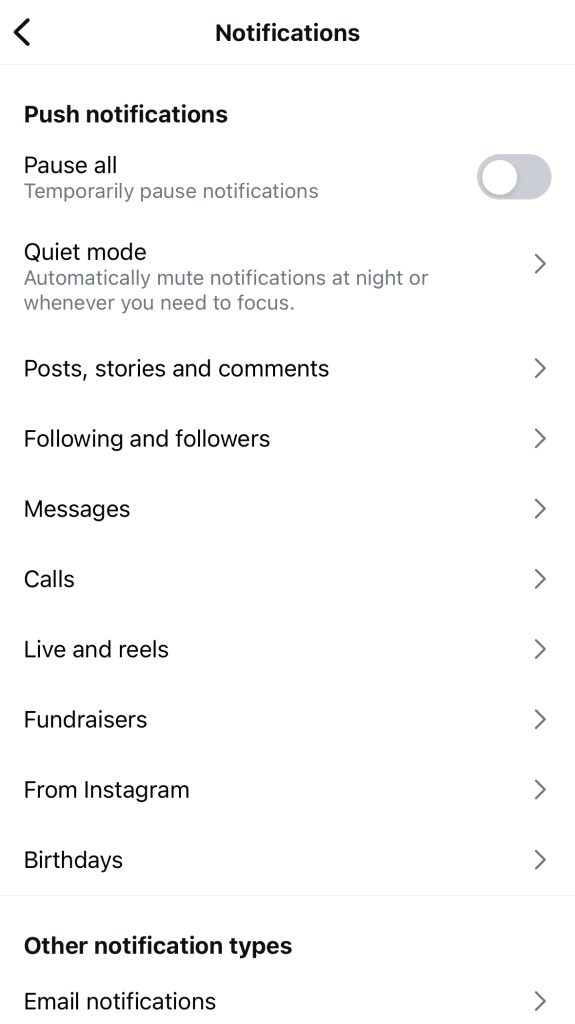
Además, comprueba la configuración de tu Instagram para asegurarte de que no has desactivado todas las notificaciones de IG. Toca el icono de tu perfil en la esquina inferior derecha y, a continuación, toca el menú de tres rayas en la esquina superior derecha. Desde ahí, ve a «Configuración y privacidad », toca «Notificaciones» y desactiva la opción «Pausar todo». Así te asegurarás de que recibas tus notificaciones.
¿Por qué no recibo notificaciones aunque están activadas en mi iPhone?
Si no recibes notificaciones en tu iPhone, aunque estén activadas, puede haber varias causas que provoquen este problema. En primer lugar, comprueba que el modo «No molestar» de tu iPhone no esté activado, ya que esto puede bloquear las notificaciones. Asegúrate de haber iniciado sesión en la cuenta correcta y de haber configurado adecuadamente los ajustes de notificaciones Instagram. Además, comprueba que tanto la aplicación como iOS estén actualizados a las últimas versiones. El software desactualizado puede provocar a veces problemas con las notificaciones. Si el problema persiste, prueba a reiniciar tu dispositivo o a reinstalar la Instagram para resolver cualquier posible fallo.
Aumente su presencia en las redes sociales con Path Social
Puede haber varias razones por las que estés teniendo problemas con las notificaciones. Con el aumento del número de usuarios de la aplicación, cada vez es más habitual que las notificaciones funcionen mal o se cuelguen. Si los pasos básicos de resolución de problemas no dan resultado, reinicia el dispositivo o vuelve a instalar la aplicación. Actualizar a la última versión del sistema operativo soluciona los errores que puedan afectar a la recepción de notificaciones.
Ahora que ya sabes por qué no funcionan las notificaciones Instagram , céntrate en Instagram tu Instagram . En Path Social, nuestra misión es ayudarte a alcanzar tus objetivos en las redes sociales. Entendemos el panorama digital, en constante evolución, y adaptamos nuestras estrategias a tus necesidades. Tanto si eres una empresa como Instagram , déjanos ayudarte a consolidar y mejorar tu presencia en línea.
Ofrecemos servicios integrales de redes sociales, que incluyen la optimización de contenidos, la captación de la audiencia y el análisis basado en datos, con el fin de maximizar tu impacto e influencia.
¿Estás preparado para avanzar y ampliar tu influencia online? Ponte en contacto con nosotros ahora y empieza a crecer y ganar seguidores en Instagram con Path Social ¡hoy mismo!





¿Listo para aumentar tus seguidores Instagram ?
Empieza hoy mismo a ganar seguidores auténticos y a aumentar la participación.
Aumentar seguidores de Instagram ahora