


Instagram Activity Status Explained: Complete Guide for 2025

An Instagram active status is a tiny green dot next to a user’s profile picture, though many people barely notice it. Yet it actually tells you a lot: who’s online now and who hasn’t been seen for a while. It helps you reply in chat, track messages, and stay aware of friends or business contacts.
In this guide, we’ll explain how activity status works. Plus, we’ll show you how to check it, set it up, or even hide it if you want some privacy.
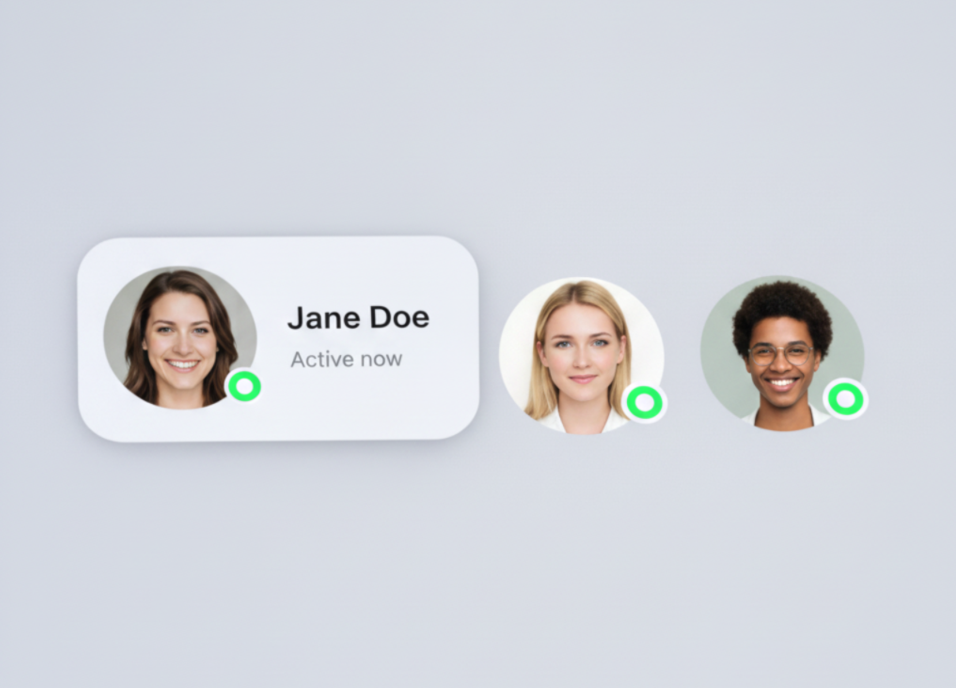
What Is Instagram Activity Status?
Instagram Activity Status indicates when a user was last active on the app. It appears as a green dot next to their profile picture or as a timestamp such as “Active now” or “Active today.”
For example:
- If your coworker checks Instagram during lunch, you might see “Active now.”
- If your friend scrolled through their feed in the morning, you’ll see “Active today.”
This makes messaging clearer by showing who’s online, who was active recently, and helps you plan your interactions better.
How Activity Status Works on Instagram
Active status on Instagram shows when someone last used the app. These indicators help you see what a person is doing on IG:
- Green dot — The person is online right now. You’ll see a dot next to their profile picture.
- Active now — They are using Instagram at the moment, like scrolling or sending messages.
If they haven’t used the app recently:
- Active today — They opened Instagram within the last 24 hours.
- Active recently / Active 5 days ago — It’s been a while, so Instagram shows an approximate last activity time.
It’s handy to know when your audience is active so you can reply or post at the right time.
How To Check Someone’s Activity Status
You can see other people’s Instagram online status with your own profile. But you won’t see everyone’s status. Instagram only shows it for people you’ve already messaged in Direct. Even if it’s a friend or a follower, if you haven’t sent them a message, their status stays hidden.
Viewing Online Status in Direct Messages
To check if someone is online on Instagram:
- Open the Instagram app.
- Go to Direct messages.
- Find the person in your chats.
- Look at their profile picture.
- A green dot means they are currently online.
- Check the text under their picture if there is no green dot. The text shows when the person was last active.
This helps you see if the person can reply right away or if you should wait. It is especially useful for clients or important contacts.
Understanding Last Active Time
If there’s no green dot next to the account picture, check the note below it. It shows when the person was last active.
For example:
- “Active 2 days ago” — The user was on Instagram two days ago.
- “Active 1 week ago” — The user’s last activity was a week ago.
If someone has hidden their active status in settings, you won’t see anything. No dot, no last active time — the status is completely hidden.
Managing Your Own Activity Status
You can also manage your own presence. You can set your Activity status on Instagram based on how you want to interact and the level of privacy you prefer.
Turning Activity Status On or Off
In your profile settings, you can turn your activity on or off. Want friends to see when you’re online? Keep it visible. Don’t want everyone asking why you didn’t reply? Use the disable option.
Controlling Who Can See Your Status
On Instagram, you can choose who sees your activity status. You can show it to friends, family, or customers, and hide it from people you don’t know.
For example, a small shop owner can keep clients in the loop but block strangers. This way, people who are important know when you’re online, and your privacy stays safe.
Activity Status Icons and What They Mean
We’ve already met the icons Instagram uses. Next, we’ll go through each one step by step.
A green dot or the Active now label means the same thing. The dot shows up by the profile picture, while the label appears next to the avatar. Both tell you that the user is currently in the app.
The Active X min/h ago label shows when the user was last online. For example, if a friend sent you a message in the morning and you go to reply, it might say “Active 8h ago”. That means a quick response is unlikely. It’s best to wait until they are active again.
It’s also worth noting the Seen icon. This appears under your message in Direct when the text has been read.
Activity Status and Direct Messaging
Activity status helps you decide when and how to reply to direct messages. This is useful for talking with all kinds of people. Here are a few examples:
- For business: You sent a supplier a request about a product, and see they were active a few minutes ago. That’s a sign they will reply soon, so it’s worth waiting a bit.
- For brands: You run an Instagram shop and notice several potential clients were active today. You can start a quick promo or reply to comments while people are still online.
- For friends: You sent a party photo and see that your friend was active recently. You can expect a reaction or a meme back without guessing if they saw it.
How To Hide or Disable Activity Status
Let’s get back to security and privacy and see how to hide your active status on IG for iPhone and Android.
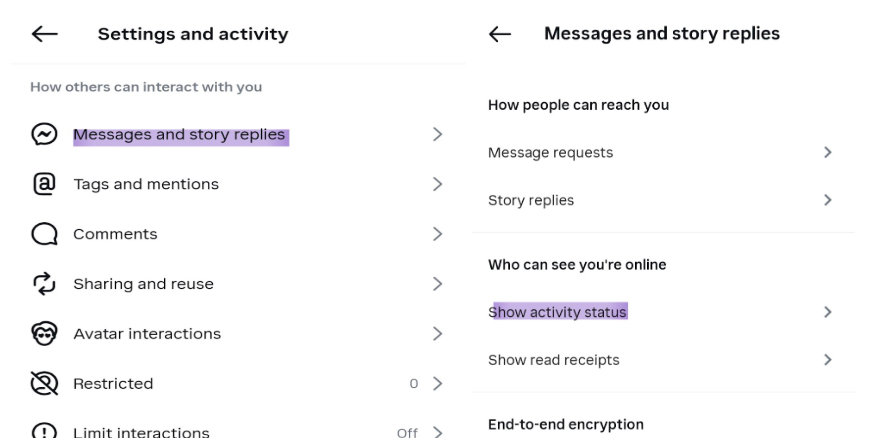
Step‑by‑Step Guide for iPhone
Keep in mind that the names in settings may look a little different depending on your phone and the latest app update. Follow these steps:
- Open Instagram and go to your profile.
- Tap the menu with three lines in the top right corner.
- Choose Settings and Activity.
- Scroll down to Messages and Story Replies → Activity Status.
- Turn off the switch Show Activity Status.
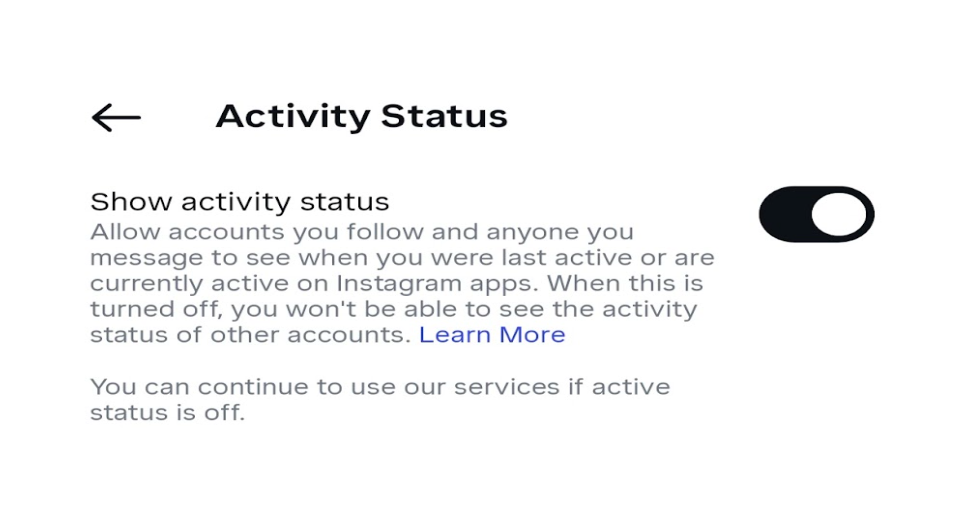
Step‑by‑Step Guide for Android
Before starting, update Instagram to the latest version to make sure the latest settings are available, then follow these steps:
- Open the Instagram app and go to your profile.
- Tap the menu (three lines at the top).
- Go to Settings and Activity.
- Scroll down a bit to Messages and Story Replies.
- Tap Who can see you are online under Show Activity Status.
- Switch the button off to hide your activity.
It only takes a few taps, and you get more control over your account and your time.
Common Problems With Activity Status
Can Instagram activity be wrong? The answer is yes, it happens. Even a simple feature sometimes glitches, but most problems are easy to fix.
Why Can’t I See Someone’s Activity?
Most often, the reason is simple — the person turned off the option to show activity status Instagram in their settings.
Other possible reasons:
- The user has a private account and chose not to show activity.
- You’re not among the people they chat with in Direct.
- The issue may be because of internet connectivity problems or Instagram server glitches.
So if you don’t see the green dot, it’s not always a problem with your phone or system. Maybe the person doesn’t want others to track them.
Fixing Issues With Your Own Status
If your status doesn’t show, do the following:
- Check if you turned the Show Activity Status option on in settings.
- Make sure you have updated your app to the latest version.
- Restart the app or your phone.
- If nothing helps, turn the feature off and on again.
These simple steps usually fix the issue. If not, you may just need to wait. It could be a global bug in the app.
Final Thoughts on Using Instagram Activity Status
The Instagram activity status is a small detail that makes chatting in Direct clearer and more convenient. You decide whether you want to show activity status Instagram to other users or prefer to hide it. Either way, knowing how the icons and settings work helps you avoid confusion and keep your online life under control.
What about you? Do you keep the status on, or do you prefer privacy?



Looking for Real, Organic Instagram Followers?
Let our AI-targeted organic growth work for you.
Get Instagram Followers Now